Add a driver
Add a driver, check their app permissions and follow through on their invitation and supporting documents.
Open My team → Drivers only and choose Add new team member. Enter contact details, keep the email invitation selected and tick Is a driver. For driver-app access, leave Full access off, choose the Driver preset and check Driver app is Manage with office areas None. Save, read the invitation result and find the driver. Follow up Invite pending; use Remove only if they are no longer joining.
Before you start
You need Manage access to Team & permissions to add people. Use an Operator Admin account to choose their access as well.
- Check whether the person is already in My team or My drivers, including Show archived.
- Have their name and correct contact details ready. An email address is needed if they will sign in; check it with the driver.
- Use an Operator Admin account to set driver-app access. Decide whether this is a driver-only account or whether their role also needs office access.
- Gather the relevant licence, CPC, digital tachograph and other supporting records you have, including expiry dates. You can record the person before these optional fields are complete, then add supporting files in Manage documents.
Open the driver list
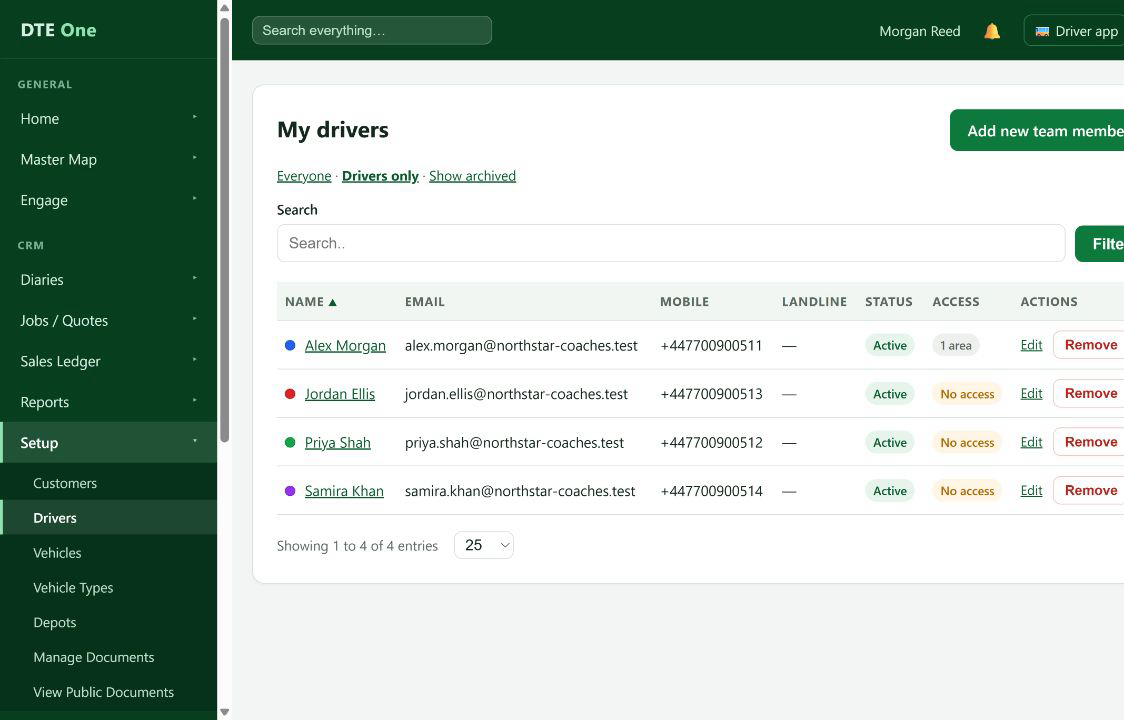
Open My team → Drivers only. Choose Add new team member. Drivers and office staff are managed through the same team form.
 Open full size
The Add new team member form opens.
Enter and check their contact details
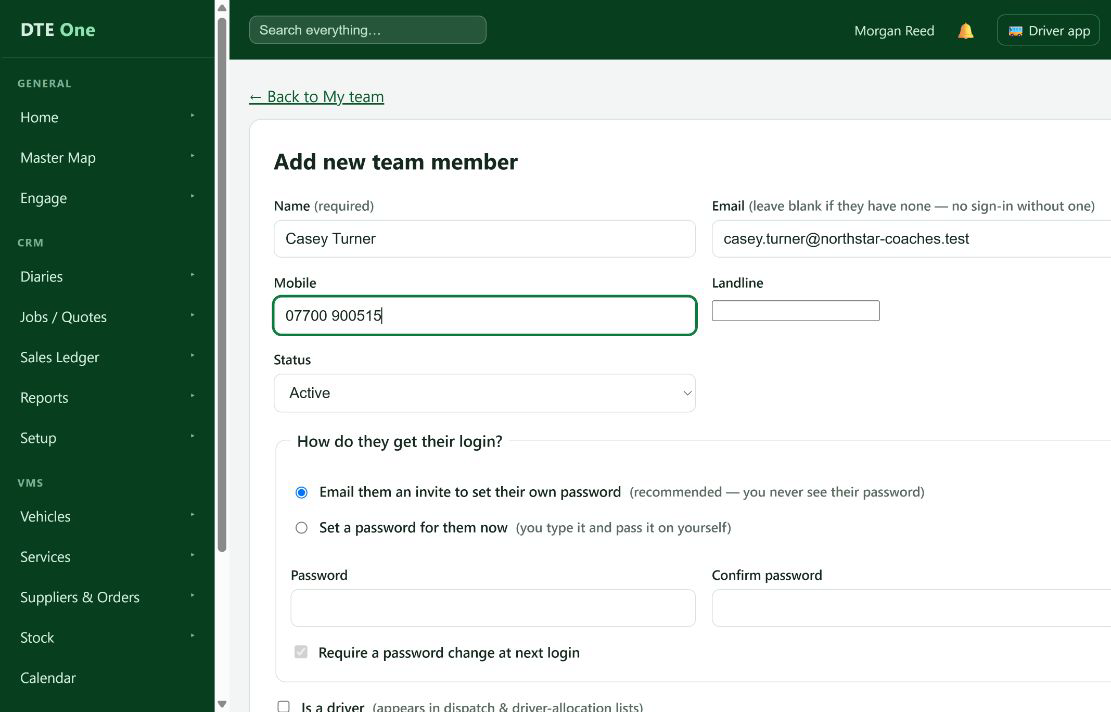
Enter Name, then Email, checking each before moving on. Name is required; Email is needed for sign-in. Enter Mobile and Landline if available. Mobile accepts up to 20 characters, including spaces: for example, 07700 900123 or +44 7700 900123. DTE does not check the number's format or convert it, so compare it with the number the driver supplied. Keep Email them an invite to set their own password selected so the driver chooses their own password.
 Open full size
The name and contact details are correct and the invitation option is selected. With no email entered, DTE explains that the person cannot sign in.
Select Is a driver
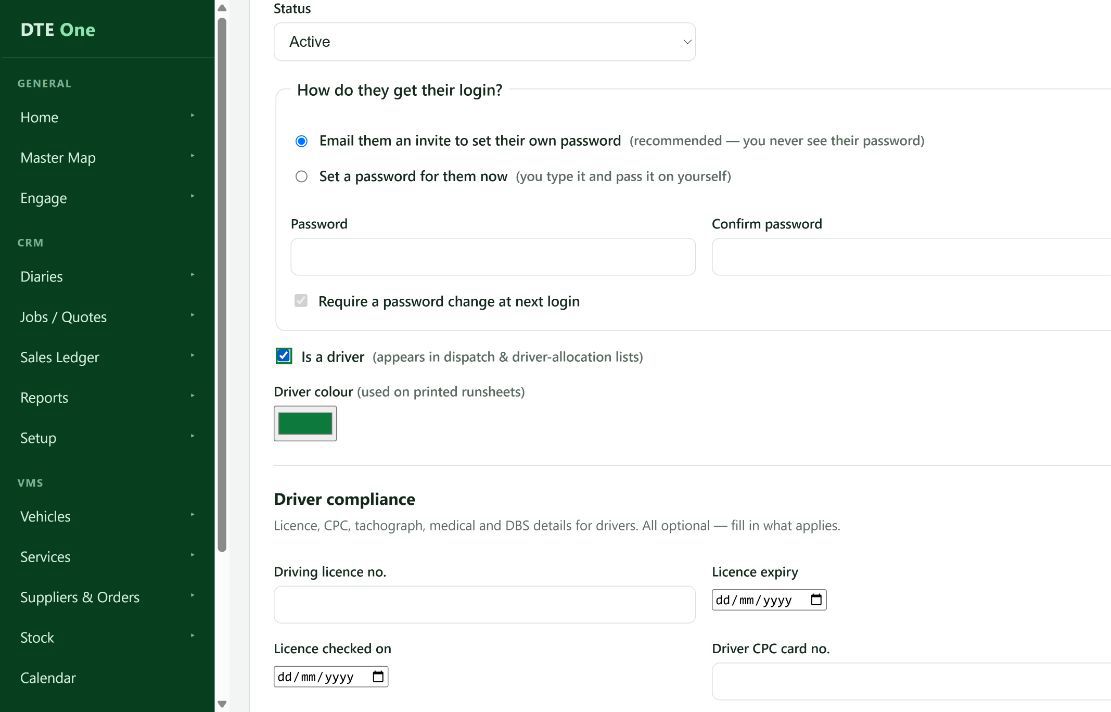
Tick Is a driver so the person appears in dispatch and driver-allocation lists. Choose a Driver colour if you want their duties highlighted in that colour on printed run sheets.
 Open full size
Is a driver is selected.
Record the relevant driver details
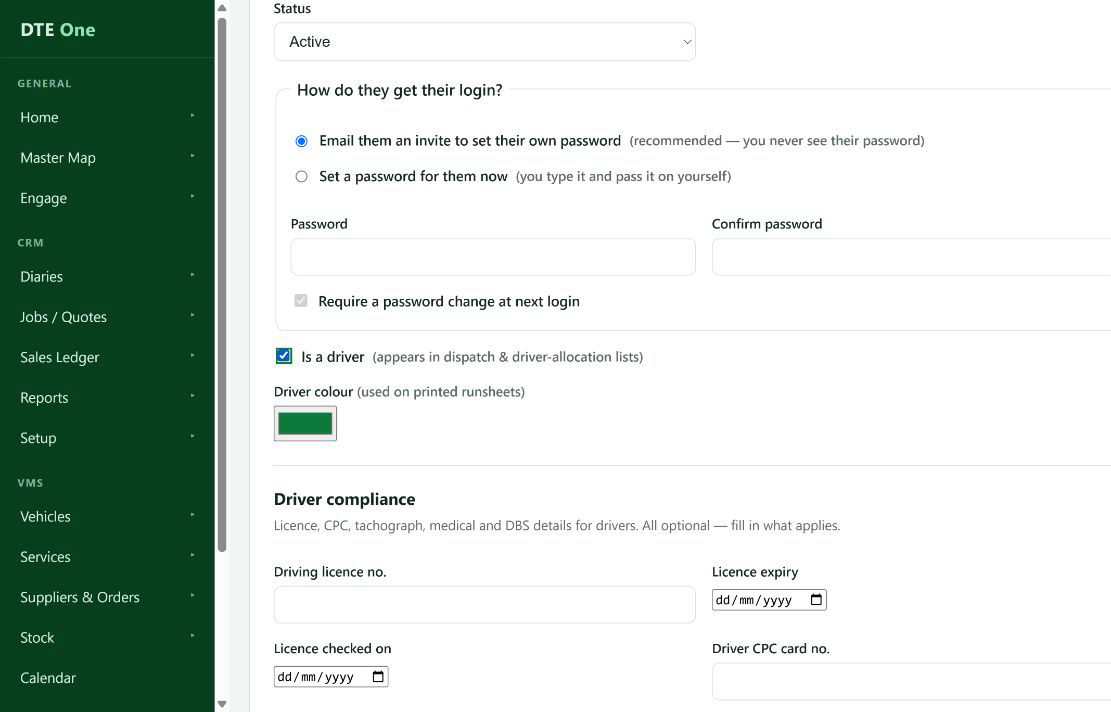
In Driver compliance, record and check the details that apply, including licence, CPC and digital tachograph information and expiry dates. These form fields are optional, but keeping useful records complete is good practice. This form records details; it does not upload document copies. After saving, use Manage documents → Add new document, choose the driver under Concerning, add an Expiring date and Remind me days before expiry where relevant, and leave Public unchecked for their personal records. Add Home depot or Hourly pay rate only where useful to your operation.
 Open full size
The relevant compliance details are recorded. Have the supporting copies ready to add through Manage documents after saving the driver.
Check driver-only access before saving
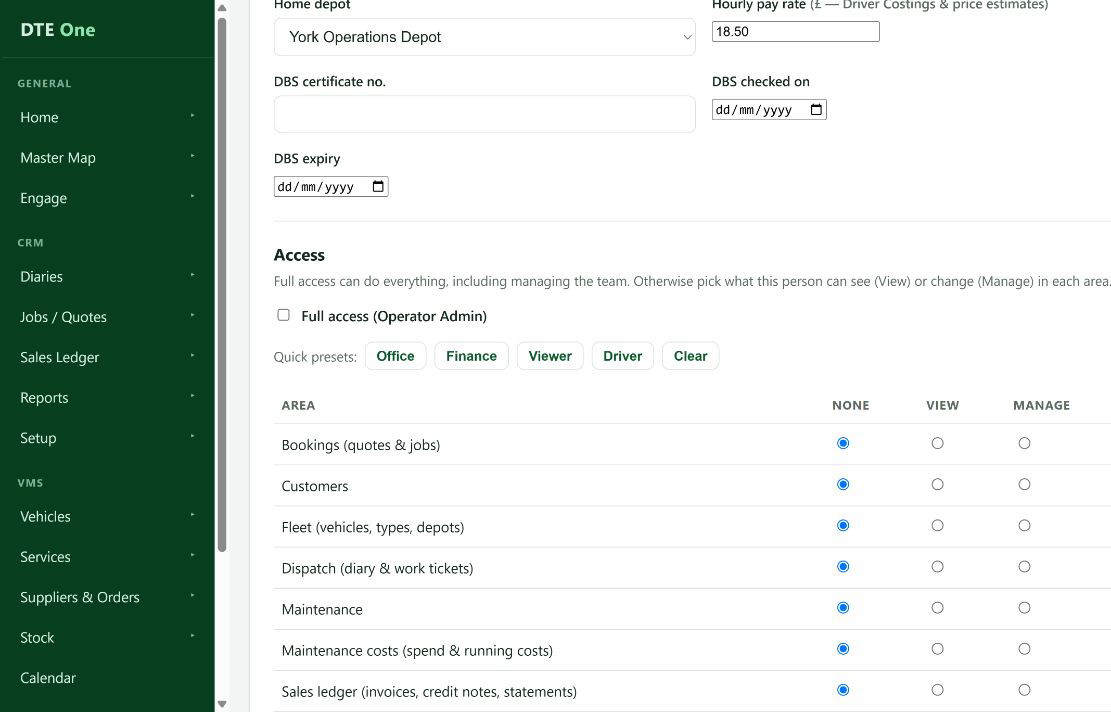
As an Operator Admin, review Access. For a driver-only account, keep Full access (Operator Admin) off. Choose the Driver preset, then check Driver app (jobs, walkaround, own documents) is Manage and all office areas are None. Full access grants operator administration, so do not select it just to enable the driver app. Is a driver is a separate setting: leaving it unticked does not grant administrator access. If their role also needs office access, review that separately with your administrator.
 Open full size
For driver-only access: Full access is off, Driver app is Manage, office areas are None and Is a driver is selected.
Save, check the invitation and follow through
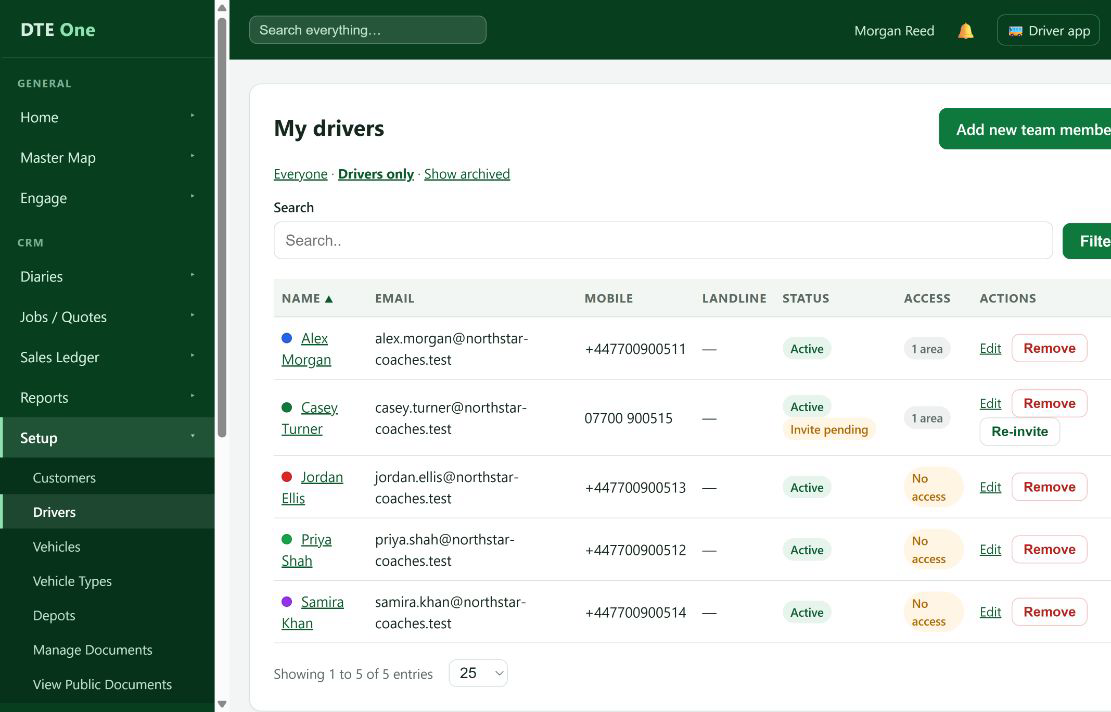
Review the form and choose Add new team member. Read the confirmation to see whether the invitation was sent or needs attention. Saving returns to the team list; choose Drivers only to find the new driver. Ask them to use the invitation to set their password and confirm they can sign in. Invite pending does not prove delivery or acceptance. If they still plan to join, check their email address and use Re-invite when available. If they are no longer joining, use Remove to archive the team member and cancel unused sign-in links.
 Open full size
The driver appears in My drivers with the intended access. Their invitation has been followed up, and supporting documents can be added through Manage documents.
Check it worked
- The person appears in My drivers with the correct name, contact details and Is a driver selected.
- For a driver-only account, Full access is off, Driver app is Manage and office areas are None.
- You have read the invitation result and confirmed with the driver that they can sign in. Active on the team row alone does not confirm invitation acceptance.
- Relevant supporting records are linked to the driver in Manage documents, kept private and given expiry dates and reminders where appropriate.
- Outstanding invitations have a next action: help a driver who is still joining, or Remove someone who no longer needs to join.
Something not quite right?
Can I add a driver who has no email address?
Yes. Leave Email blank. DTE records the team member without a sign-in. When you later add their first email address on Edit and save, DTE sends an invitation automatically; check the confirmation for the delivery outcome.
Why does the form say Add team member?
Drivers and office staff use the same team records. Select Is a driver on that form to identify someone who can be used in driver allocation.
Why can't I see Add new team member or Access?
Adding people requires Manage access to Team & permissions. The Access section is for an Operator Admin. Ask an administrator to complete the change if you do not have that access.
Why is the email address already in use?
Each person has one account across DTE One. Check for their existing team record first. If they already work with another operator, ask DTE support rather than creating a second account with a different address.
Why is my driver missing from an allocation list?
Open their team record and check Is a driver and their status. Check Show archived on the team list if you cannot find them. Also check the relevant allocation date and availability rules on the dispatch screen.
What mobile number format should I use: +44 or local, with spaces?
The Mobile field does not enforce a phone-number format. It accepts an optional value up to 20 characters, including spaces, and stores it without converting it. For a UK mobile, examples are 07700 900123 or +44 7700 900123. Check the number yourself; saving it does not prove it is correct.
The invitation has not arrived or the link has expired. What should I do?
Read the confirmation first: adding a team member does not guarantee the email was sent. Check the email address and the driver's junk folder. For an eligible Invite pending account, use Re-invite to send a fresh link, including when the previous one expired. Follow Find or resend a missing invitation for the detailed checks.
What if the driver never accepts the invitation?
Confirm whether they still intend to join. Help them with the correct address and a fresh invitation if they do. If they are no longer joining, choose Remove on their My team row. This archives the member and cancels unused sign-in links; there is no separate Revoke invitation button. Do not remove a person simply because delivery is delayed.
Where do I upload their licence, CPC and other document copies?
After saving the driver, open Manage documents → Add new document. Give the file a clear Name, choose the driver under Concerning, and add an Expiring date and Remind me days before expiry if relevant. Leave Public unchecked for personal records. Choose a PDF, JPG, JPEG, PNG or GIF up to 10 MB and select Upload document. Record the matching compliance details separately on the driver's record; uploading a file does not fill those fields automatically.
Does forgetting Is a driver give someone administrator access?
No. Is a driver controls whether the person is available for driver allocation. Access is separate. For a driver-only account, check Full access is off, choose the Driver preset and verify Driver app is Manage with office areas None before saving.