Allocate a driver
Assign a driver to the coach slot for the correct journey leg.
Open the confirmed booking, find the relevant journey leg and select the driver in the Driver list beside its vehicle. Select Assign or Update. Driver allocation is per vehicle slot and per journey leg, so make sure the driver is attached to the correct coach and repeat for every leg. A changed driver starts as Assigned and must be notified again.
Before you start
You need Bookings access with permission to manage bookings. Dispatch access may be required when allocating from the Dispatch board.
- The booking is Confirmed or Completed.
- The coach slot exists on the relevant journey leg.
- The driver is active and has a driver record.
Open the correct journey leg
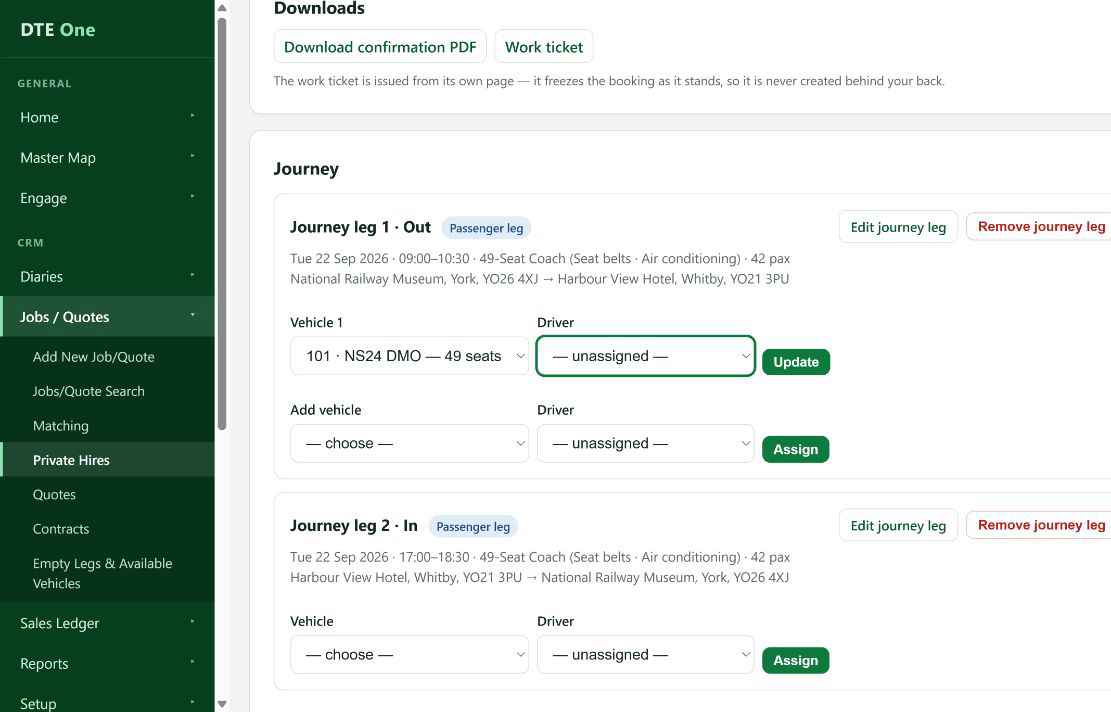
Open the confirmed booking and find the journey leg and vehicle slot the driver will operate.
 Open full size
You can see the Vehicle and Driver controls together for that slot.
Select the driver
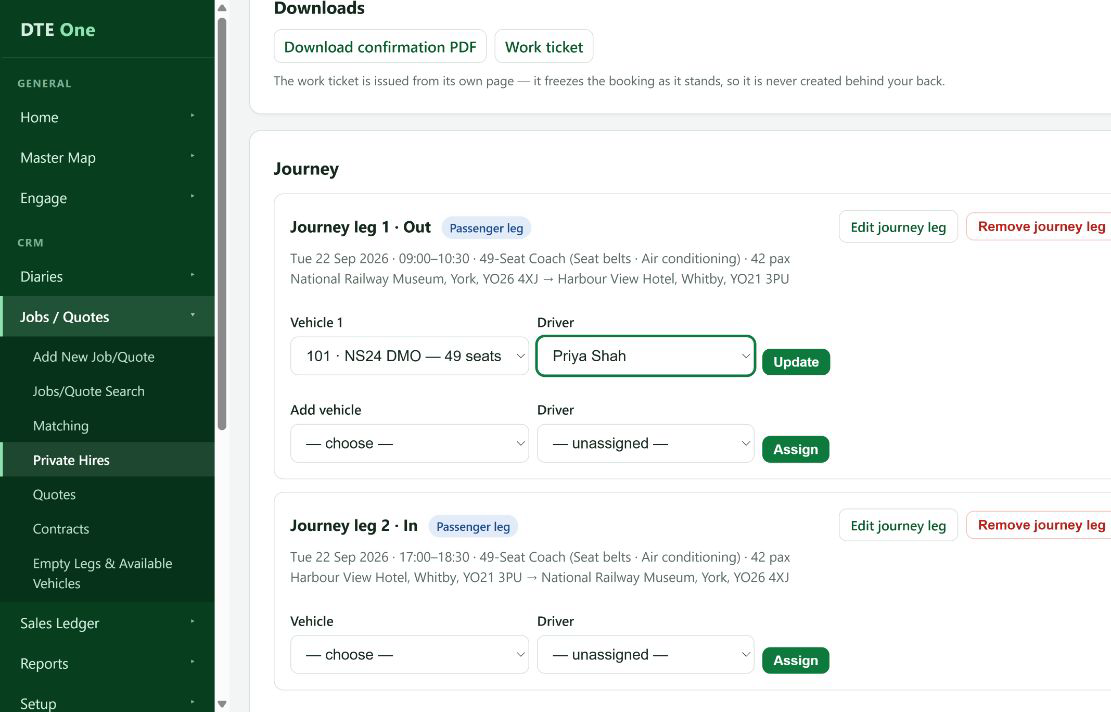
Choose the driver from the Driver list beside the assigned coach. If no coach is allocated yet, assign the coach first unless you are using the Dispatch board's driver-first planning tools.
 Open full size
The selected driver is shown in the Driver list.
Save the assignment
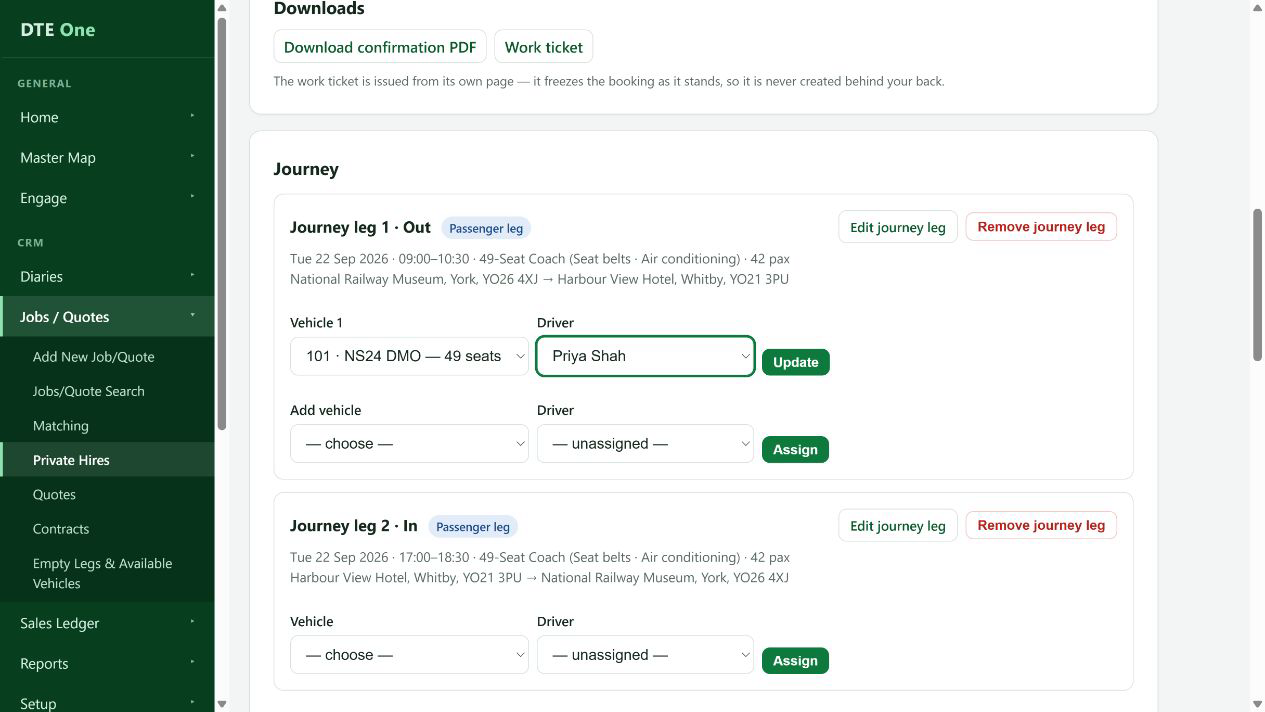
Select Update for an existing coach slot, or Assign when adding a new coach and driver together.
 Open full size
The driver's name appears against that journey leg and coach.
Review the result
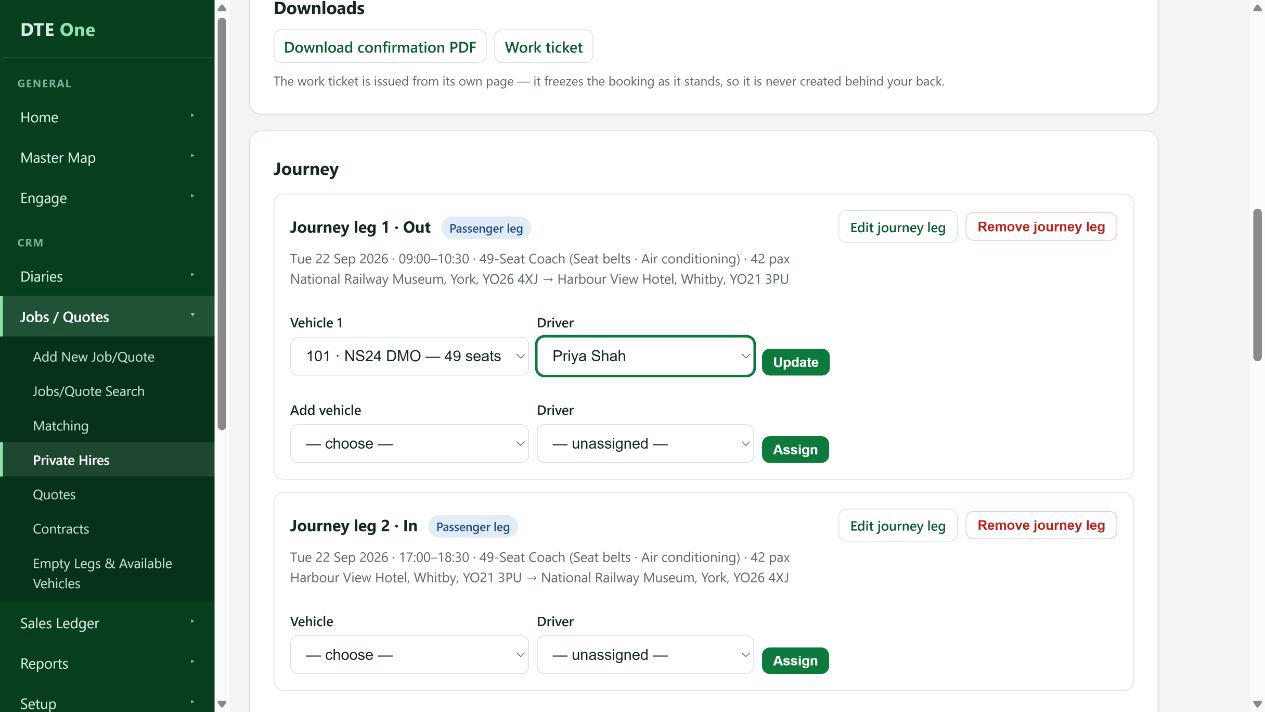
Read any warning about capacity or approved time off. It is still your responsibility to check that the driver can cover the work.
 Open full size
The saved allocation and any warning are visible.
Prepare to notify the driver
After changing a driver, issue or re-issue the work ticket as appropriate before sending it. A replacement driver starts with a new Assigned status rather than inheriting the previous driver's response.
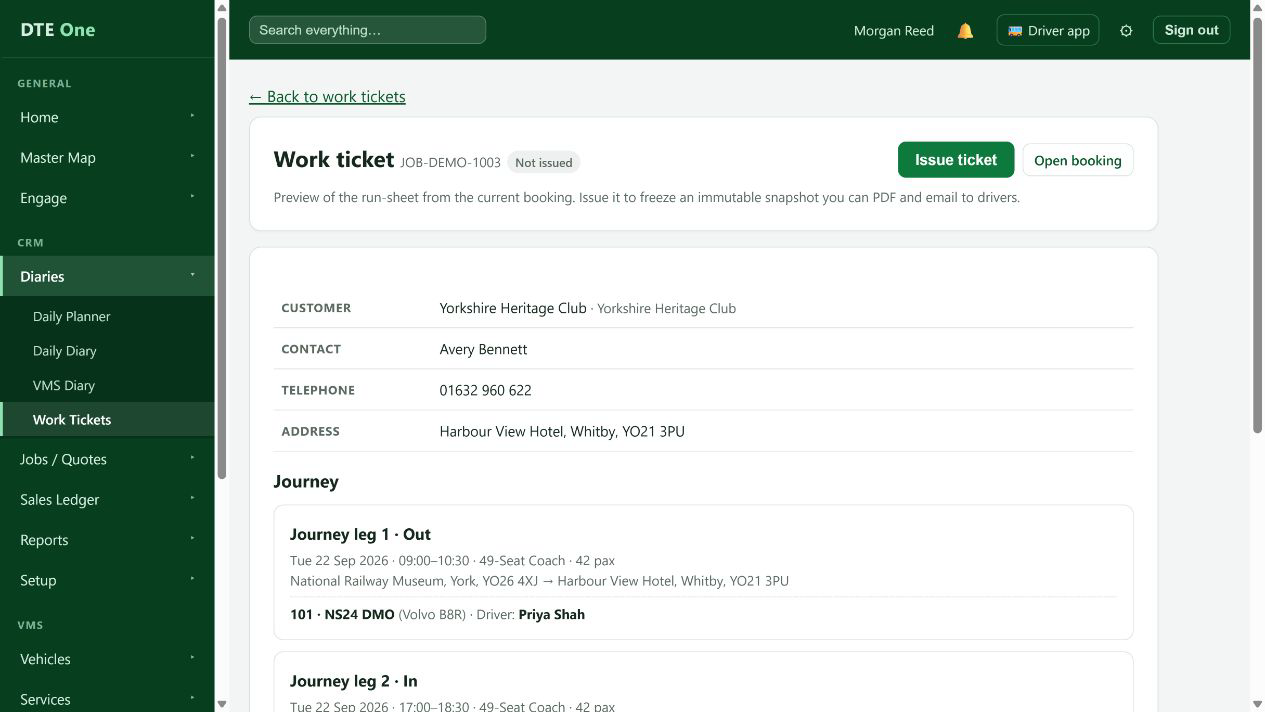 Open full size
The booking is ready for the work-ticket process.
Check it worked
- The correct driver is listed against the correct coach and journey leg.
- The driver's status is ready to be notified through the work-ticket process.
Something not quite right?
Why isn't the driver in the list?
Only active, non-office driver records can be newly assigned. Ask an administrator to check the driver's status and driver setup.
Why can't I put this driver on another coach in the same leg?
A driver cannot be assigned twice on one journey leg. Choose the correct coach slot or change the existing assignment.
What happens when I replace a driver?
The new driver's status is reset to Assigned. Previous notified, accepted or declined responses do not transfer to them.
Why was there a holiday warning?
DTE warns when the selected driver has approved time off on that service date. The assignment may still save, so check cover arrangements.