Send a work ticket
Issue the current run-sheet and email it to the assigned drivers.
Open the confirmed booking's Work ticket page. Select Issue ticket to freeze the current booking details, then choose Send to drivers. Leave Send to blank to email each assigned driver at their own address, or enter one override address. You can add CC, choose a day or whole-week attachment and add a covering message. Sending marks eligible driver allocations Notified.
Before you start
You need Dispatch access and permission to manage dispatch work tickets.
- The booking is Confirmed or Completed.
- At least one driver is allocated and has an email address to send to.
- Check that the booking details, vehicle and driver allocations are final before issuing.
Open the work ticket
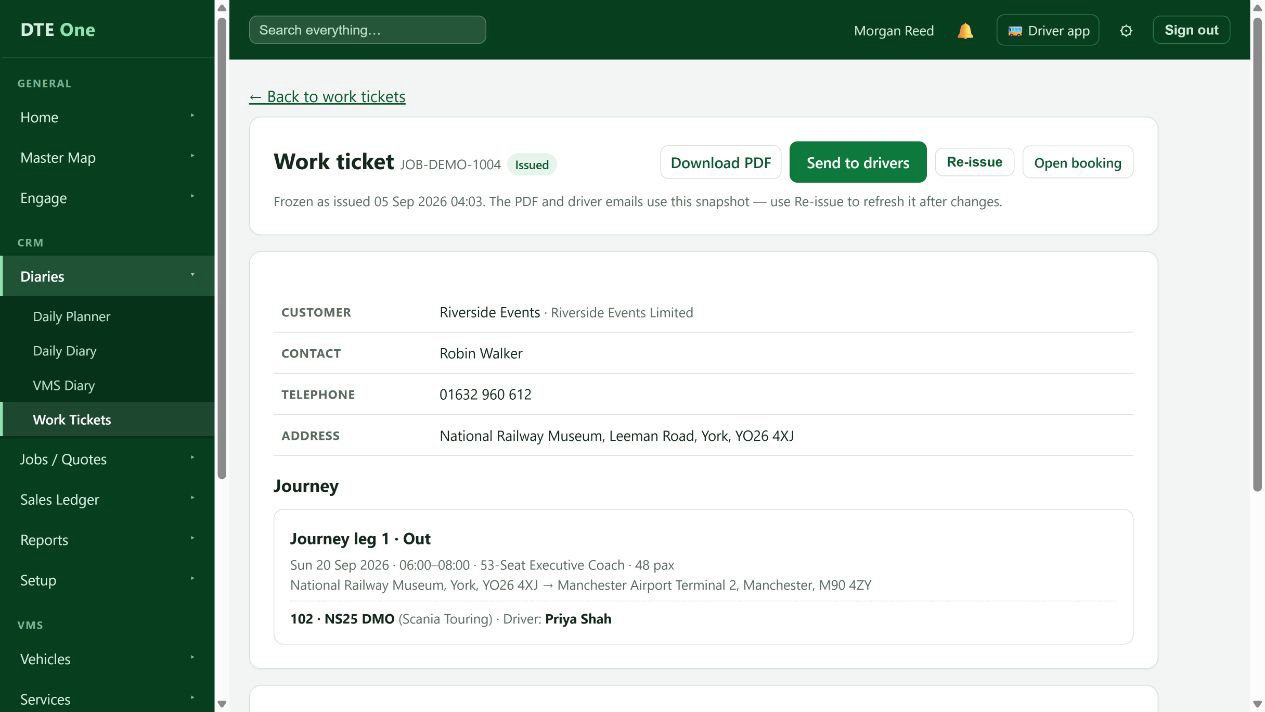
Open Work tickets and select the booking, or open the booking and select Work ticket.
 Open full size
The Work ticket page shows either Not issued or Issued.
Review the current details
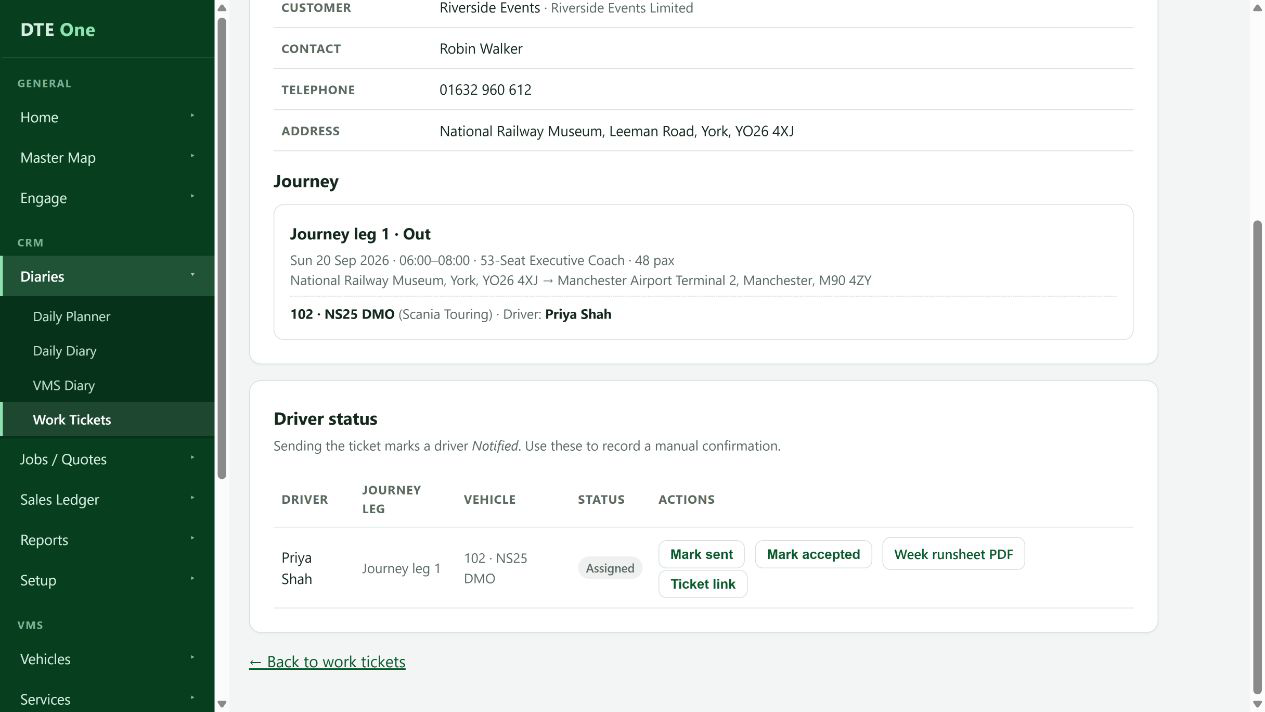
Before issue, review the live preview, including journey, vehicle, driver and driver notes. Issuing freezes these details into the ticket snapshot.
 Open full size
The preview reflects the information you intend to send.
Issue the ticket
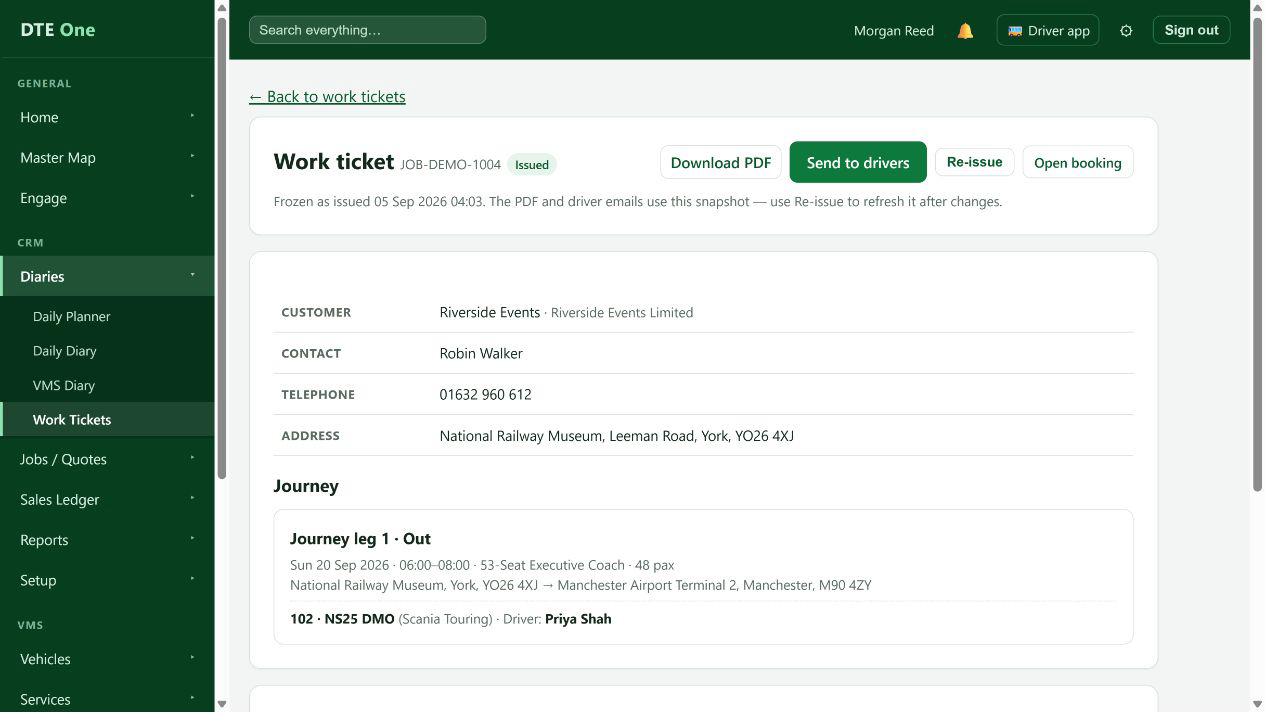
Select Issue ticket. DTE can issue tickets only for confirmed or completed bookings and will show any readiness problem.
 Open full size
The ticket changes to Issued and a PDF download is available.
Choose the email options
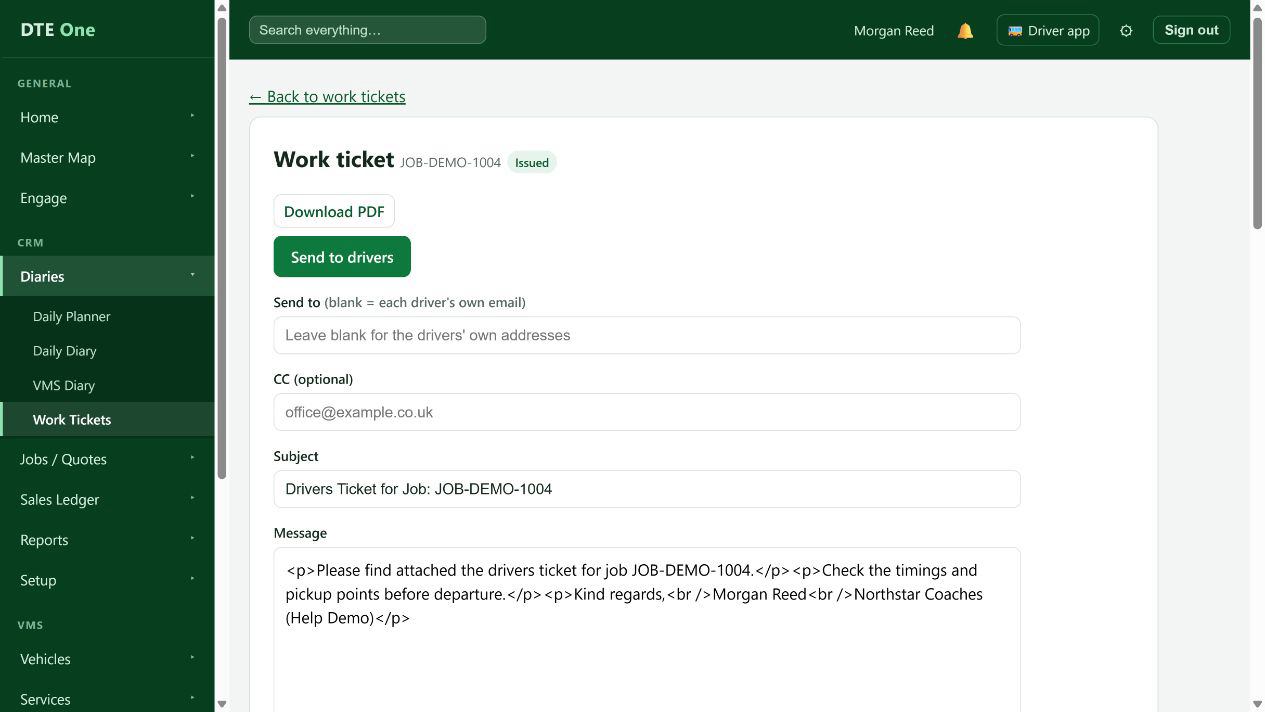
Open Send to drivers. Leave Send to blank to use each driver's own email, or enter one email address to send every ticket there. Add a CC or covering message if needed, and choose This ticket or Whole week for the attachment.
 Open full size
The send form contains the chosen email options.
Send and check status
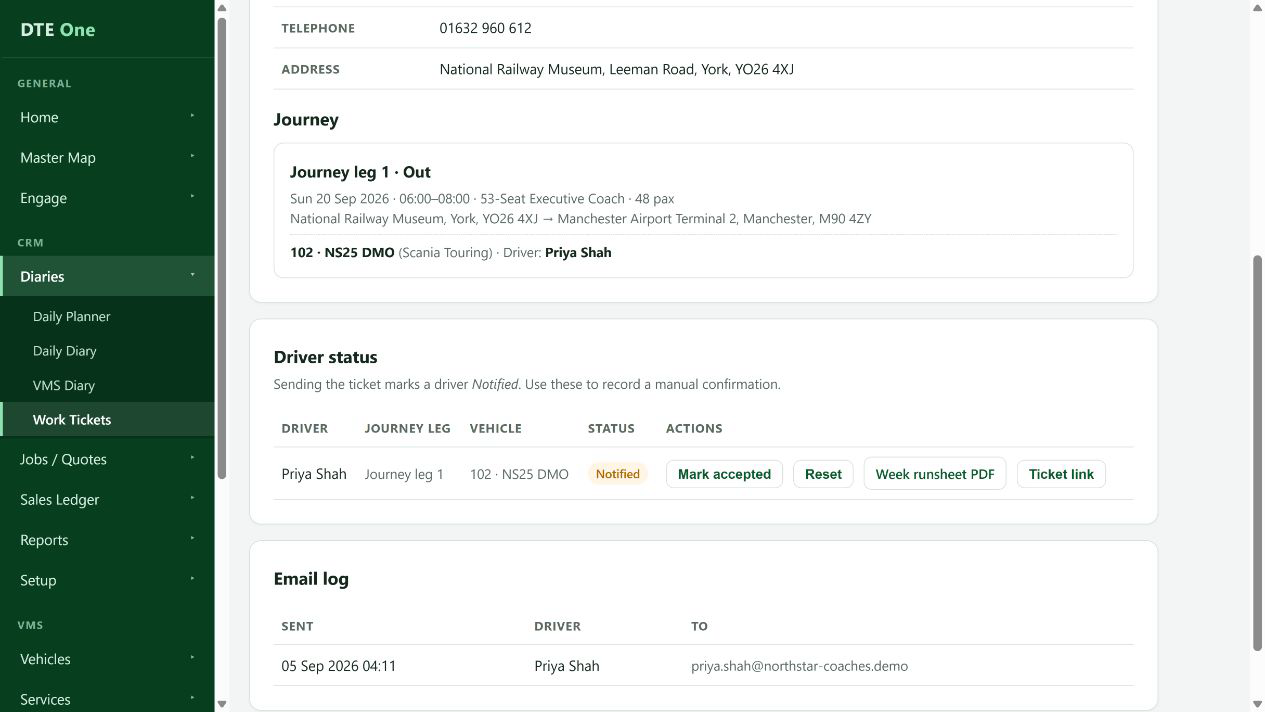
Select Send to drivers. Check the Driver status and Email log afterwards. A successful send marks an assigned driver Notified; you can record Accepted or Declined when you receive their response.
 Open full size
The email log records the send and driver statuses are visible.
Check it worked
- The ticket status is Issued.
- The Email log records the sent ticket and the notified driver status is visible.
Something not quite right?
Why can't I issue the ticket?
Only confirmed or completed bookings can have a work ticket. Complete the booking readiness details and confirm it first.
Why can't DTE send it?
Issue the ticket first and check that at least one assigned driver has an email address. A bounced or suppressed email address cannot be used.
What does Send to do?
Leave it blank to send each driver their own ticket at their own email. Entering an address sends the tickets to that one address instead.
Why should I re-issue after a change?
The issued ticket is a frozen snapshot. Re-issue it after a relevant booking or allocation change so the PDF and email use the current details.
Why is sending blocked for a coach?
A vehicle with an off-road state can block sending or re-issuing. Resolve it, or follow your maintenance override process where DTE offers one.