Change an allocation
Replace, unassign or correct the vehicle and driver on a journey-leg coach slot.
Open the confirmed booking and locate the affected journey leg. Use the existing Vehicle and Driver lists, then select Update. You can replace the coach or driver, unassign the driver, or set an existing vehicle slot to coach TBC. If a work ticket was already issued, re-issue it after the change so the driver receives the current snapshot.
Before you start
You need Bookings access with permission to manage bookings. Dispatch access may be required when changing an allocation from the Dispatch board.
- The booking is Confirmed or Completed.
- Know the journey leg and existing coach slot you need to change.
- Have the replacement vehicle or driver ready where applicable.
Find the existing allocation
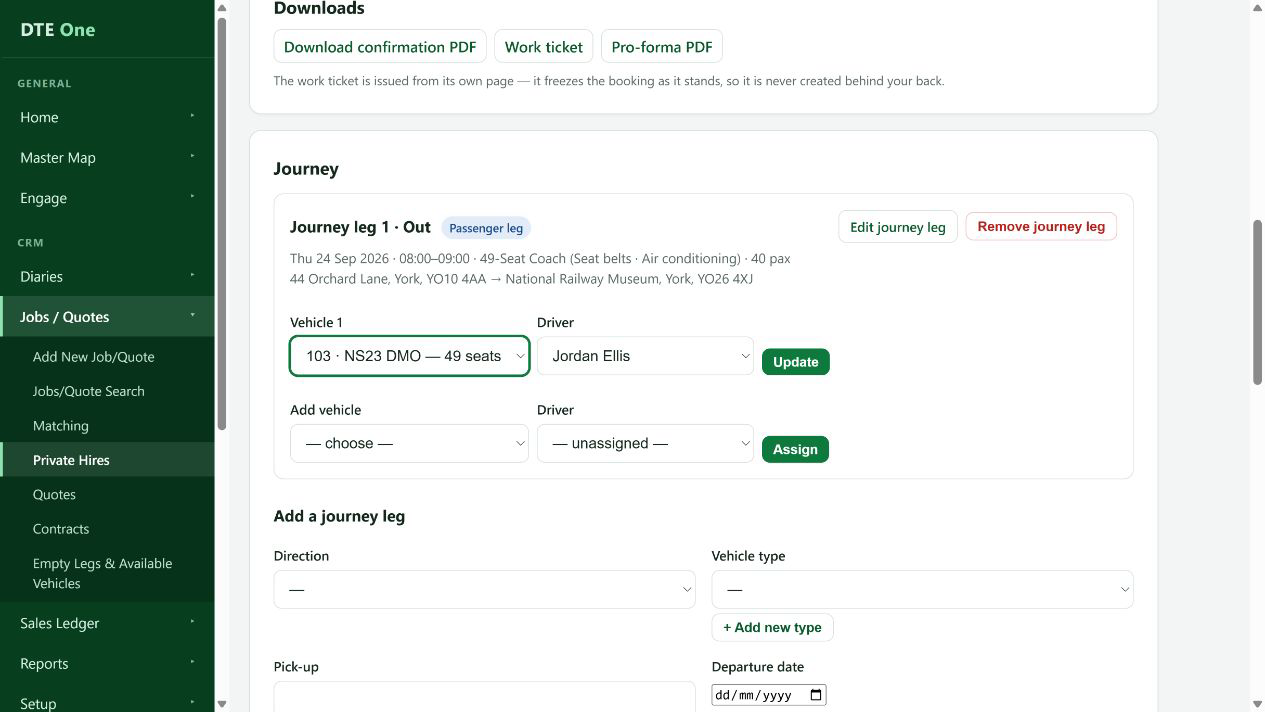
Open the confirmed booking and find the journey leg and vehicle slot that need changing. Check the leg before editing so you do not change the outward allocation when you mean the return.
 Open full size
The current coach and driver are visible on the correct leg.
Change the coach if needed
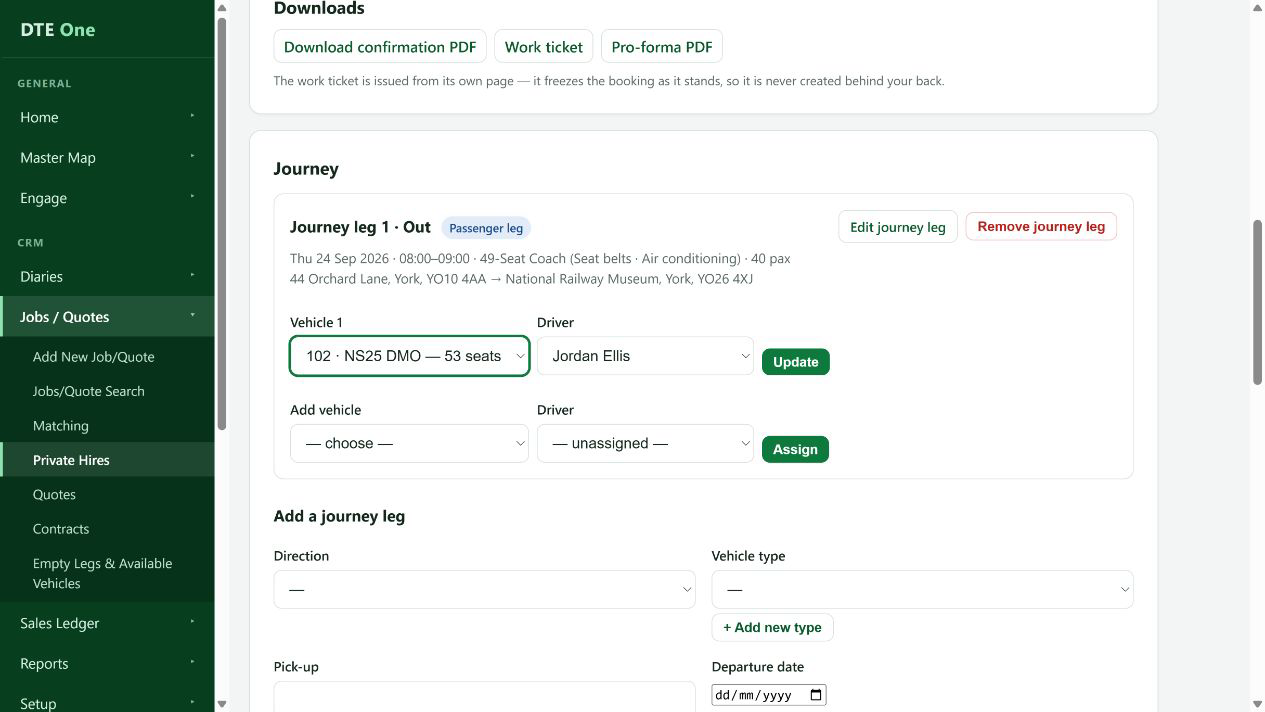
Choose a replacement in Vehicle and select Update. To leave the existing slot in place while a replacement is being arranged, choose — coach TBC — on that existing slot.
 Open full size
The selected replacement or coach TBC state is shown on the slot.
Change or remove the driver
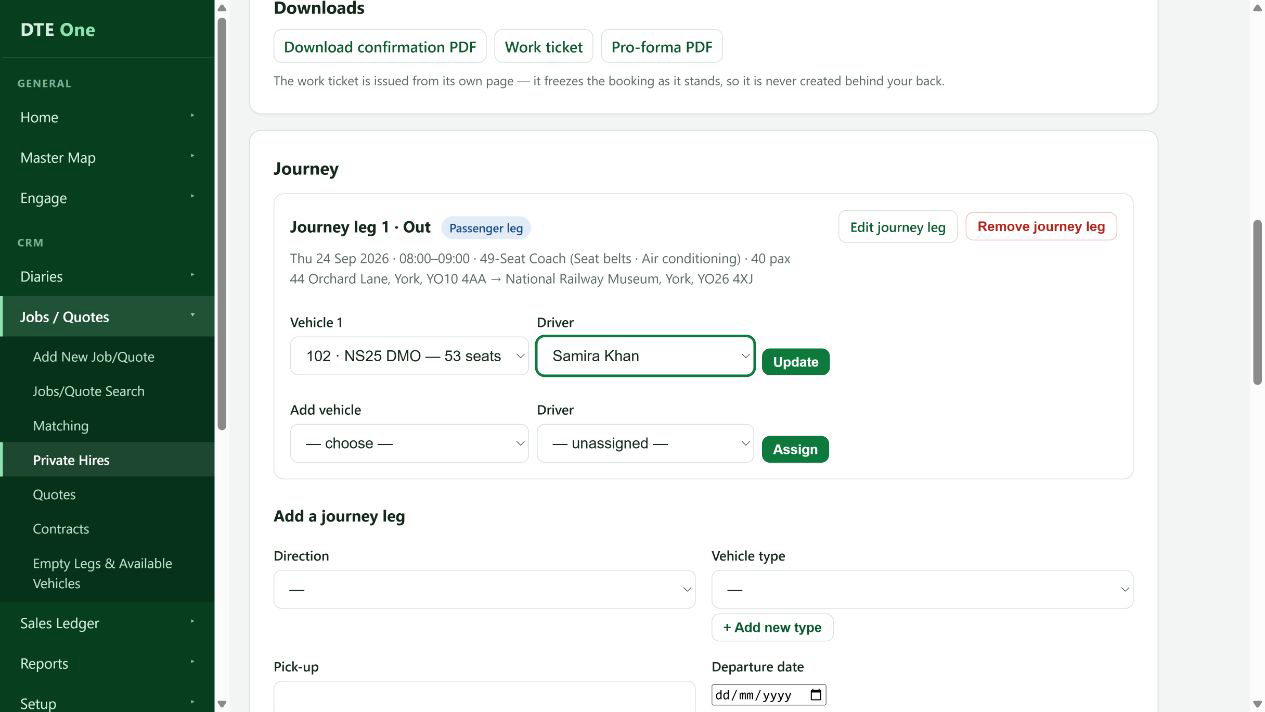
Choose the replacement in Driver and select Update. Choose — unassigned — to remove the driver from that slot.
 Open full size
The slot shows the new driver or no driver.
Refresh the work ticket
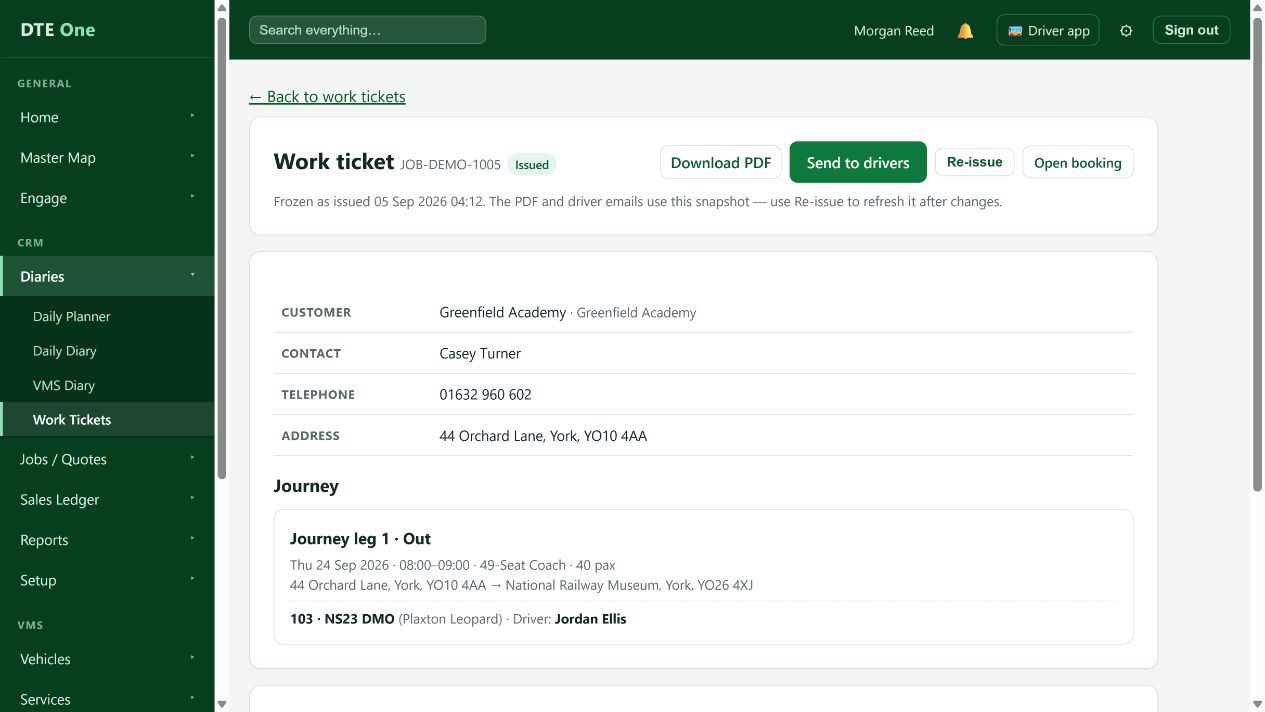
If the ticket was already issued, open Work ticket and select Re-issue after checking the new allocation. The issued ticket is frozen, so it does not update by itself.
 Open full size
The re-issued ticket reflects the current booking and allocation.
Check driver notification status
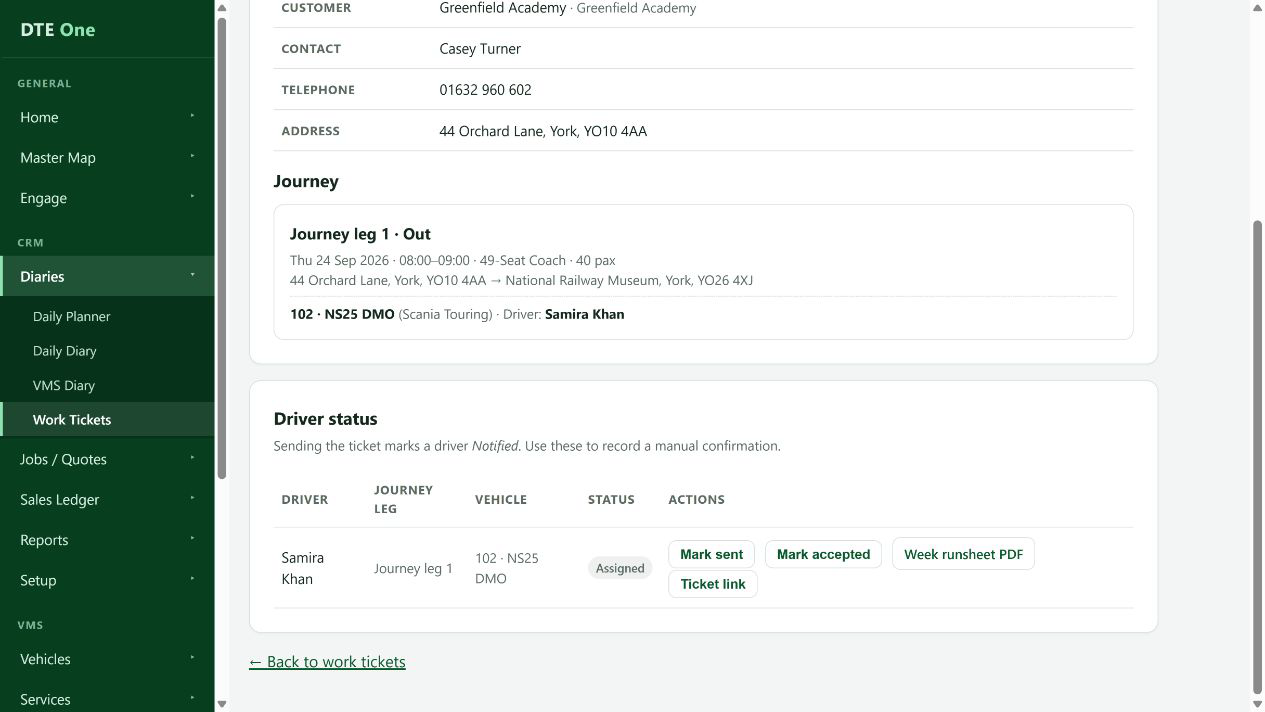
On the Work ticket page, check Driver status and resend the refreshed ticket when appropriate. A replacement driver starts as Assigned and must not inherit the previous driver's acceptance.
 Open full size
Driver status reflects the current driver and notification progress.
Check it worked
- The correct coach and driver are displayed on the right journey leg.
- Any refreshed work ticket uses the current allocation, and the driver status belongs to the current driver.
Something not quite right?
Can I set a coach to TBC without losing its driver?
Yes. On an existing slot, choose coach TBC and update it. The slot and its driver trail stay in place while you find a replacement.
Why did the replacement driver lose the accepted status?
Acceptance belongs to the person who responded. A new driver starts Assigned and needs their own notification and response.
Why can't I remove the vehicle slot?
A crewed slot cannot be deleted because that could silently lose a driver's response trail. Remove or move the driver first, or use coach TBC.
Why does the ticket still show the old driver?
It was issued before the change. Re-issue it from the Work ticket page to refresh the frozen snapshot.
Why was the driver's ticket link revoked?
A no-login link is tied to that driver's allocation. When the driver is replaced or removed, DTE revokes their link to protect the booking information.