Allocate a vehicle
Assign a coach to the correct journey leg of a confirmed booking.
Open the confirmed booking and find the relevant journey leg. In Vehicle & driver assignment, choose a coach from the Vehicle list and select Assign. Allocation is per journey leg, so repeat this for each outward, return or additional leg that needs its own coach. Quotes cannot be allocated until they are confirmed.
Before you start
You need Bookings access with permission to manage bookings. Dispatch access may be required when allocating from the Dispatch board.
- The booking must be Confirmed or Completed, not a quote.
- The required coach must be an active vehicle in your fleet.
Open the confirmed booking
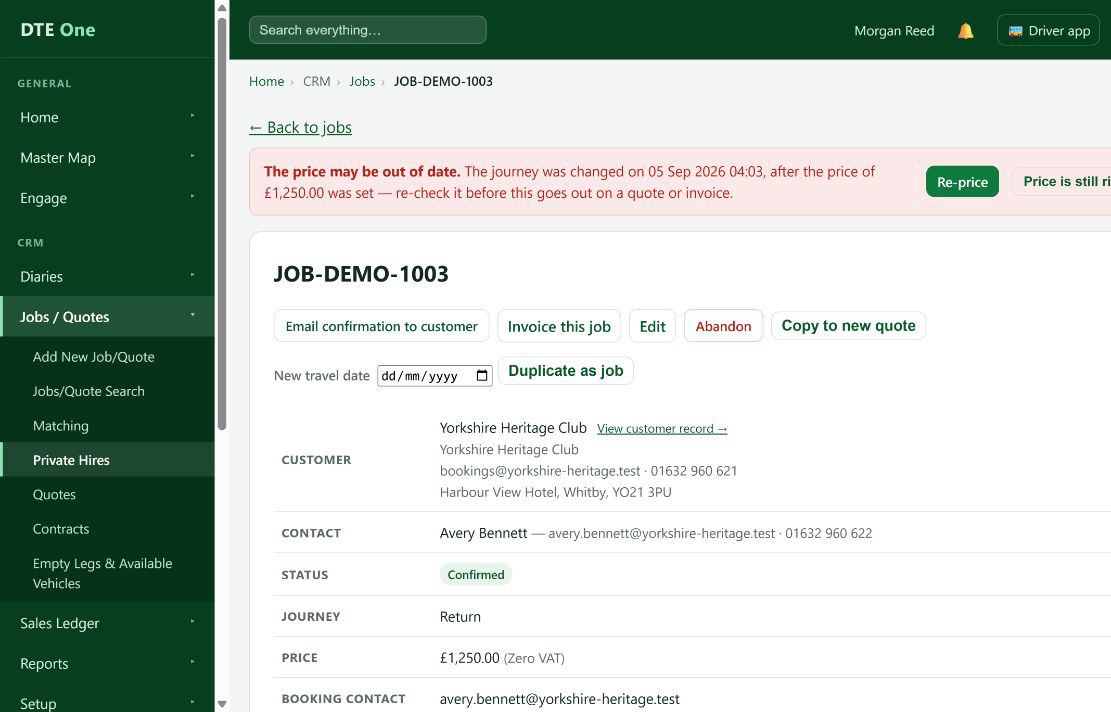
Open Jobs and select the booking. Check the journey leg you are allocating, especially its service date, times, vehicle type and passenger requirement.
 Open full size
The booking page displays its journey legs.
Find the journey leg
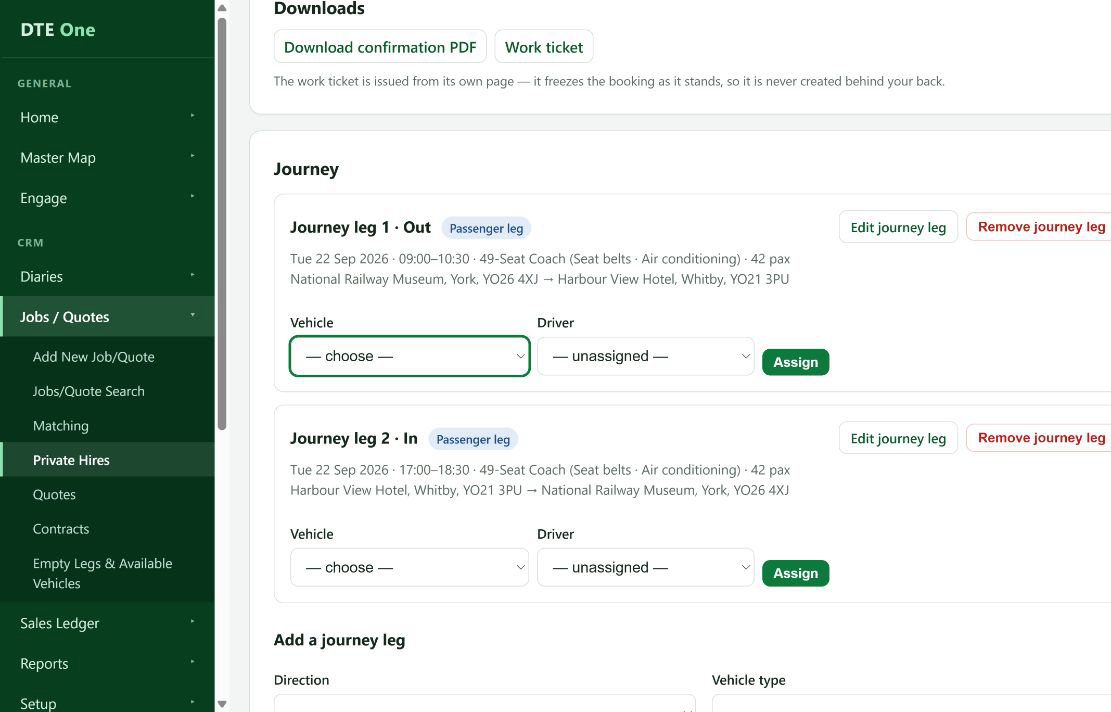
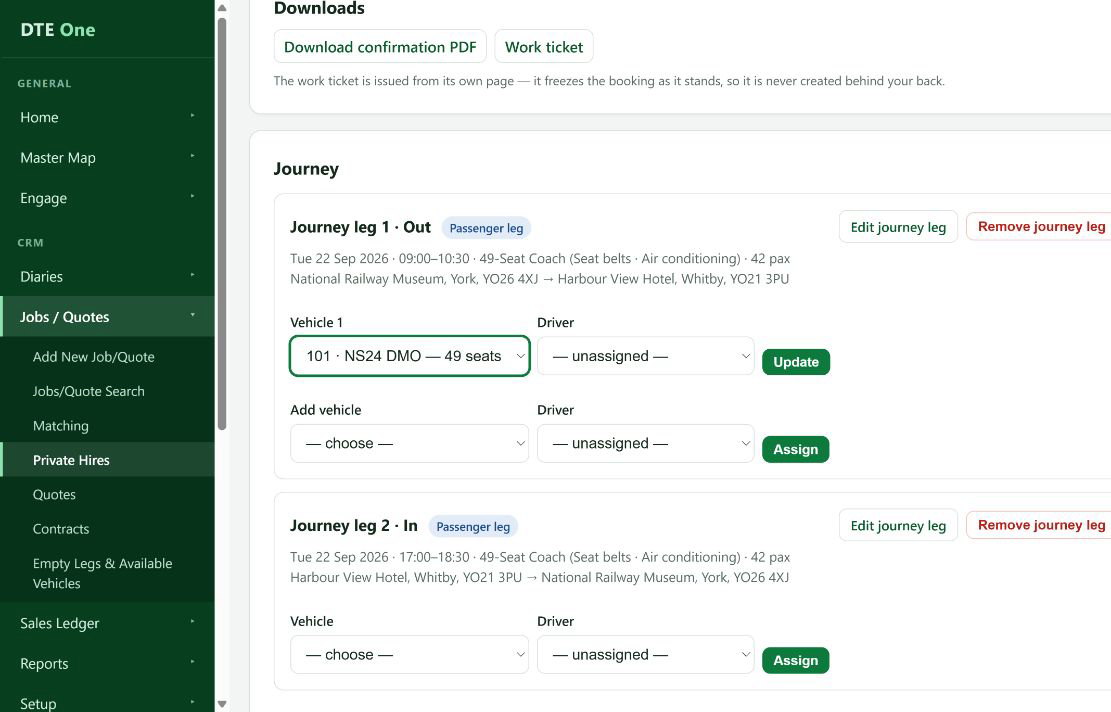
Scroll to the required journey leg. Allocation belongs to a leg, so an outward and return journey are allocated separately.
 Open full size
The Vehicle & driver assignment controls are visible for that leg.
Choose the coach
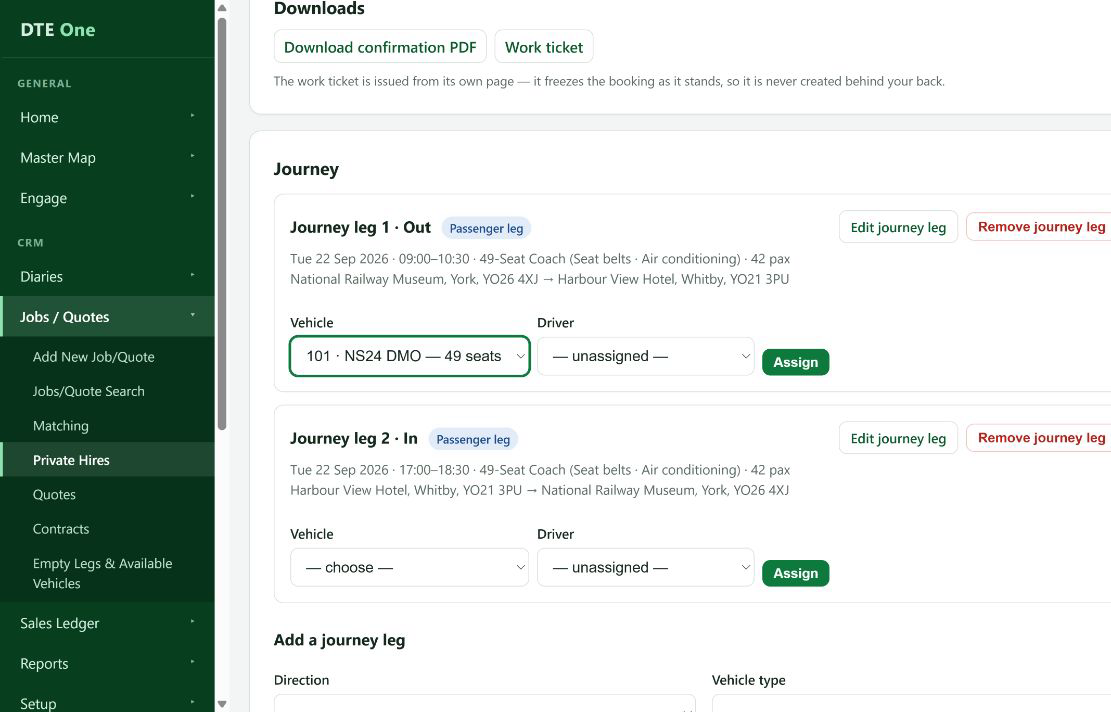
In Vehicle, choose the coach. The list shows the fleet label, registration and, where held, its number of seats. Leave Driver as unassigned if you are only allocating the coach now.
 Open full size
The coach is selected for that journey leg.
Save the allocation
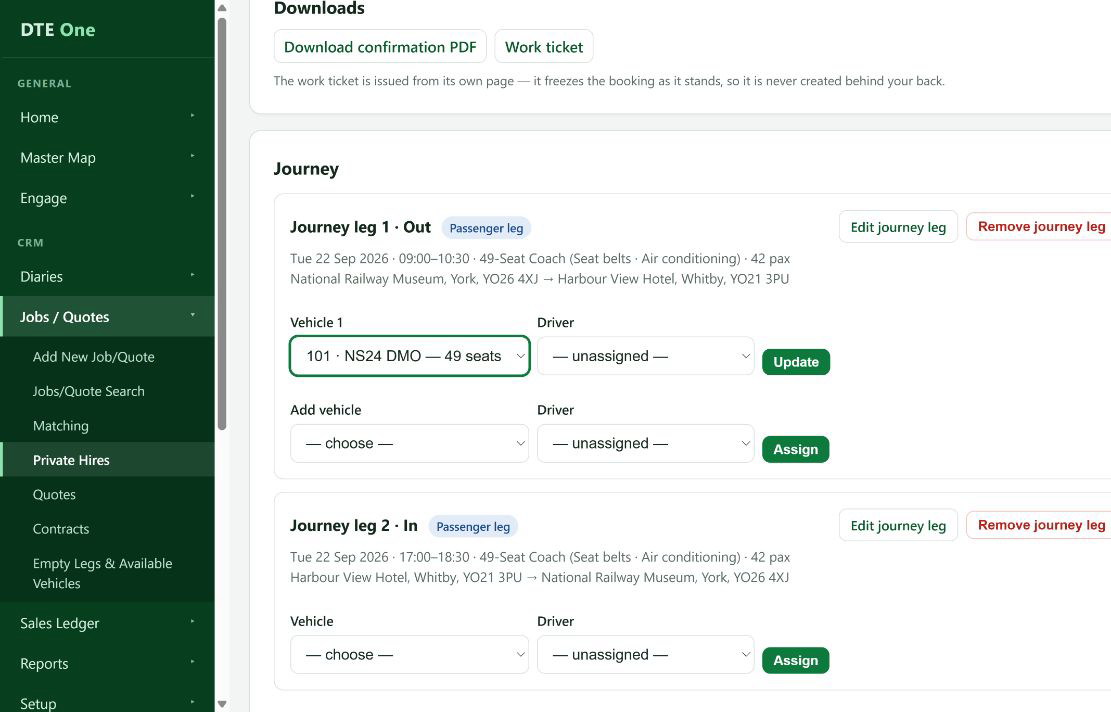
Select Assign. Add another vehicle when the leg needs more than one coach, then repeat the allocation for every other journey leg that requires one.
 Open full size
The selected coach appears on the leg.
Check any warning
Read any capacity, time-off or vehicle-availability warning. Some warnings are advisory, but DTE blocks an off-road vehicle where its roadworthiness state requires it.
 Open full size
You have checked that the selected coach is suitable for the planned work.
Check it worked
- The coach is shown on the correct journey leg.
- The booking remains ready for driver allocation and work-ticket preparation.
Something not quite right?
Why can't I allocate a coach on this quote?
Vehicle and driver allocation unlocks only when the quote is confirmed. Confirm the booking first.
Why is the coach not in the list?
Only active fleet vehicles can be newly assigned. Ask a fleet administrator to check its status if it should be available.
Why does DTE say the coach is already on this journey leg?
A coach cannot be added twice to the same leg. Check the existing slots before choosing another vehicle.
Can I allocate the same coach to different bookings?
DTE may warn about a scheduling or maintenance clash, but review the diary and workshop implications before proceeding.