Set user permissions
Set a team member’s Full access or choose exactly which areas they can view and manage.
Open My team, select Edit for the colleague, then use Access. Select Full access for an Operator Admin, or leave it off and choose None, View or Manage for each area. The Office, Finance, Viewer and Driver presets provide a starting point; check the matrix and select Save changes.
Before you start
You need Team access with permission to make changes. Only an Operator Admin can grant Full access or change the access matrix.
- Know the colleague’s role and the areas they need.
- Use Full access only where team administration is appropriate.
- Know whether their dispatch view should be All Jobs or Own Jobs.
Open the colleague
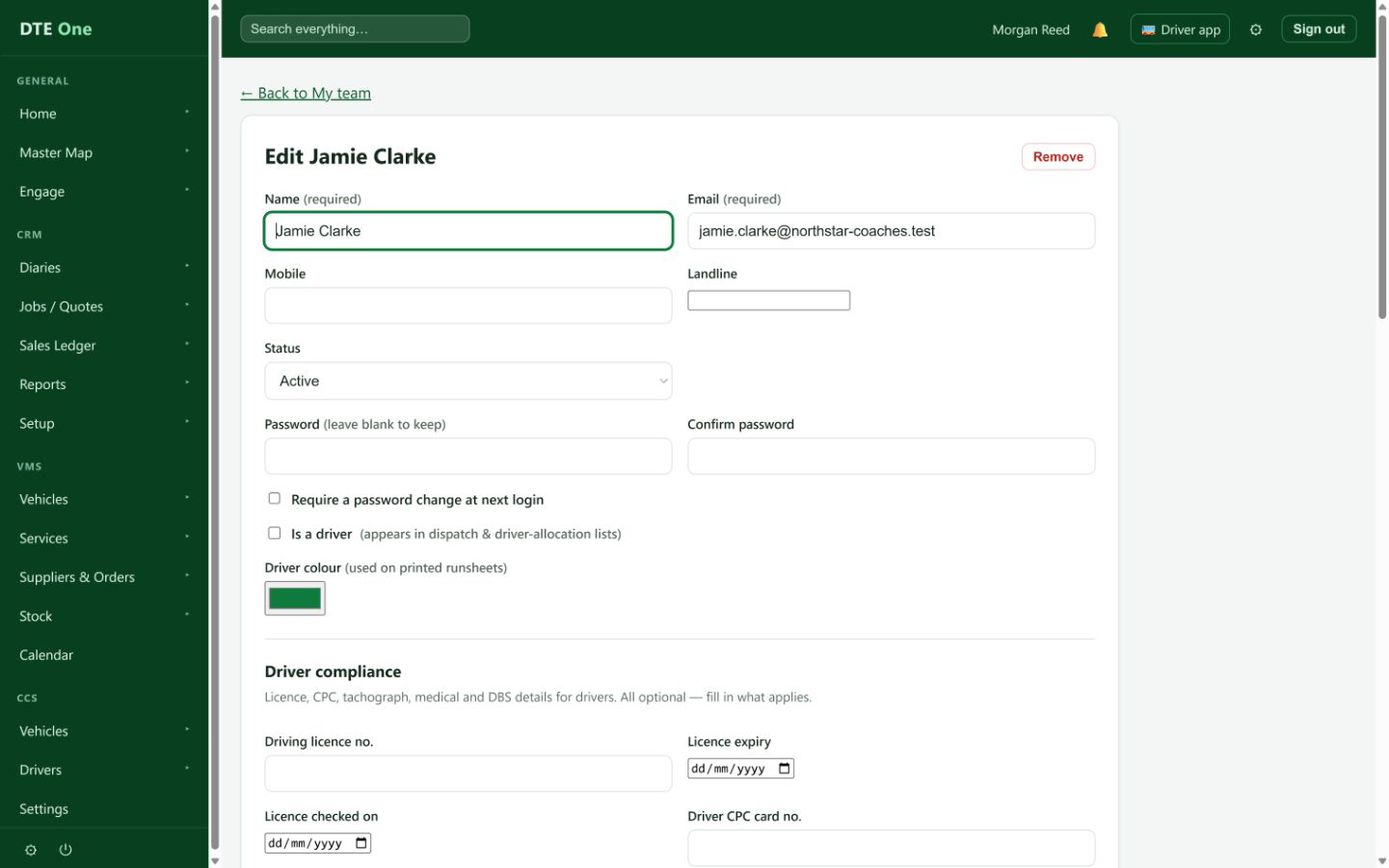
Open My team and select Edit beside the colleague.
 Open full size
The Edit team member page opens.
Choose Full access or tailored access
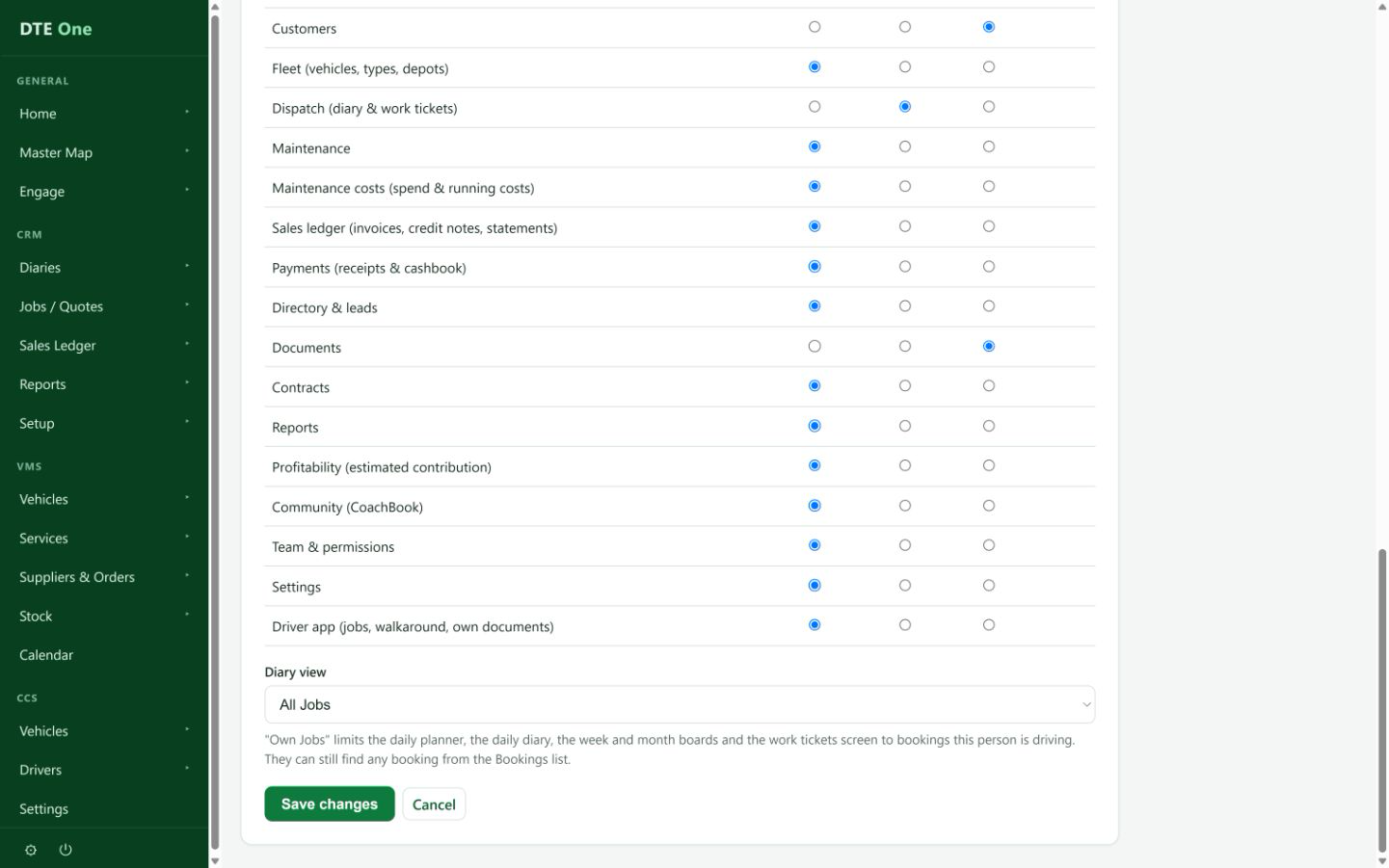
Select Full access (Operator Admin) only when the colleague should do everything, including managing the team. Clear it to show the permission matrix for tailored access.
 Open full size
Either Full access is selected or the matrix is available.
Set each area
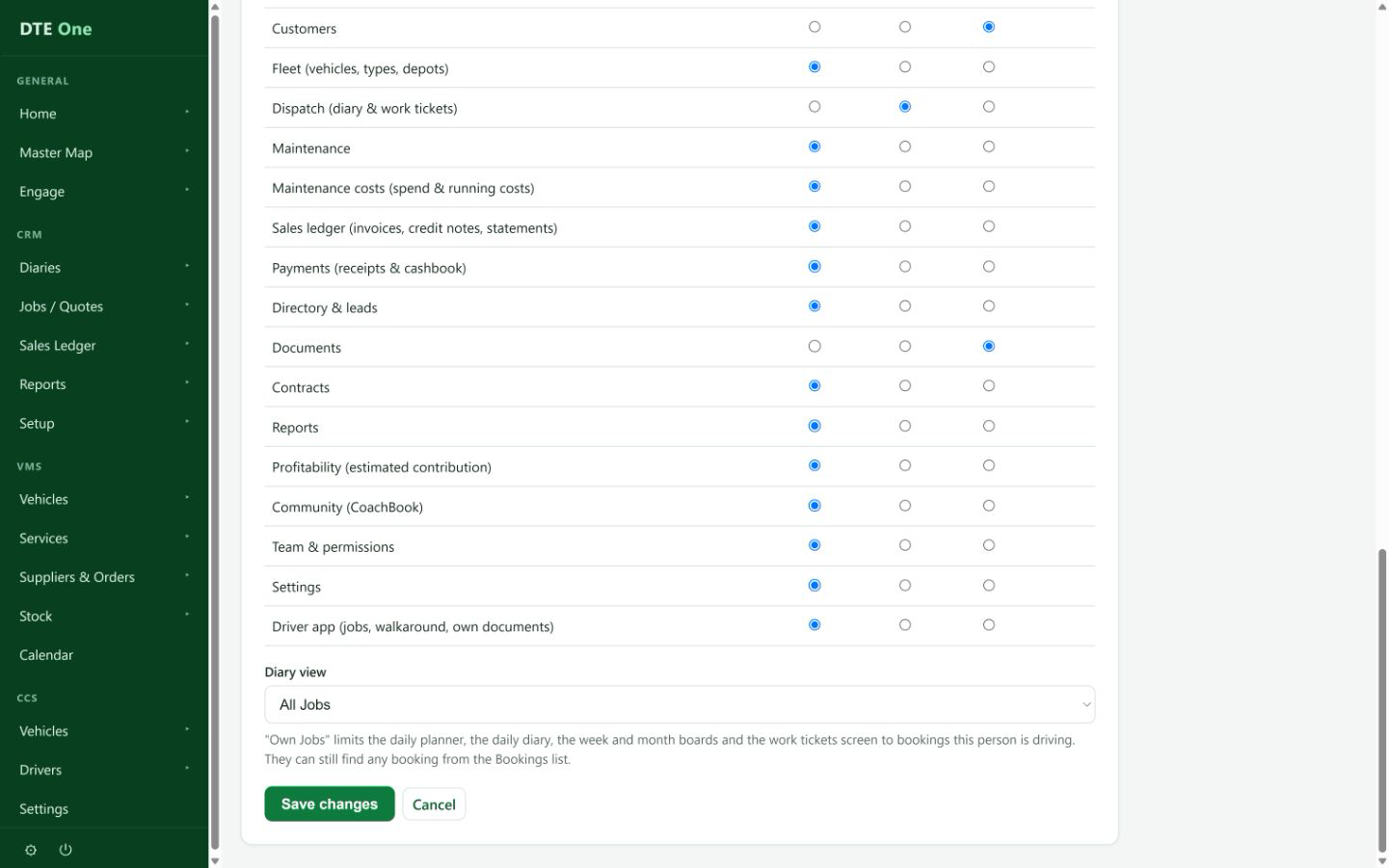
Use None for no access, View to see information, or Manage to make changes. Office, Finance, Viewer and Driver presets set several areas together; Clear returns every area to None. Review the result after using a preset.
 Open full size
Every area has the intended access level.
Set the dispatch scope
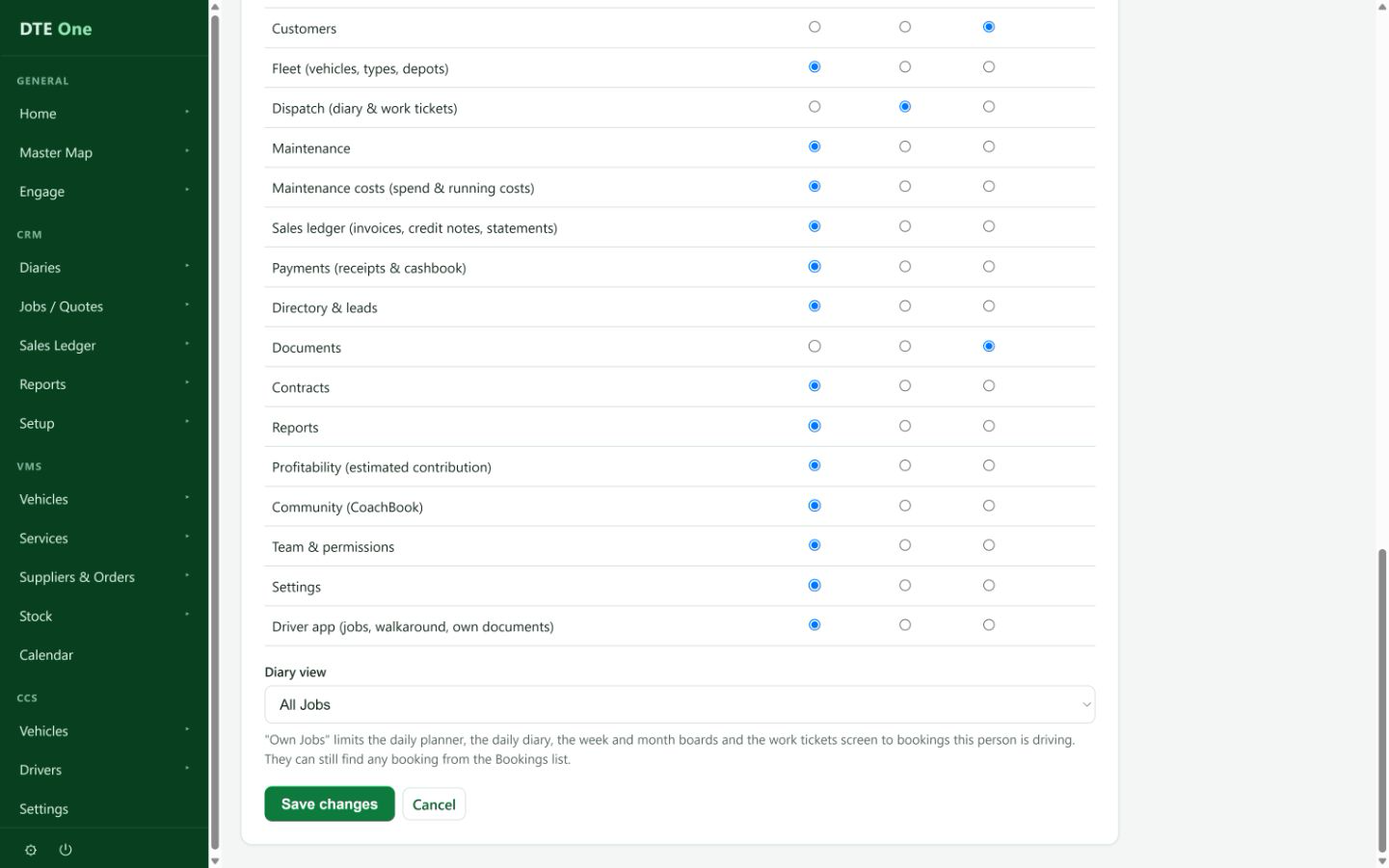
When tailored access is in use, select All Jobs or Own Jobs for dispatch. Own Jobs limits planner, diary, week and month boards and work tickets to bookings they are driving; it does not stop them finding other bookings in the Bookings list.
 Open full size
The chosen dispatch scope is visible.
Save the changes
Select Save changes. Re-open the user or check My team to confirm the access summary.
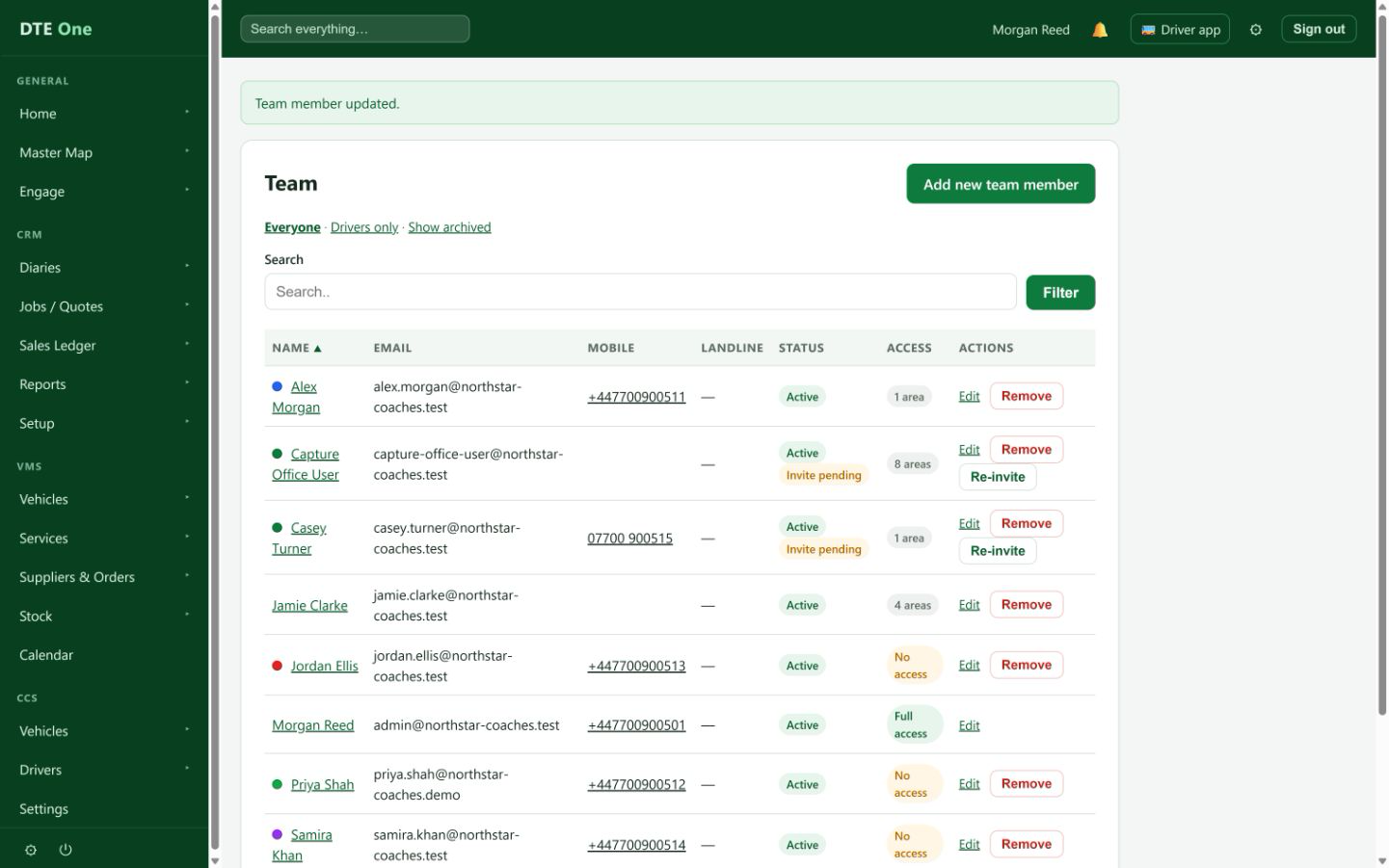 Open full size
A confirmation appears and the new access takes effect.
Check it worked
- The colleague has Full access or the intended per-area access.
- The dispatch scope matches their job.
- The My team row reflects Full access, a number of areas, or No access.
Something not quite right?
Why cannot I see Access?
Only an Operator Admin can manage user access. Ask an Operator Admin to make the change.
What is the difference between View and Manage?
View lets the person see an area. Manage lets them make changes in it.
Does Own Jobs hide every other booking?
No. It limits the dispatch boards and work tickets to jobs the person is driving; the Bookings list can still find other bookings.
Why did the preset change another area?
Presets set the whole role, including setting areas not named by that preset to None. Review the matrix before saving.