Create repeat work
Create a contract template and generate the confirmed bookings for recurring work.
Open Contracts and add a new contract, or choose Make this a contract from a saved booking. Select the customer, define the recurring journey and schedule, then save the contract. Set it Active and use Generate bookings when the template is complete; generated occurrences are confirmed bookings, not quotes.
Before you start
You need Contracts access and permission to manage contracts. Customer and booking access may also be needed to select or create the related records.
- A customer must exist.
- Have the recurring journey, service days, start and end rules, vehicle type and agreed price ready.
Start a contract
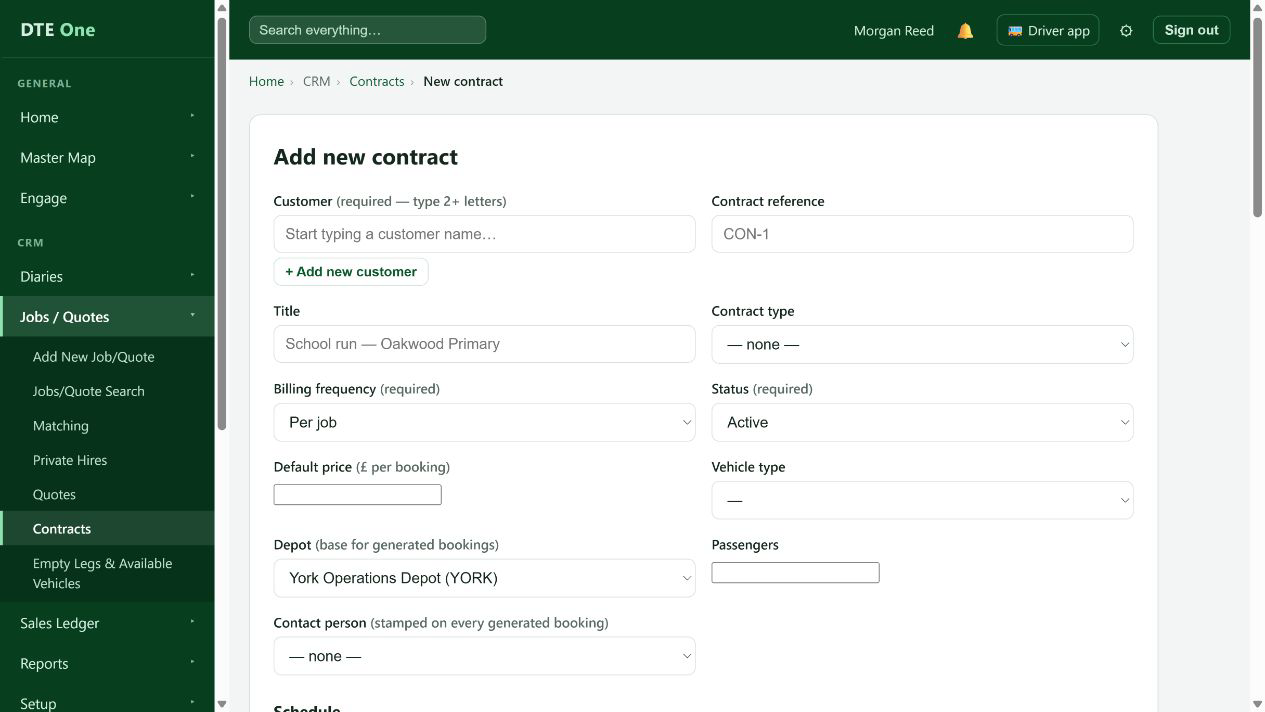
Open Contracts and select Add new contract. If you are repeating a saved booking, you can also select Make this a contract from that booking's Details section.
 Open full size
The New contract form opens, optionally with booking information prefilled.
Set the customer and contract details
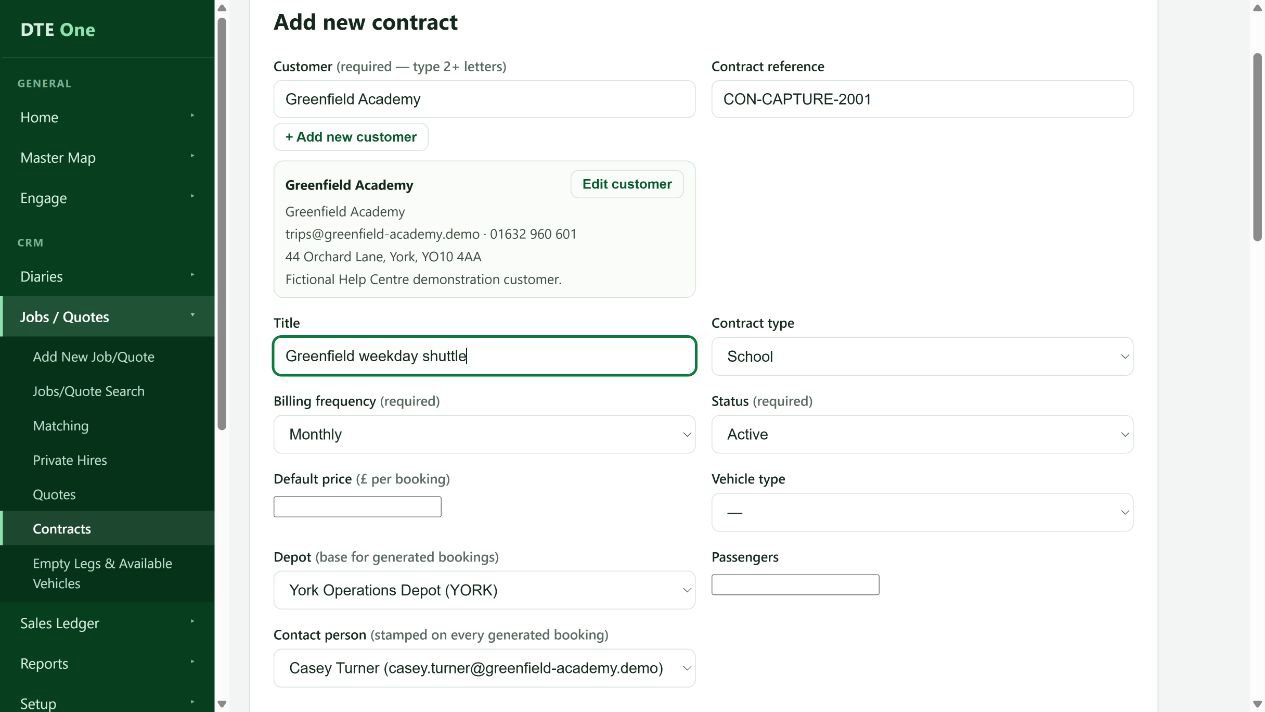
Select the customer. Enter a Contract reference or Title that your office will recognise, then choose Contract type and Billing frequency where relevant.
 Open full size
The contract identifies the customer and repeat work clearly.
Complete the journey template
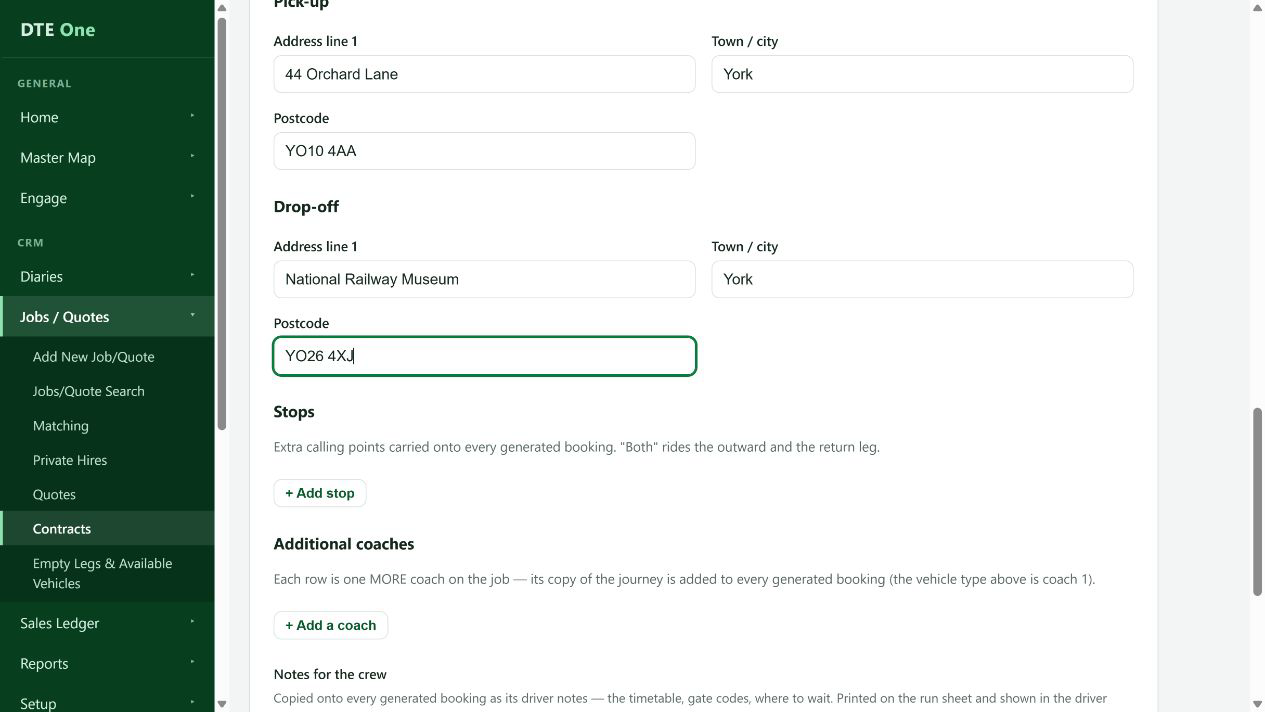
Enter the recurring journey, including pickup and drop-off, times, vehicle type, passenger requirements and default price. Add customer or driver information needed for each generated booking.
 Open full size
The contract template contains a complete bookable journey.
Set the schedule
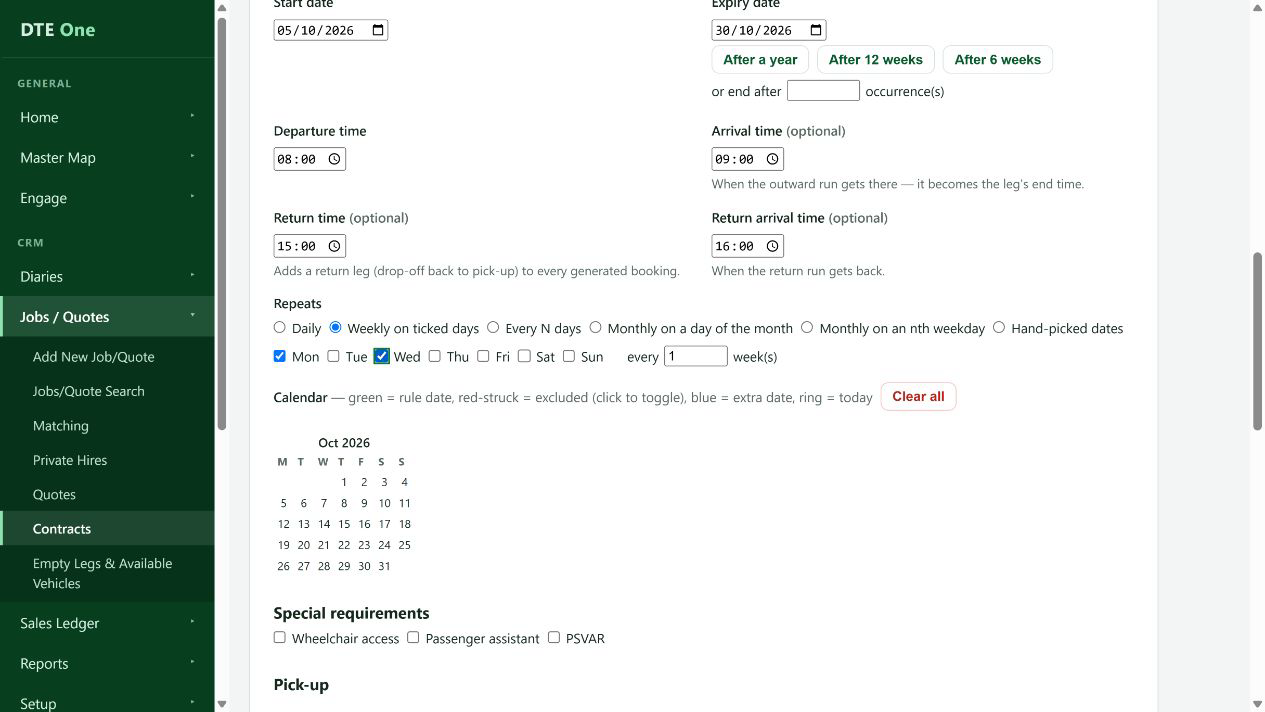
Choose the start date, recurrence pattern and end rule. Use the schedule preview to check the dates before you save.
 Open full size
The preview reflects the service dates you intend to create.
Save and generate bookings
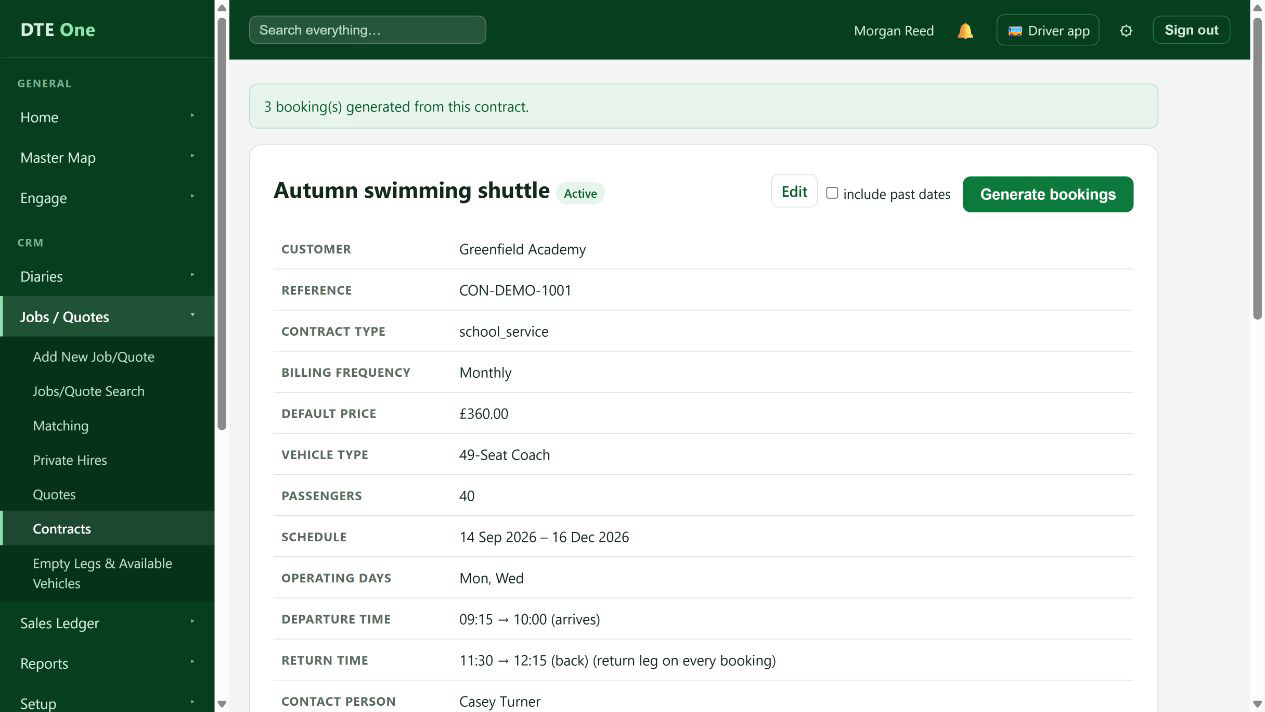
Save the contract. Set its Status to Active, then open it and select Generate bookings when the template is ready. Normally generate future work; choose the past option only when you intentionally need a backfill.
 Open full size
DTE reports how many confirmed bookings were generated, or that each service date already exists.
Check it worked
- The contract is saved with the intended schedule.
- Generating an active, complete contract creates confirmed bookings for its scheduled dates.
Something not quite right?
Why can't I generate bookings?
Only an Active contract can generate. DTE also checks that the template has the journey, timings, passengers, vehicle type and price needed for confirmation.
Why were no bookings generated?
DTE does not duplicate an existing service date. The message means every scheduled date already has a booking.
Are generated records quotes?
No. Generated contract occurrences are confirmed bookings, so complete the template carefully before generating.
Can I create repeat work from a booking?
Yes. On a saved booking, use Make this a contract in Details when you have permission to manage contracts.