Create a quote
Save a priced journey as a quote without confirming the work.
Open Quotes and select Add new quote. Choose the customer, complete the journey, price and details, then select Save as quote. A quote is a booking record at quote status, so it stays separate from confirmed work until you confirm it from its booking page.
Before you start
You need Bookings access and permission to manage bookings.
- A customer must already exist.
- Have the journey dates, times, locations, passenger requirements and price ready.
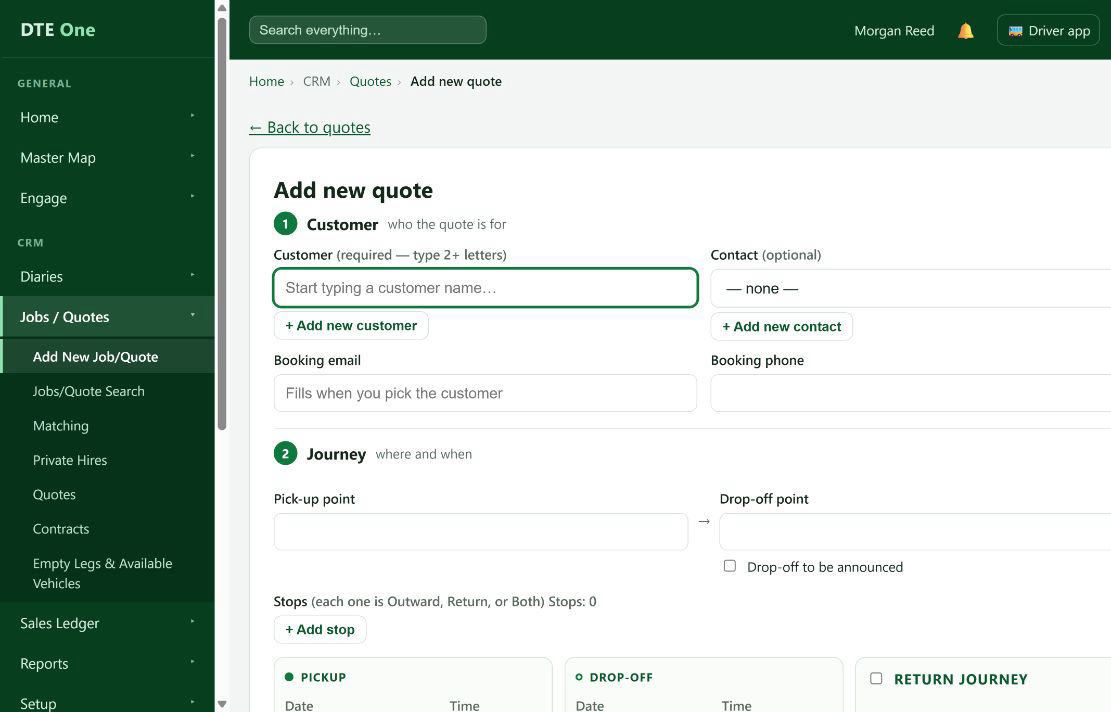
Choose the customer
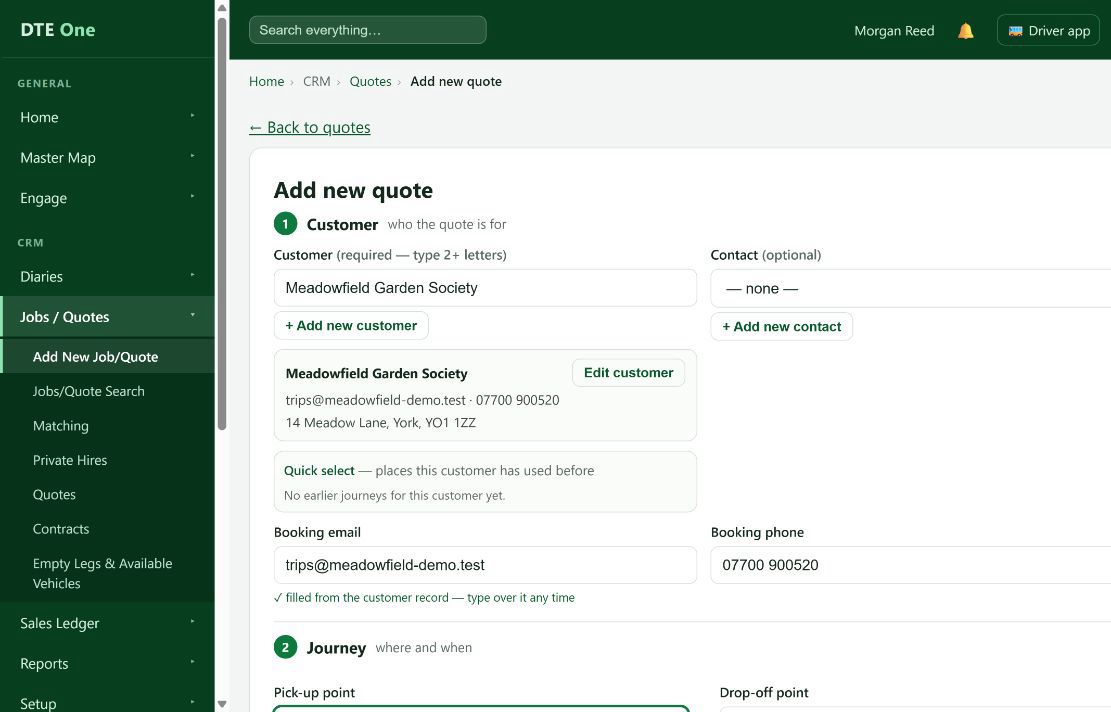
Find and select the customer. Add or amend the booking email and booking phone if needed for this journey.
 Open full size
The selected customer appears in the Customer section.
Enter the journey
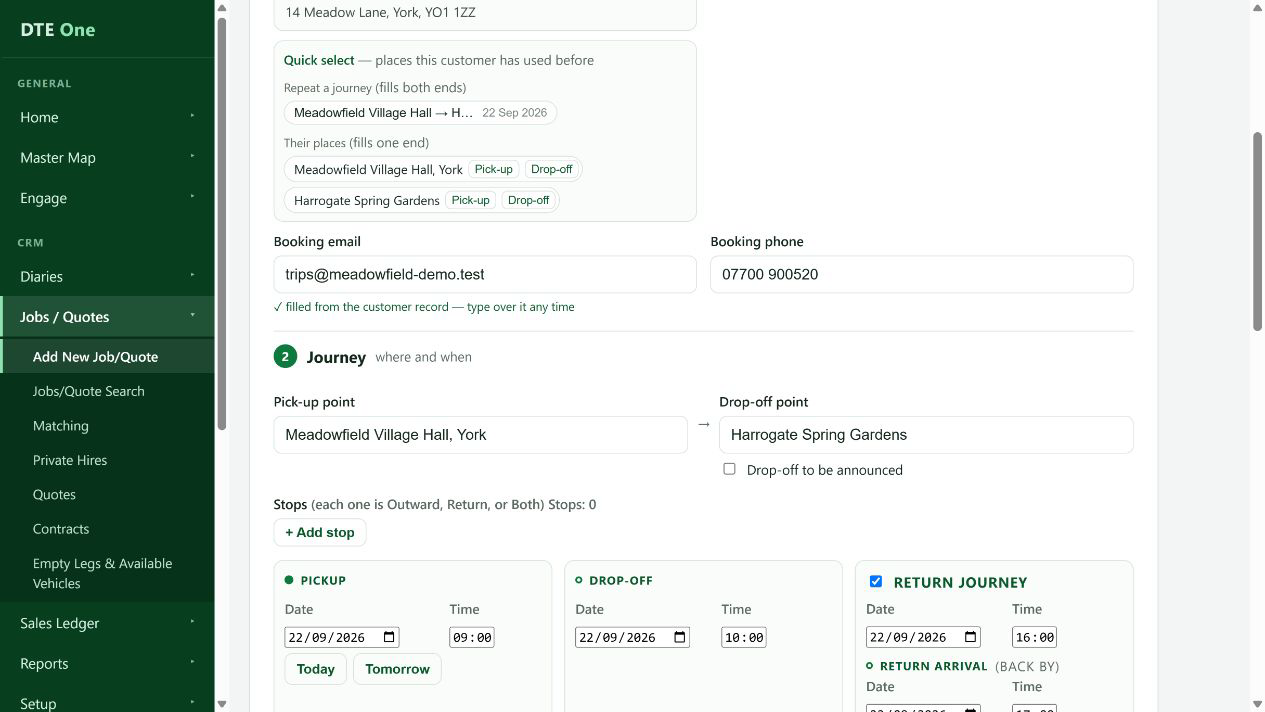
Complete the outward journey with pickup, departure date and time, drop-off, arrival details, vehicle type and passenger requirements. Use the Return option when the work includes a return journey.
 Open full size
The journey card shows the proposed travel details.
Set the price and quote details
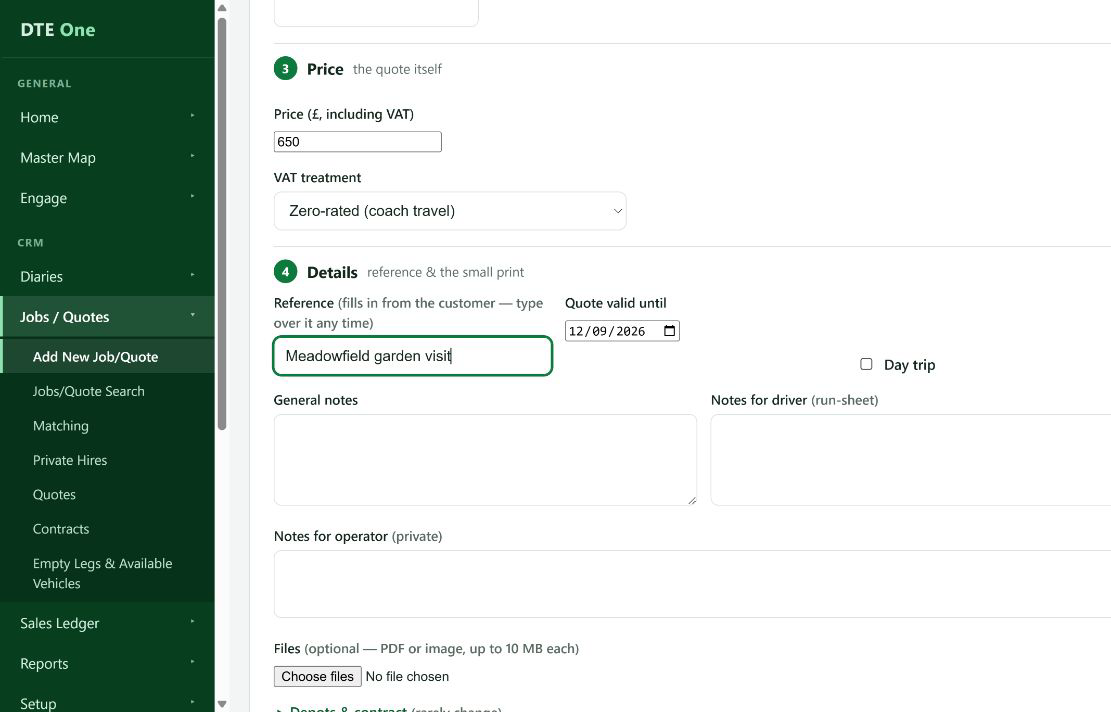
Enter the price and VAT treatment. In Details, check the reference and set Quote valid until if appropriate. Add general or driver notes only when they should travel with the record.
 Open full size
Price, VAT treatment and quote details are completed.
Save without confirming
Select Save as quote. Do not use Save & confirm booking unless the customer has already accepted the work.
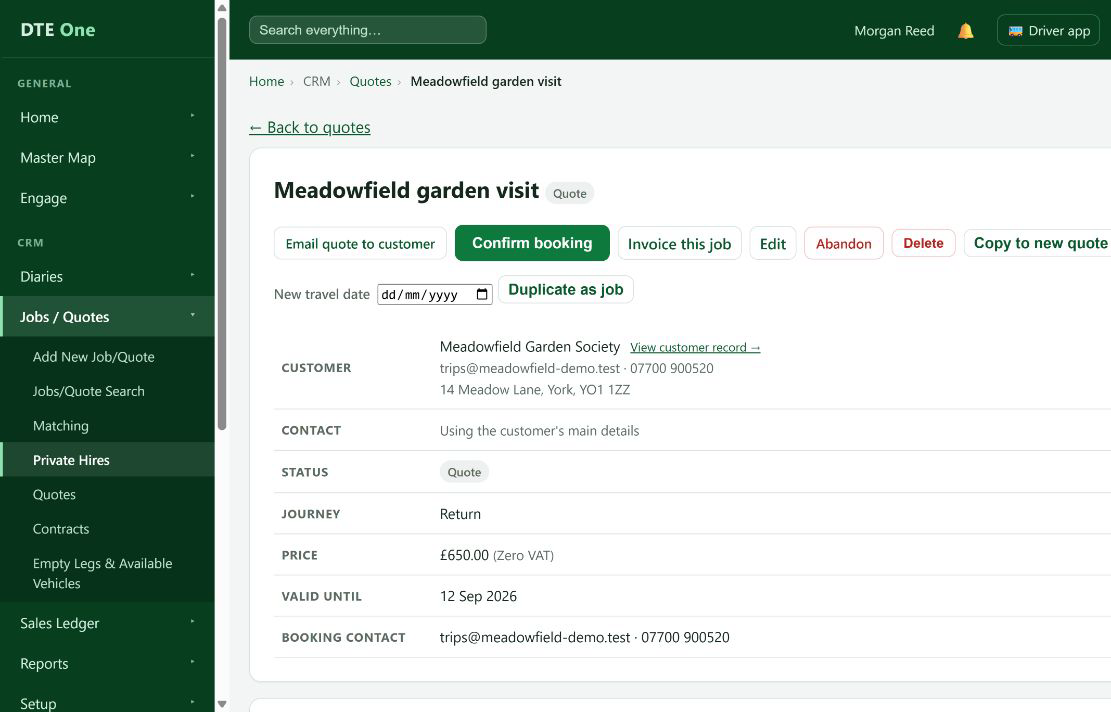 Open full size
The quote opens and is listed under Quotes.
Check it worked
- The record appears in Quotes.
- Its status is Quote and it has not been confirmed as work.
Something not quite right?
Why is the customer not available?
Create the customer first, or search using the correct customer name. Placeholder legacy customers cannot be used for a new quote.
Why won't the quote save?
Check the required customer, journey and pricing fields highlighted by DTE. A new quote's valid-until date cannot be in the past.
Did saving a quote book the work?
No. Save as quote keeps the record at Quote status. Confirm it only after the customer accepts.
Can I make a return journey?
Yes. Turn on Return and complete the return journey details before saving.