Send a statement
Review a customer's statement for the required period, then email its PDF with an optional message and attachments.
Open CRM → Reports → Transaction Histories, search for the customer and select Statement. Set From and To only if you need a period, then select Filter. Check the balance, recipient and dates, add an optional CC, subject, message or files, and select Email statement. The PDF for the period shown is attached; optional files are delivered as private links.
Before you start
You need Sales ledger access to view statements, and permission to make changes to email one.
- Know the customer and the statement period, if the statement is not to date.
- Check that the customer is active before sending; binned customers can be viewed but must be restored to email a statement.
- Have a valid recipient email address or add one to the customer or invoice contact.
Find the customer
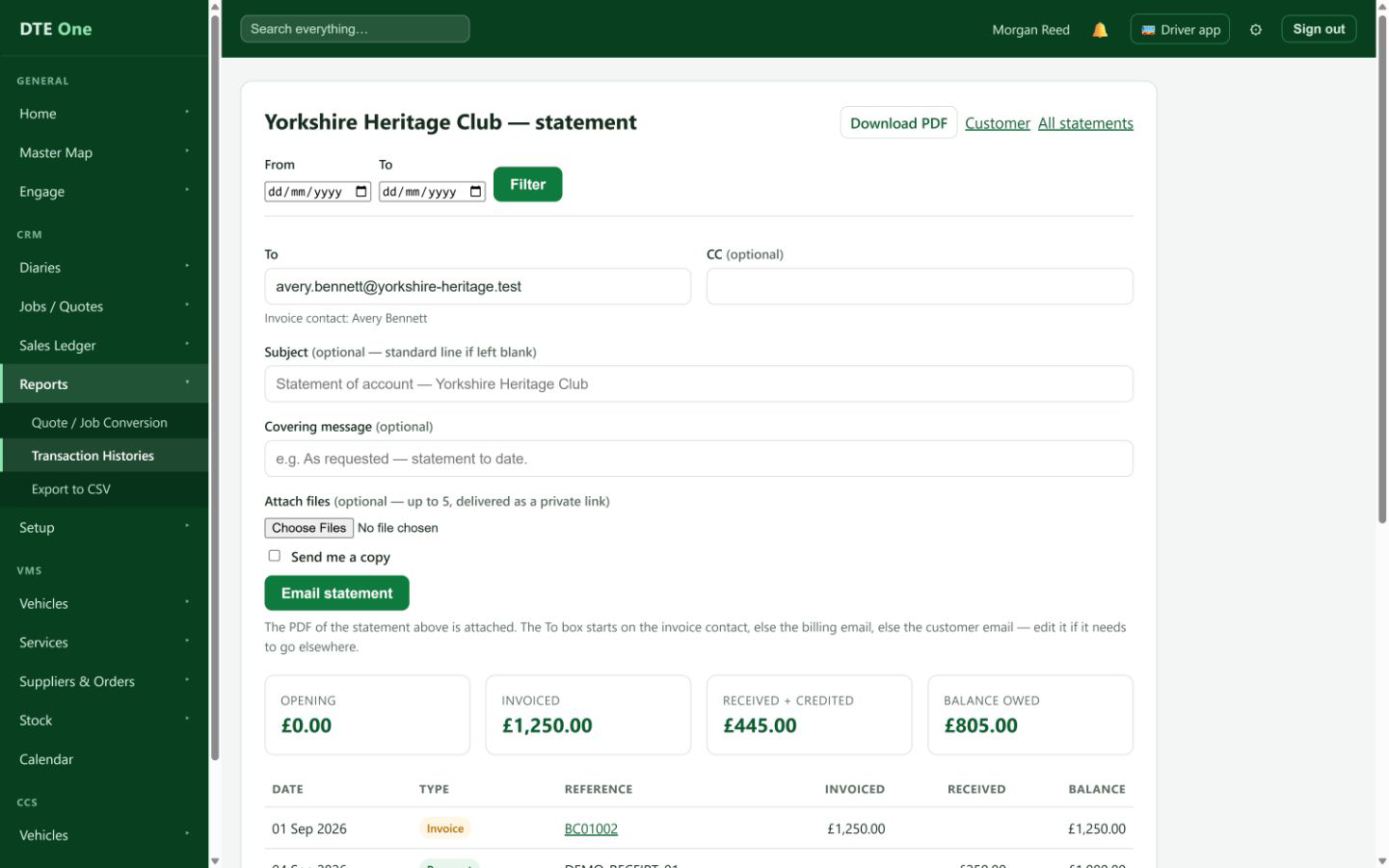
Open CRM → Reports → Transaction Histories. Search by customer name, then select Statement on their row. You can also select Statement from the customer's record.
 Open full size
The customer statement opens with the current balance and transaction list.
Set the statement period
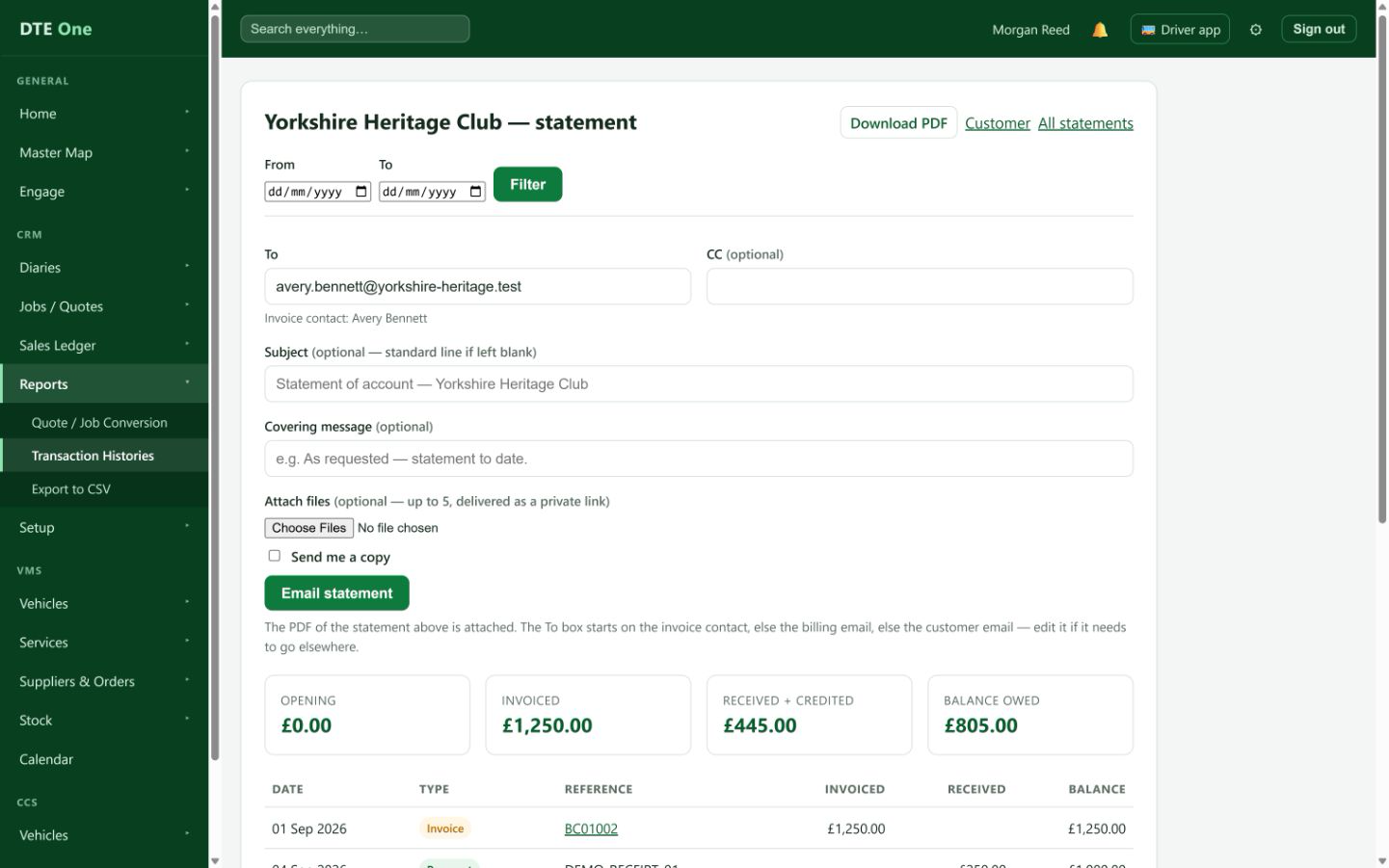
Enter a From date, a To date, or both if the statement needs a specific period, then select Filter. To must be on or after From. Select Clear to return to the full statement.
 Open full size
The statement totals and rows update for the selected period.
Check the statement
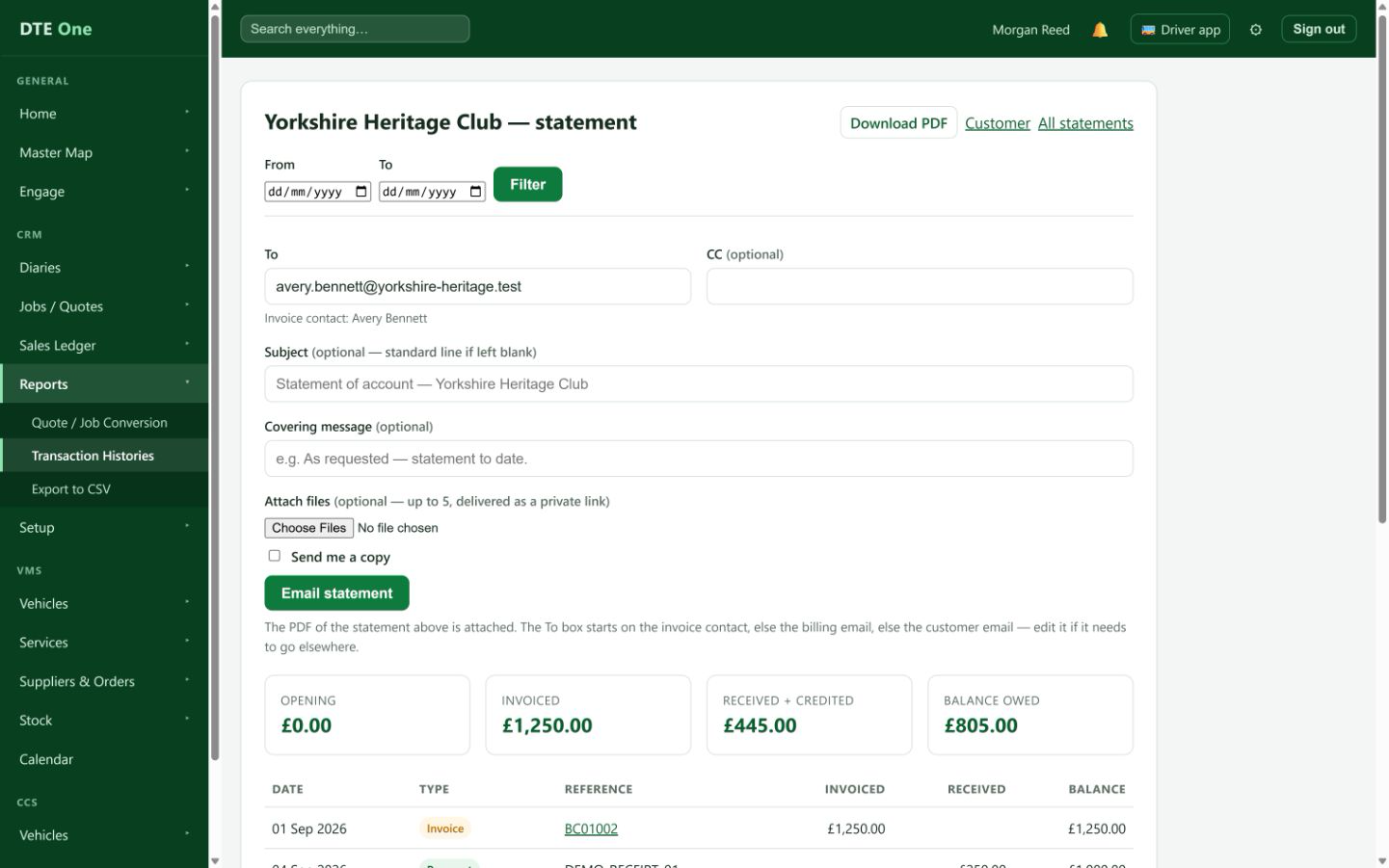
Review the opening balance, invoiced amount, received and credited amount, balance owed, and the transaction rows. Select Download PDF if you need to inspect or save the same statement before emailing it.
 Open full size
The figures and transaction list match the intended customer and period.
Prepare the email
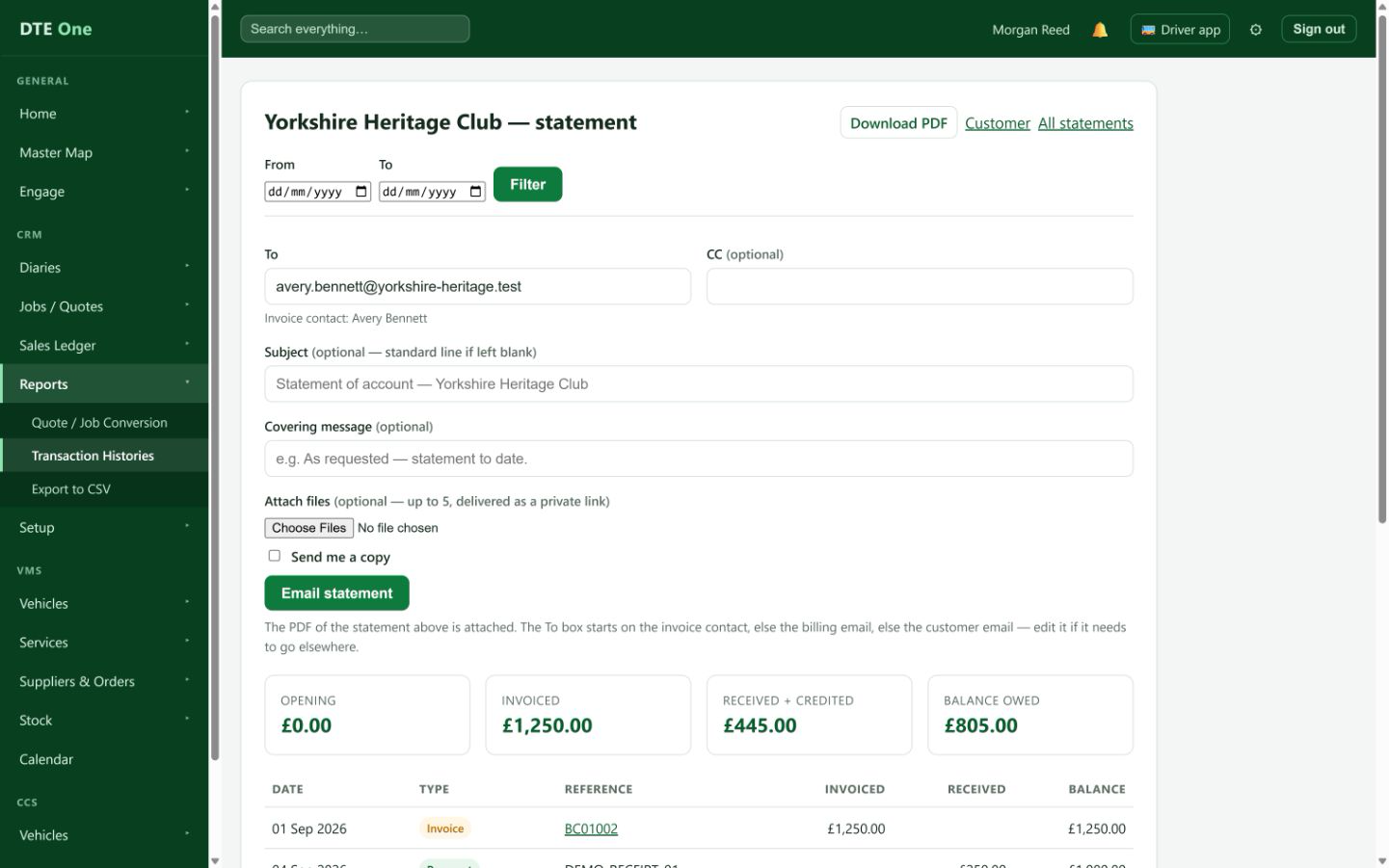
Check the To address and change it if necessary. DTE starts with the invoice contact email, then the billing email, then the customer email. Add CC, a subject, a covering message or optional files when useful; optional files are delivered as private links. Select Send me a copy if you want one.
 Open full size
The email form has the correct recipient and optional message details.
Email the statement
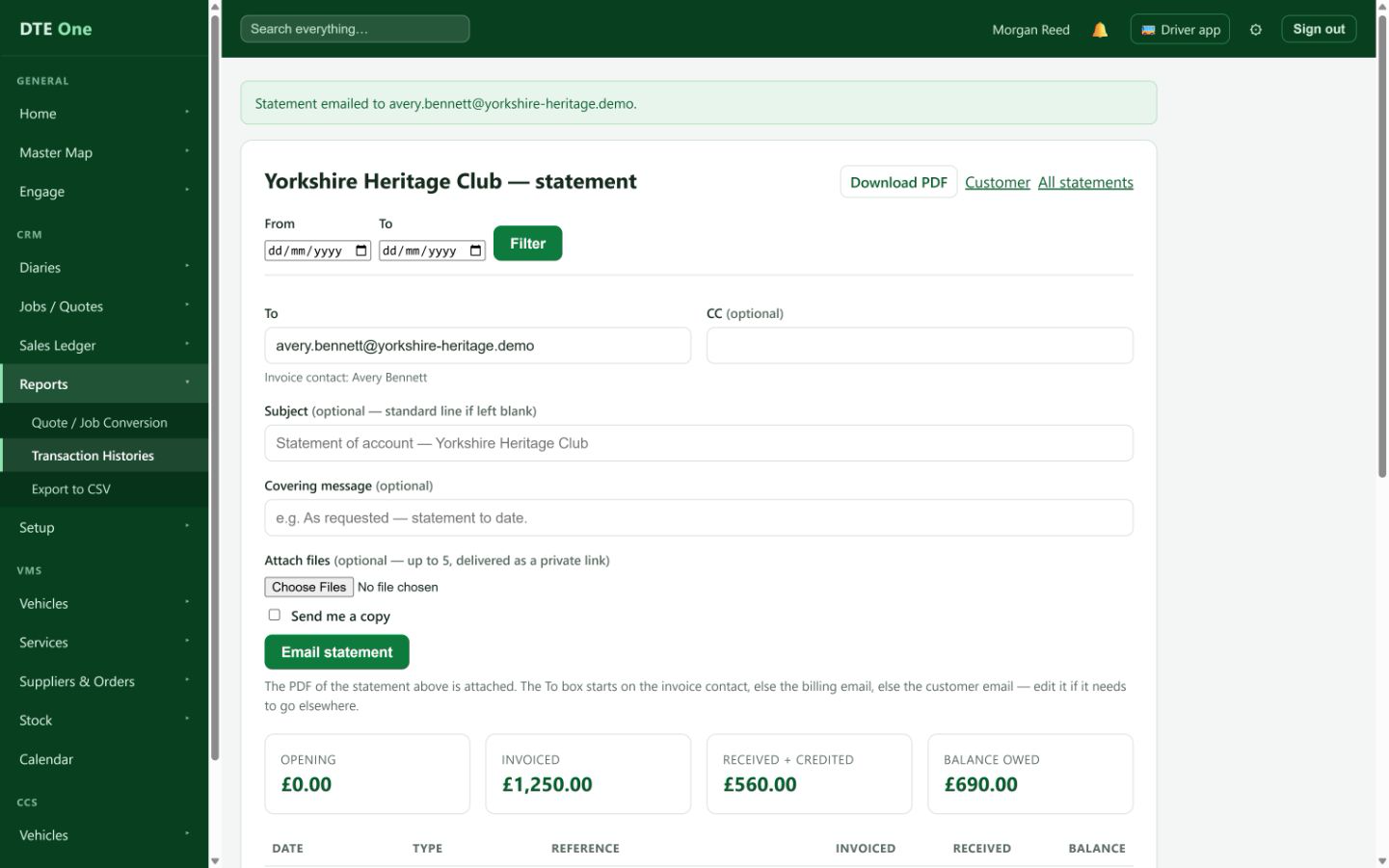
Select Email statement. DTE emails the PDF for the period currently shown on the statement. Any optional files you selected are delivered as private links.
 Open full size
A confirmation says which address received the statement.
Check it worked
- The statement shows the intended customer and date period.
- The confirmation names the email address used.
- The customer's activity records that the statement was emailed.
Something not quite right?
Why is Email statement not available?
You need Sales ledger permission to make changes. A binned customer can still have a statement viewed or downloaded, but must be restored before it can be emailed.
Why does the date filter fail?
Check that To is the same as or later than From. Clear the dates to return to the full statement.
Why is the To address blank?
Add an email address to an invoice contact, the billing email or the customer record, then reopen the statement. You can also enter a valid address directly in To.
Why was the email not sent?
DTE stops sends to a suppressed recipient. Check the address or use another approved address, then send again.
Will the attachment match the dates I selected?
Yes. The PDF attached to the email uses the same From and To period currently shown on the statement.