Apply credit to an invoice
Apply the remaining value of an issued credit note to one of the same customer's outstanding invoices.
Open the credit note from its invoice or the credit-note list. Under Apply remaining credit, select an issued or part-paid invoice for the same customer. Leave Amount empty to apply the smaller of the credit remaining and the invoice amount outstanding, or enter a smaller positive amount. Select Apply credit and check both balances.
Before you start
You need Sales ledger access with permission to make changes. Applying a credit note does not require Payments access; refunding credit or applying held receipt credit are separate actions with different access requirements.
- The credit note has a remaining balance.
- The target is an issued or part-paid invoice belonging to the same customer, with an outstanding amount.
- Confirm the value to apply and whether any of the credit should remain for a later invoice.
Open the credit note
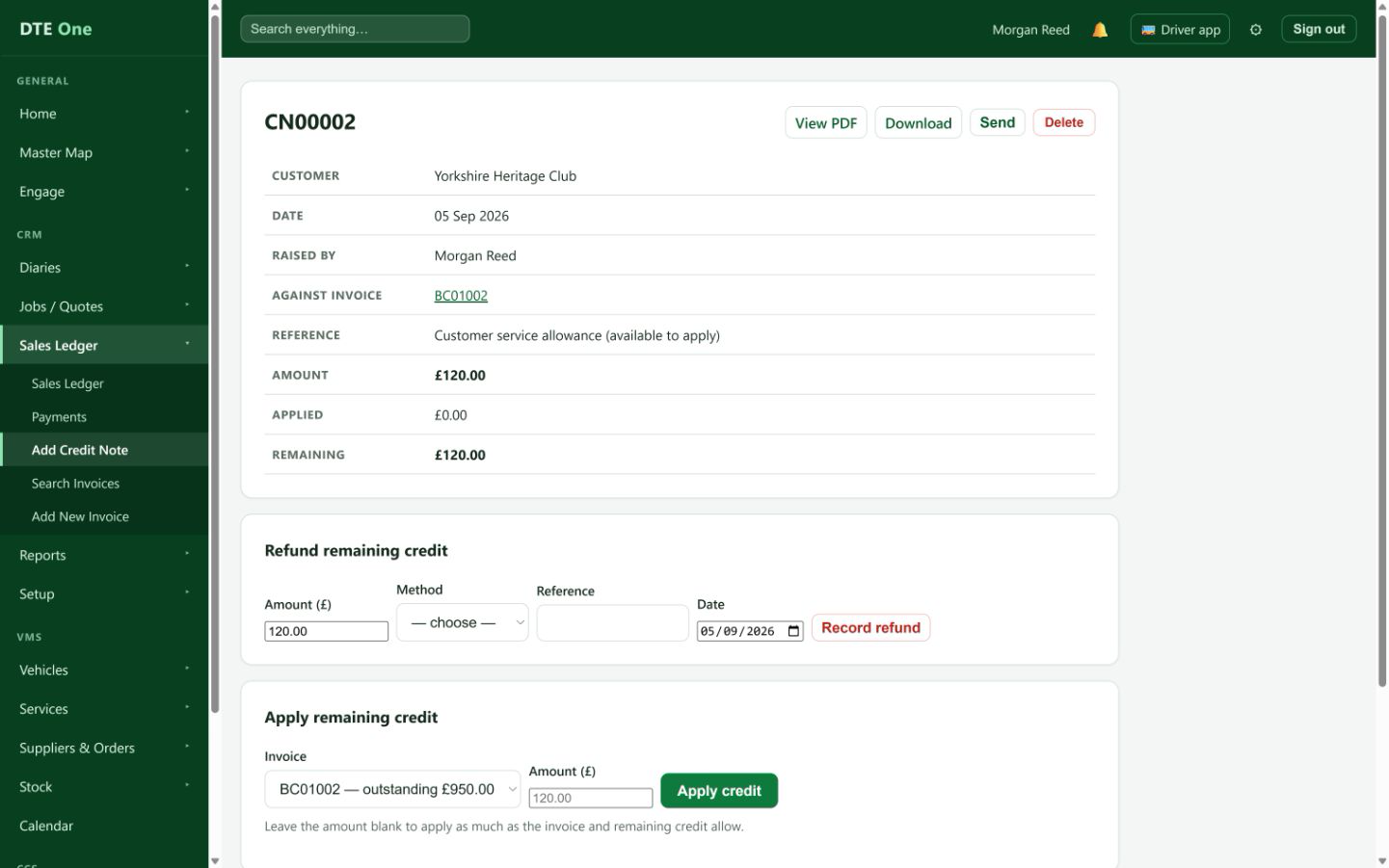
Open the credit note from its invoice or the credit-note list. Check its Customer, Amount, Applied and Remaining figures before using it.
 Open full size
The credit note page shows a Remaining amount and the Apply remaining credit section.
Choose the unpaid invoice
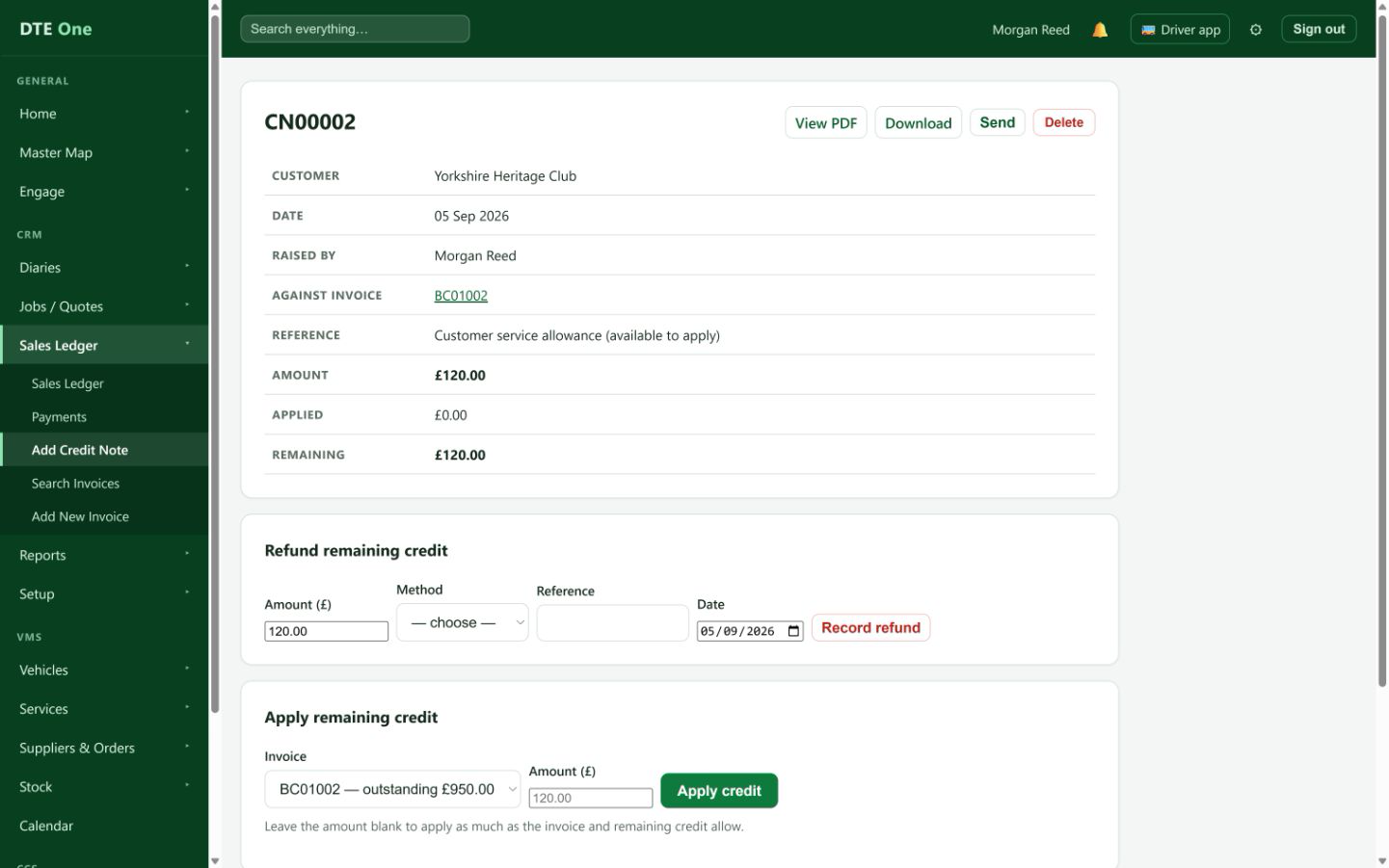
Under Apply remaining credit, select the invoice. The list only offers this customer's issued or part-paid invoices that still have money outstanding. Draft, void and fully paid invoices cannot be selected.
 Open full size
The chosen invoice shows its invoice number and outstanding amount.
Set the amount to apply
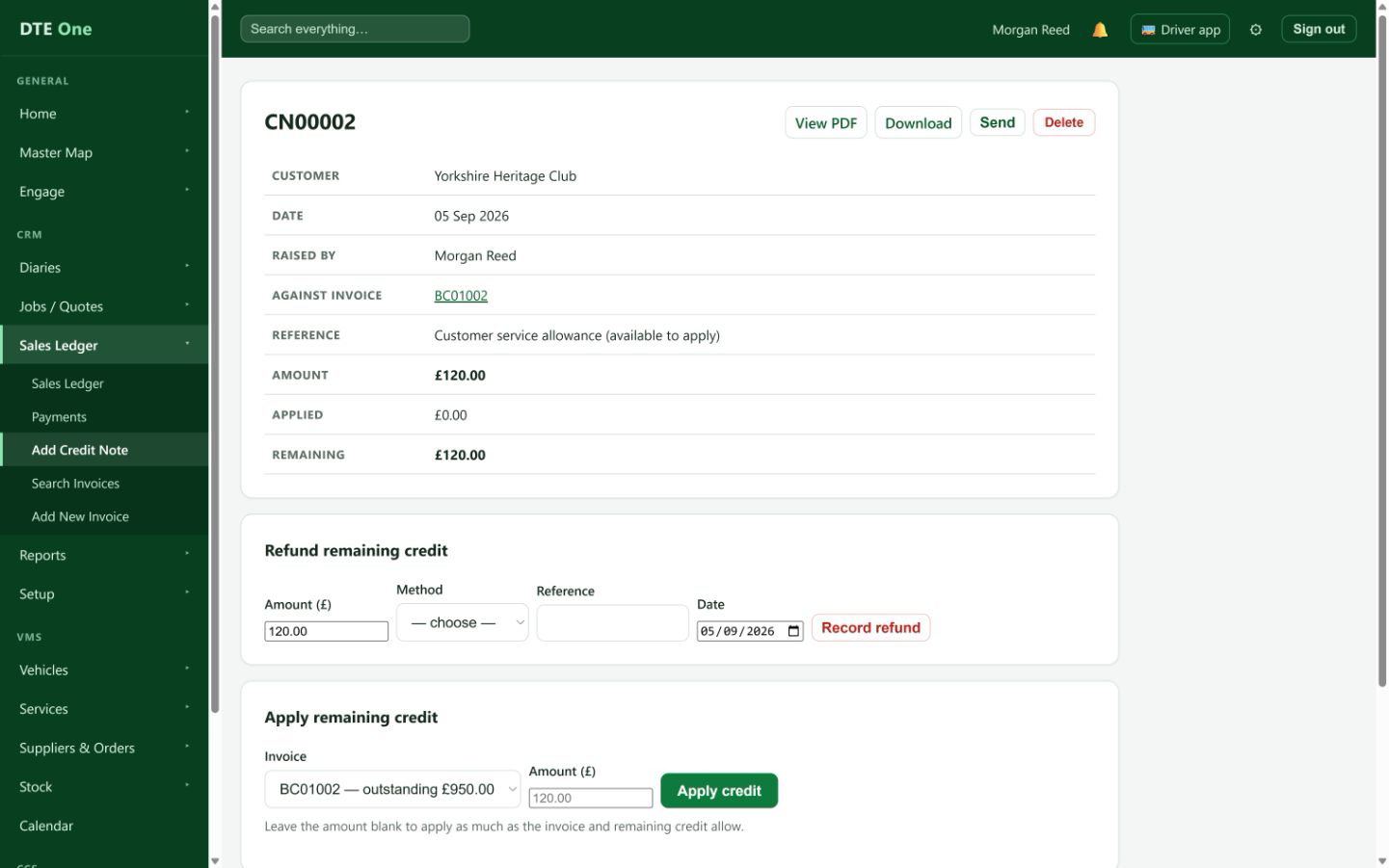
Leave Amount blank to apply as much as possible. DTE uses the smaller of the credit note's remaining balance and the invoice's outstanding amount. Enter a smaller positive amount when only part of the credit should be used now.
 Open full size
The amount is valid and no greater than the remaining credit.
Apply the credit
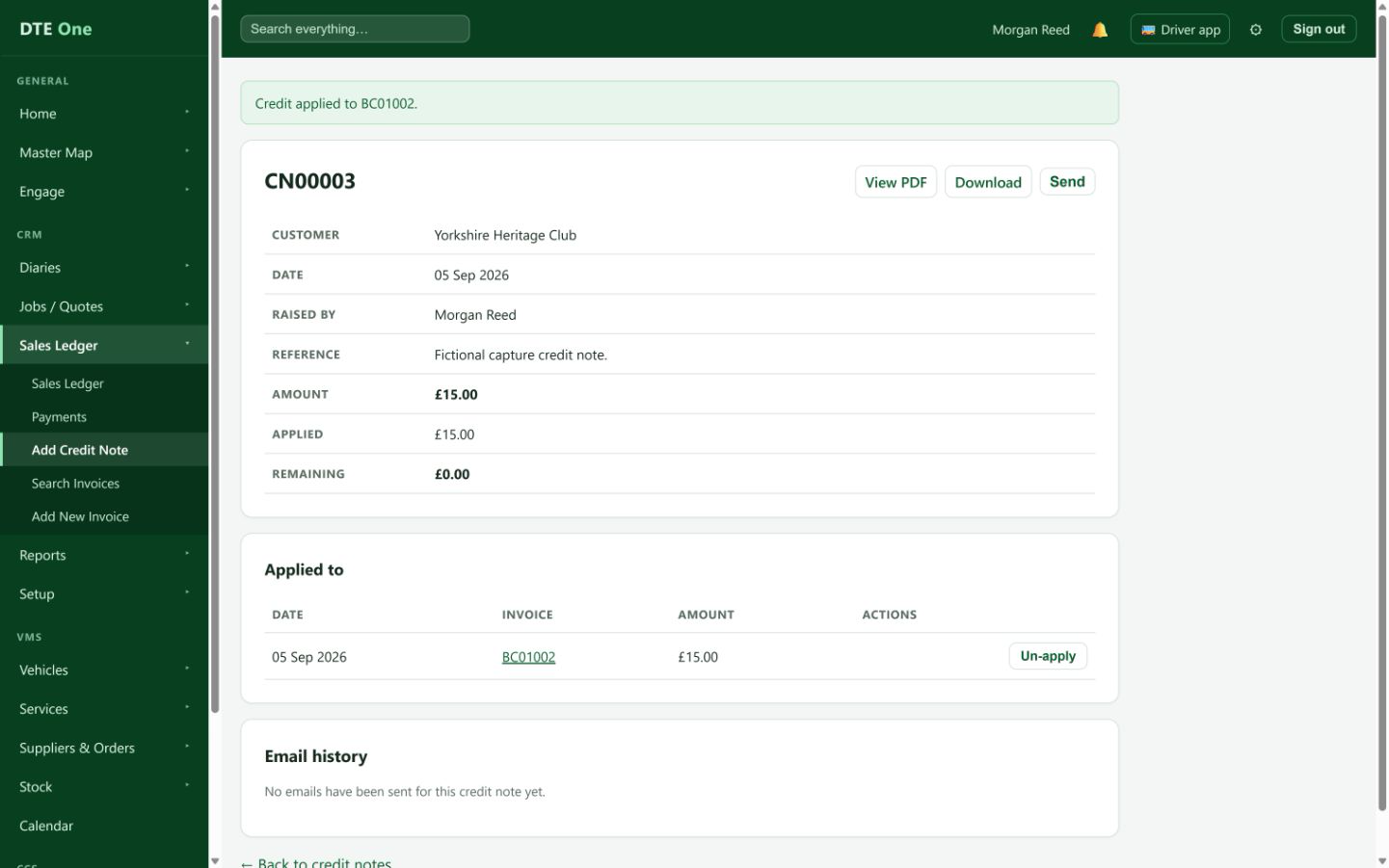
Select Apply credit. DTE records the application against the invoice, lowers the credit note's remaining amount, and updates the invoice to Part paid or Paid as appropriate.
 Open full size
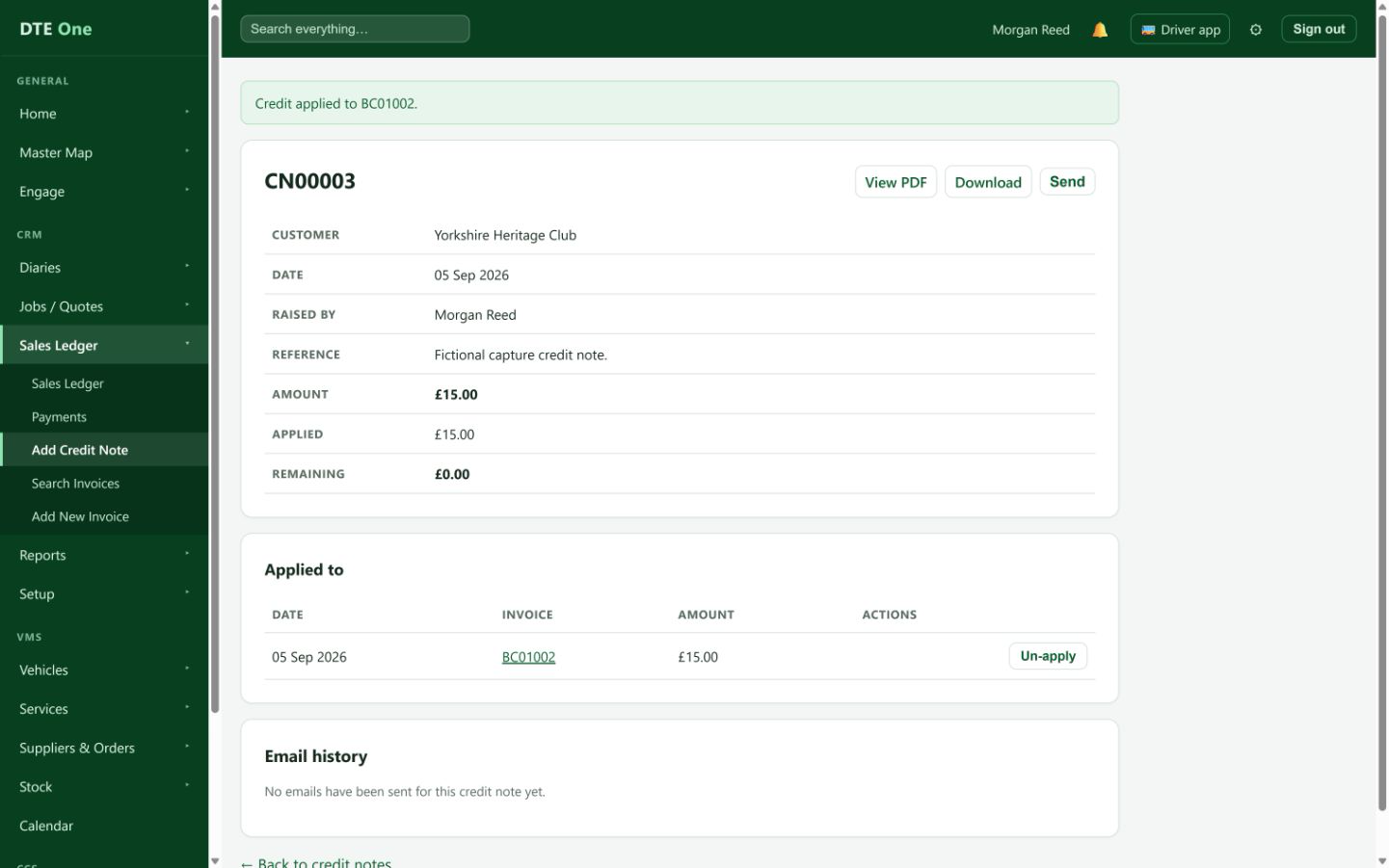
A confirmation appears. The credit note shows the application under Applied to and the invoice shows the reduced outstanding balance.
Check the two records
Open the invoice from the Applied to table and check its status and amount paid. Return to the credit note to check its Remaining balance. If the application was made in error, use Un-apply where it is available to reopen the invoice and restore the credit.
 Open full size
Both the invoice and credit note show matching updated amounts.
Check it worked
- The credit note's Applied and Remaining figures have changed by the applied amount.
- The invoice shows a reduced outstanding balance or a Paid status.
- The application is listed under Applied to on the credit note.
Something not quite right?
Why is there no Apply remaining credit section?
The credit note must have a positive Remaining balance. A fully applied or refunded note has no credit left to use.
Why is the invoice missing from the list?
The invoice must belong to the same customer and be Issued or Part paid with money still outstanding. Draft, void and fully paid invoices are not eligible.
Why was less than the full credit applied?
DTE never applies more than the invoice still needs. The unused amount remains on the credit note for another eligible invoice.
Why cannot I enter this amount?
Enter a positive value no larger than the note's remaining balance. Leave it blank when you want DTE to apply the maximum allowed amount.
Do I need Payments permission to apply a credit note?
No. Applying a credit note is a Sales ledger action. Payments access is required for money-in or money-out actions such as recording a receipt or refunding unused credit.
Is this the same as held customer credit?
No. This applies a credit note. Held credit comes from an unallocated receipt and is applied from an unpaid invoice using Apply held credit.