Issue an invoice
Create a numbered invoice for a customer's bookings or for free-form charges, then send it when the details are ready.
Open CRM → Sales ledger and select Add new invoice. Choose the customer, select any uninvoiced bookings or add free invoice lines, then choose Save draft or Save and send. Save and send issues the invoice and opens its sending panel; check the recipient and use Send to email it.
Before you start
You need Sales ledger access with permission to make changes. You also need customer access if you want to add a customer from the form.
- The customer is active and is not a placeholder record.
- Have the booking references ready, or the description, quantity, price and VAT treatment for a free invoice line.
- Check the customer and invoice details before issuing: an issued invoice becomes a financial record.
Open a new invoice
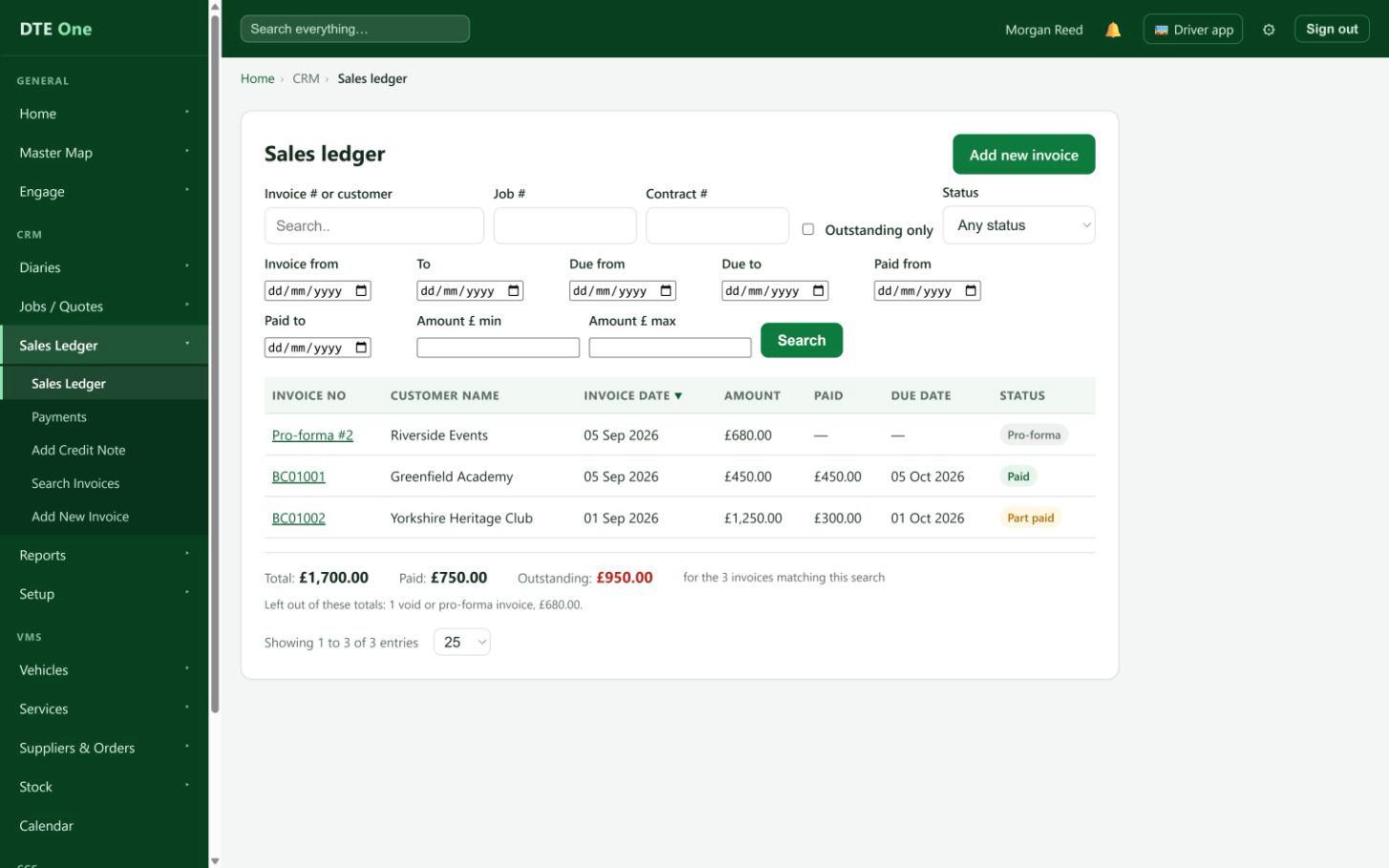
From CRM, open Sales ledger and select Add new invoice. You can also open a customer's record and use Add new invoice to start with that customer selected.
 Open full size
The Create a new invoice page opens with Customer information at the top.
Choose the customer
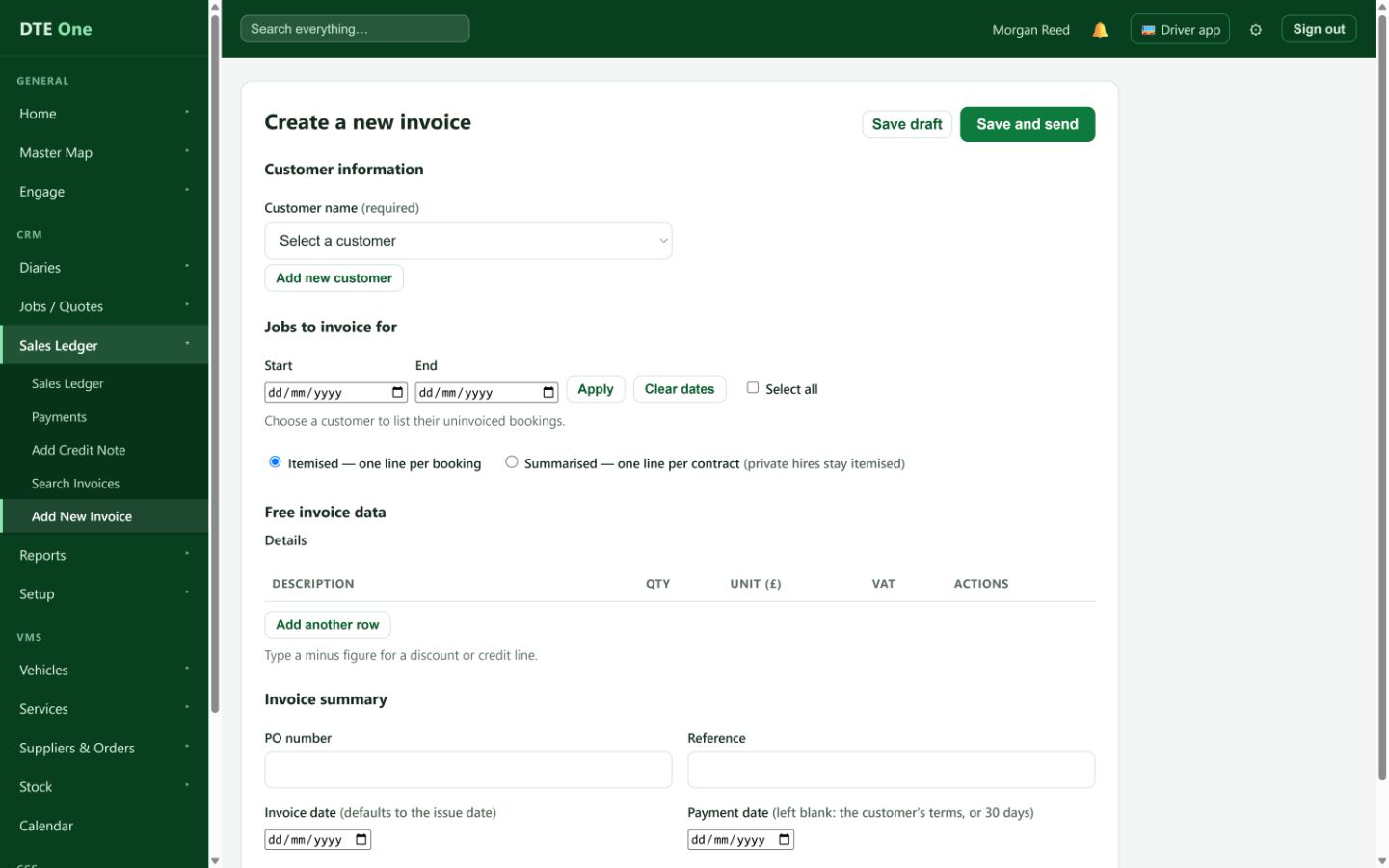
Select the customer name. This is required. If you have permission to manage customers, Add new customer is available below the list.
 Open full size
The customer is selected and the booking area can show that customer's uninvoiced work.
Add the work or free-form lines
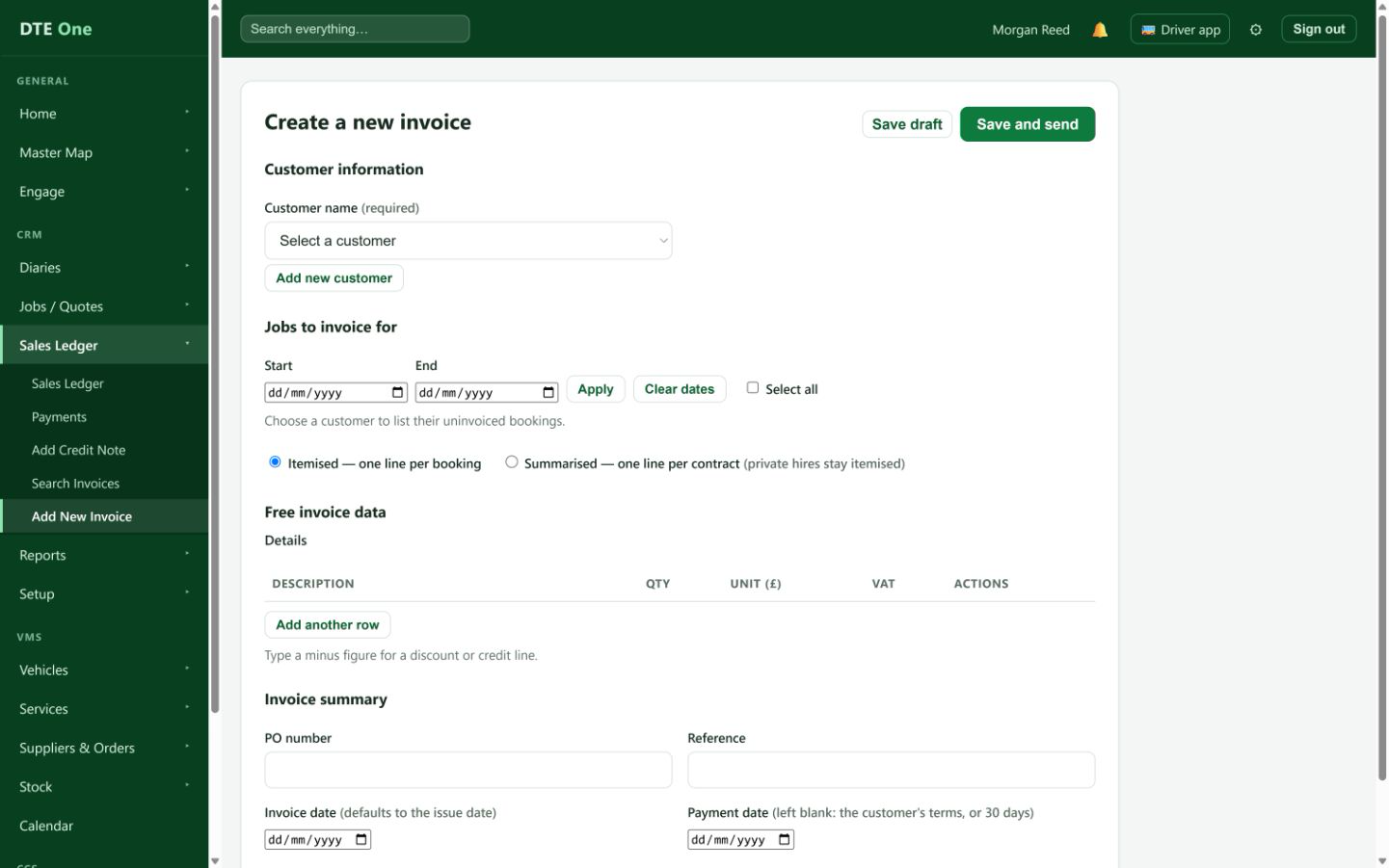
For bookings, use Start and End if useful, select Apply, then tick the work to bill. Choose Itemised for one line per booking or Summarised to group contract work. For a charge without a booking, use Free invoice data, select Add another row, and enter the description, quantity, unit price and VAT treatment. A minus unit price can be used for a discount or credit line, but the whole invoice cannot total below zero.
 Open full size
The chosen bookings or free-form lines make up the invoice amount.
Check the references and dates
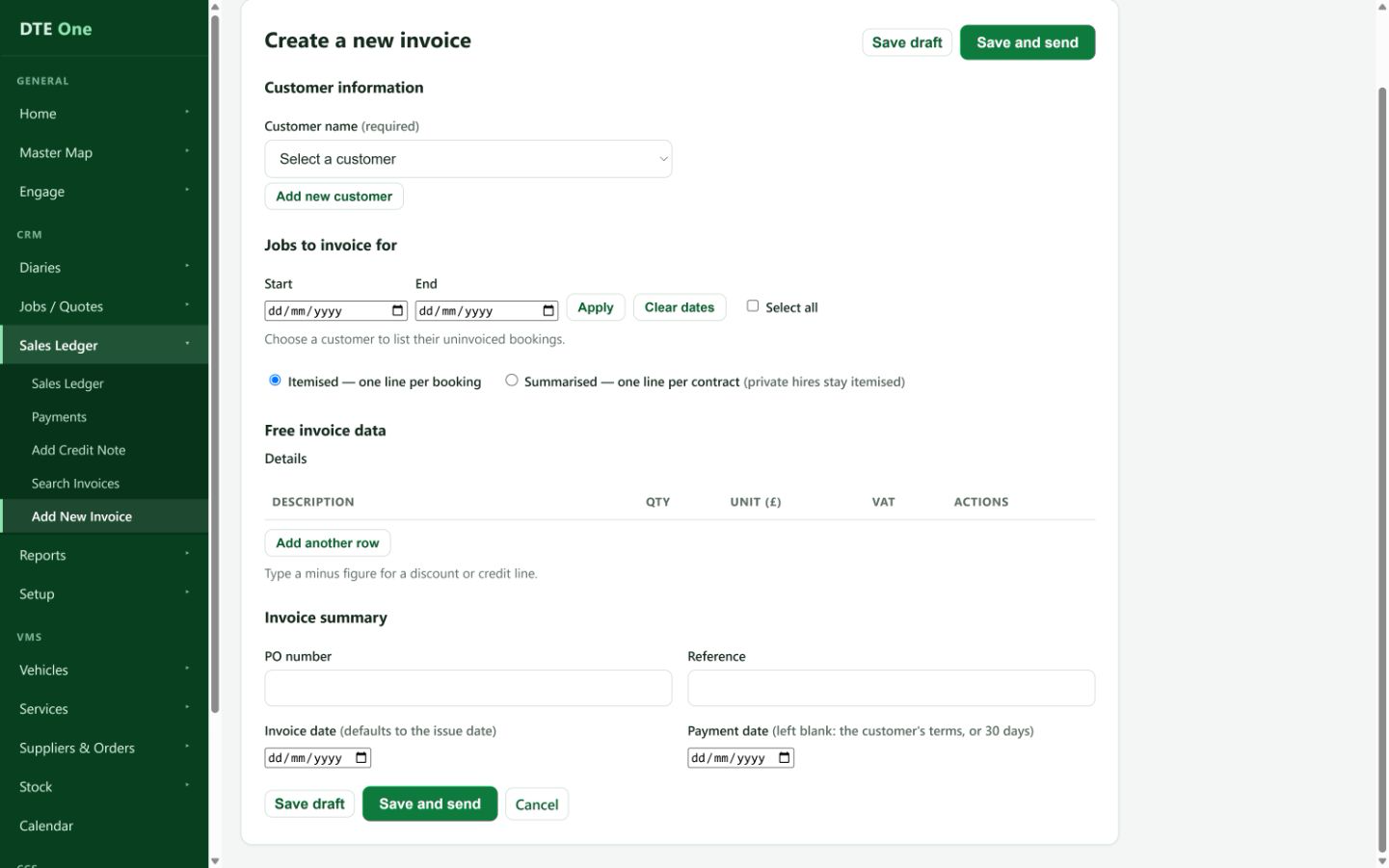
Add a PO number or reference if needed. Leave Invoice date empty to use the date the invoice is issued. Leave Payment date empty to use the customer's payment terms, or the standard 30-day period when no terms are set. Enter a date only when you need a specific one.
 Open full size
The invoice summary shows the intended references and date choices.
Save as a draft or issue it
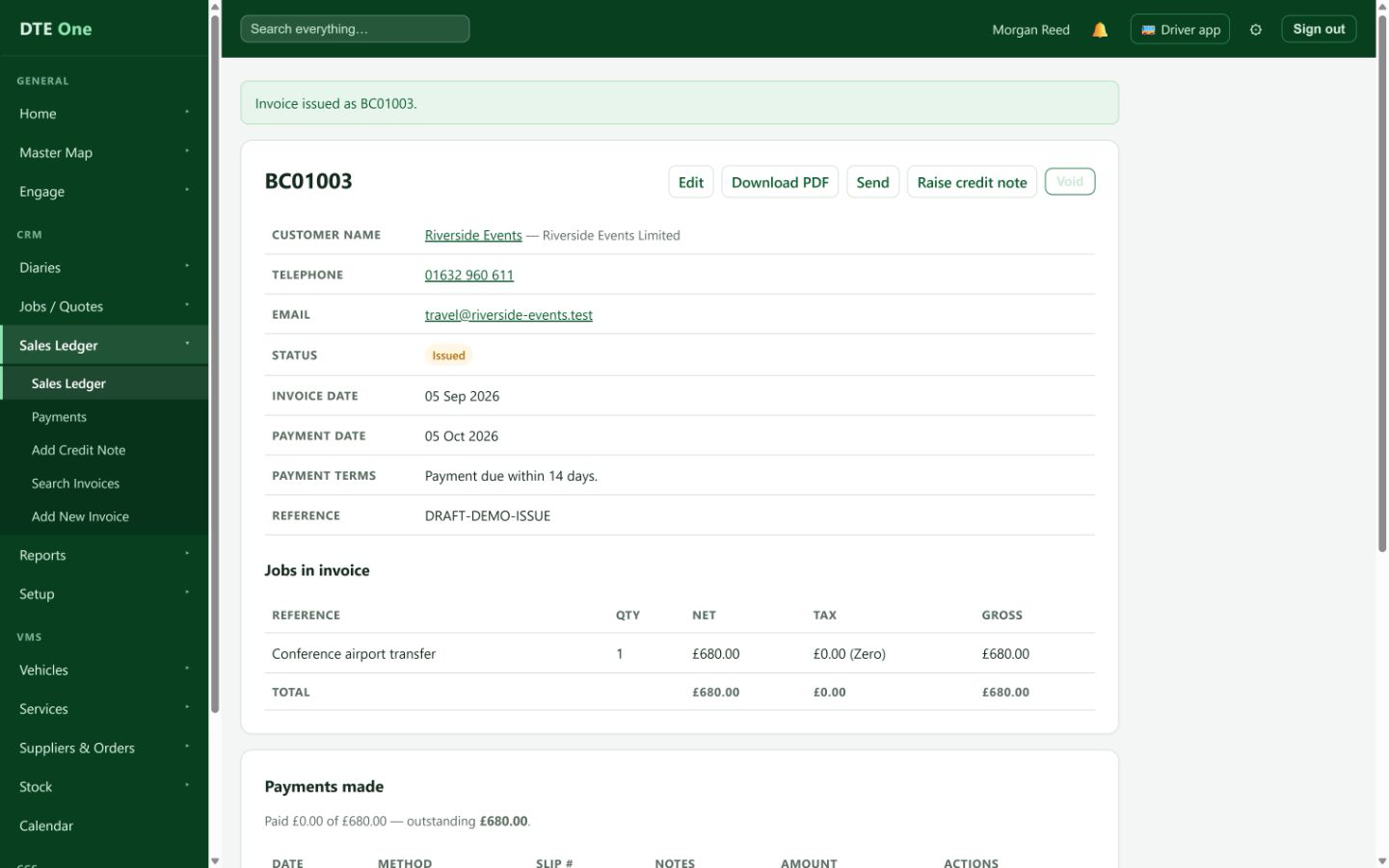
Select Save draft if you need to review it later. Select Save and send to issue the invoice now and open its sending panel. This button does not email the invoice by itself.
 Open full size
A draft appears as Pro-forma. An issued invoice has its invoice number and a sending panel.
Send the invoice
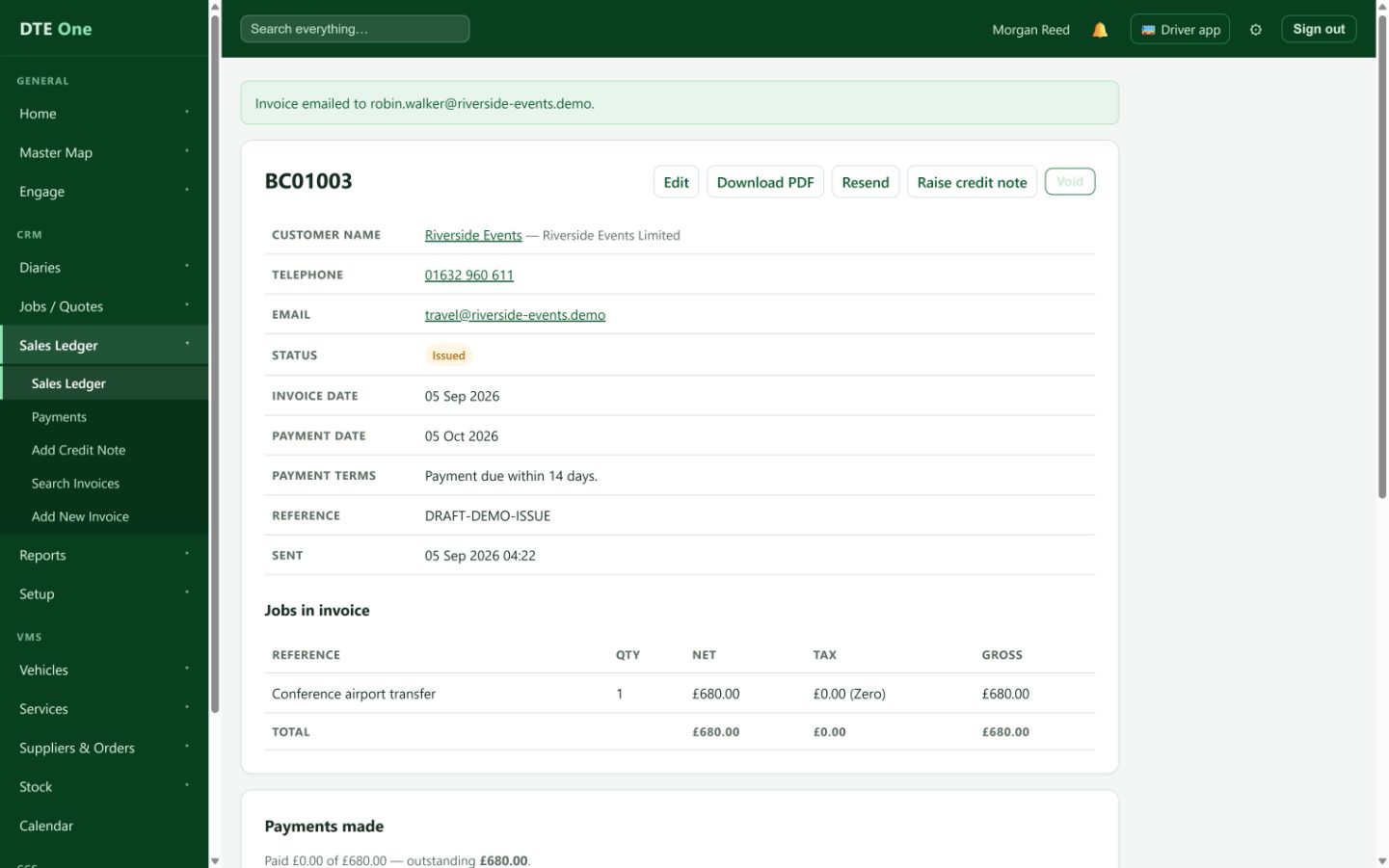
In the sending panel, check or change To, add CC or a covering message if needed, then select Send. The recipient starts from the invoice contact when one has an email; otherwise it uses the billing email or customer email.
 Open full size
A confirmation appears and the email history records the send.
Check it worked
- The invoice has a number and shows Issued, Part paid or Paid rather than Pro-forma.
- The amount, date and payment date are correct on the invoice and PDF.
- If sent, the email history shows the send.
Something not quite right?
Why cannot I select this customer?
New invoices can only be addressed to an active, non-placeholder customer. Restore the customer or correct the customer record first.
Why are there no bookings to select?
Choose the customer first. Then clear or widen the date range, or check whether the booking has already been invoiced.
Why will the invoice not save?
Select at least one booking or add a complete free-form line. Check the customer, quantities, prices and VAT choices. The total invoice cannot be below £0.
Why did the payment date change?
When you leave it blank, DTE works it out when issuing from the customer's terms or the standard 30-day period. Enter a date if you need to set it yourself.
Why cannot I send the invoice?
A void invoice cannot be sent. A binned customer must be restored before a financial document can be emailed; add or correct an email address if no recipient is available.