Issue a credit note
Issue a dated credit note for a customer, then apply it to an unpaid invoice or keep it available as credit.
Open CRM → Sales Ledger → Add Credit Note. Choose the customer, enter a positive credit amount, check the allocated date, add comments explaining the reason, and select Save as credit note. The note is issued immediately; you can send it or apply its remaining value to an eligible invoice afterwards.
Before you start
You need Sales ledger access with permission to make changes. Refunding unused credit also requires Payments access.
- Confirm the active customer, the reason for the credit and the exact amount.
- If the credit relates to an invoice, have that invoice available. Linking the note records its origin; applying it is a separate action.
- Use a positive amount only.
Open a new credit note
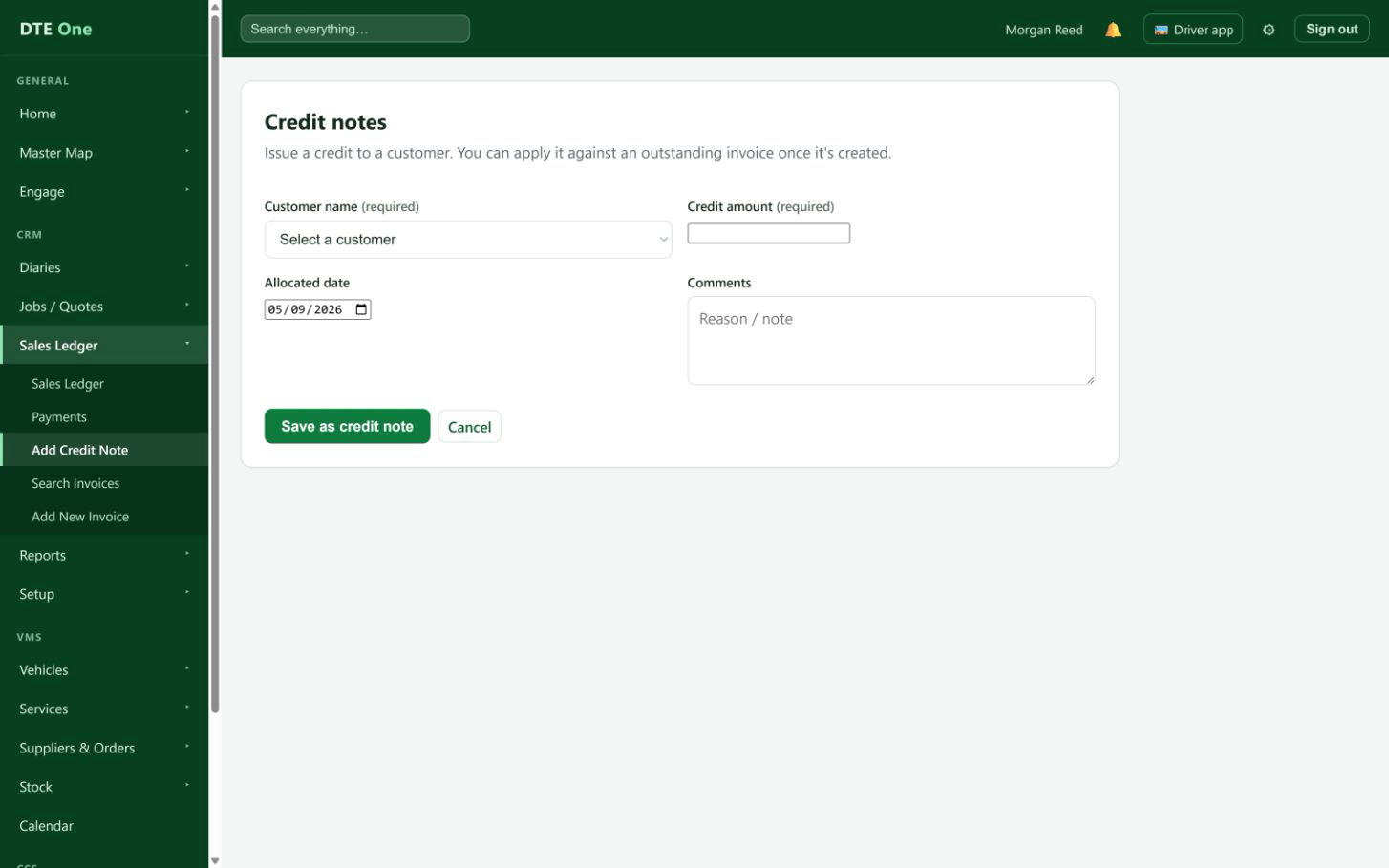
From CRM, open Sales Ledger and select Add Credit Note.
 Open full size
The Credit notes form opens.
Enter the credit details
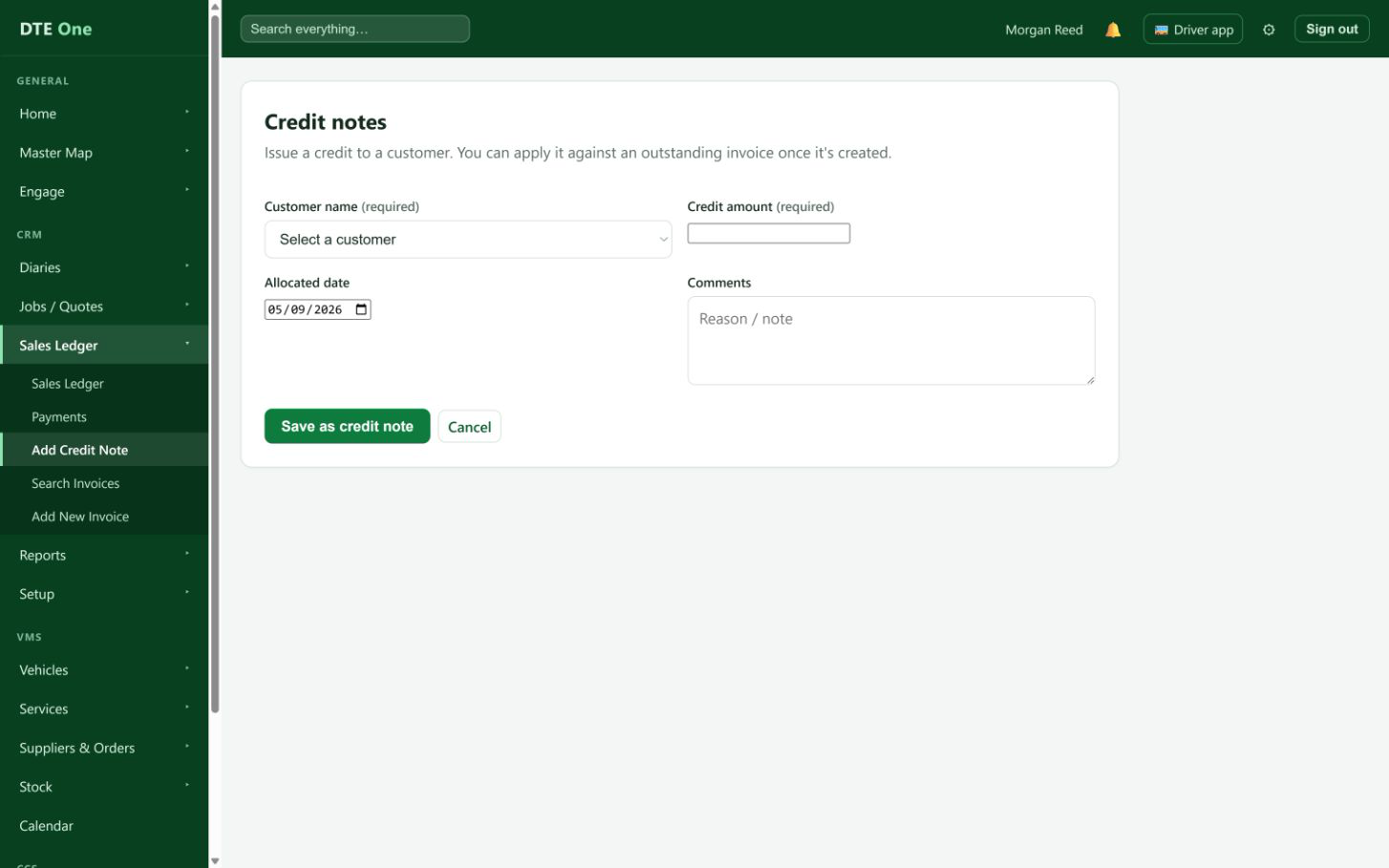
Choose the customer and enter the Credit amount. Check Allocated date, which starts as today. Add clear Comments explaining the reason for the credit.
 Open full size
The customer, positive credit amount, date and comments are ready to save.
Issue the credit note
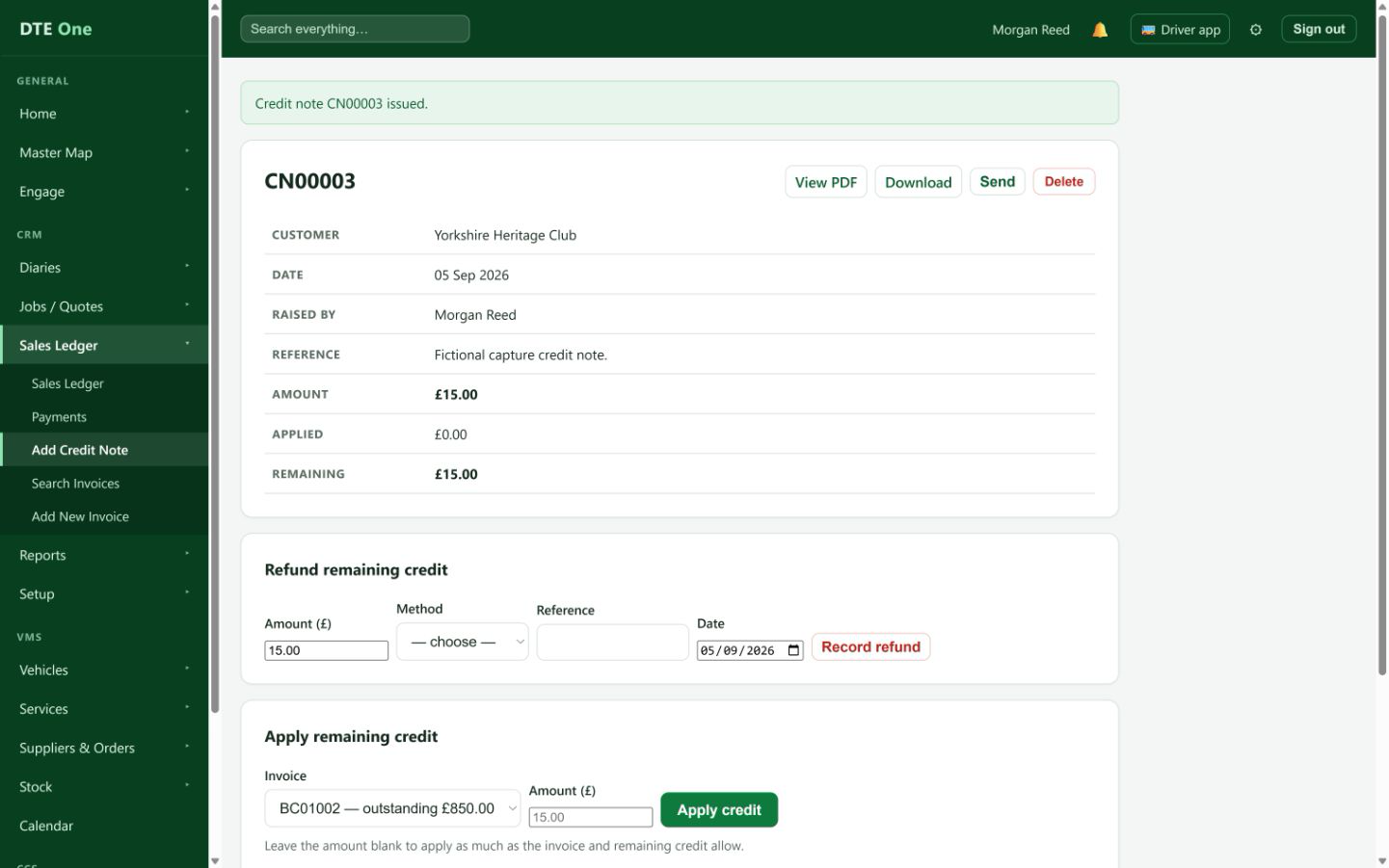
Select Save as credit note. This creates and issues the credit note straight away; it is not a draft.
 Open full size
The new credit note opens with its number, amount and Remaining balance.
Send or keep the credit note
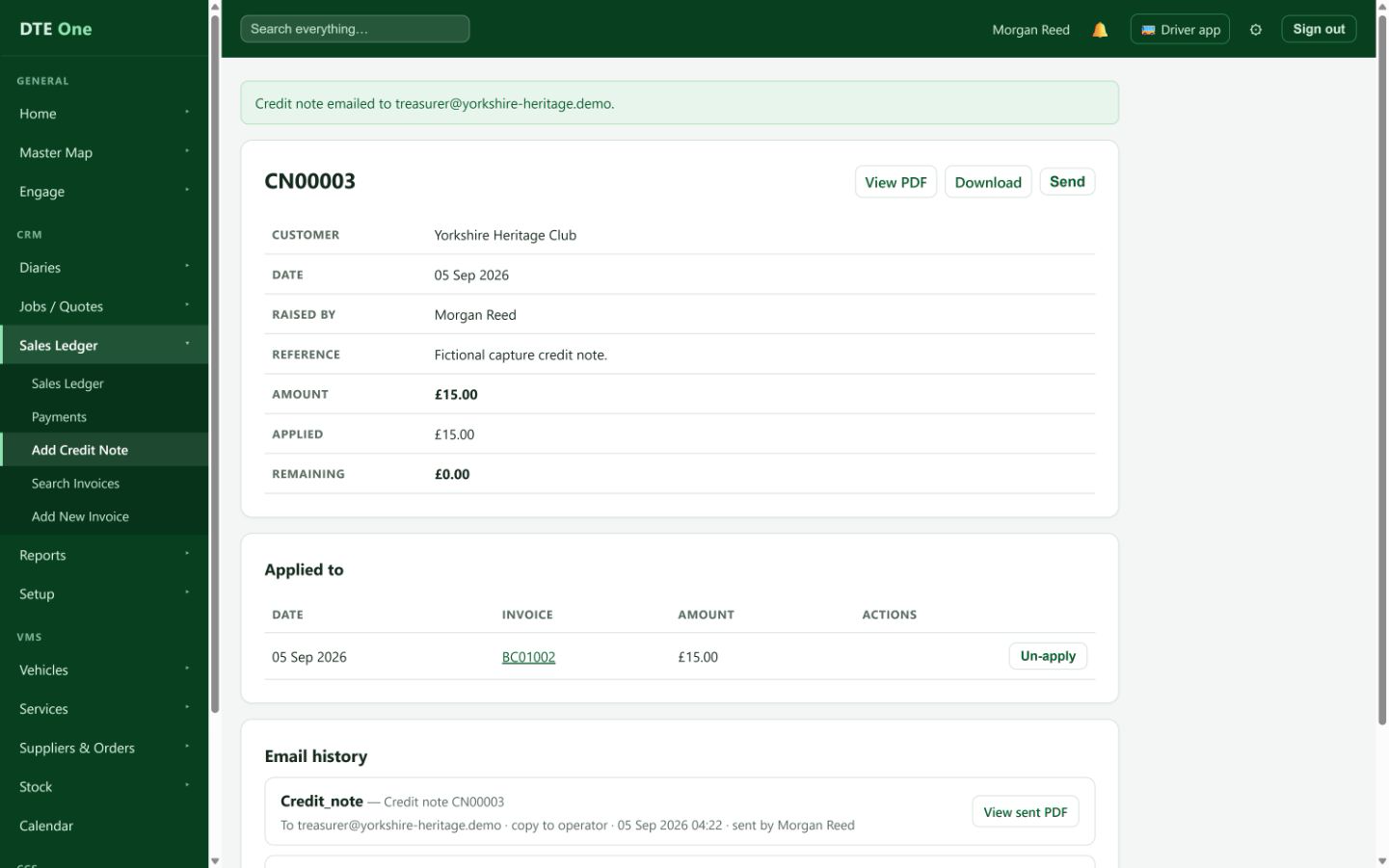
Select Send if the customer needs a copy, or use View PDF or Download to check it first. A binned customer must be restored before the credit note can be emailed.
 Open full size
A send confirmation and email history appear after sending, or the PDF opens for review.
Apply or retain the remaining credit
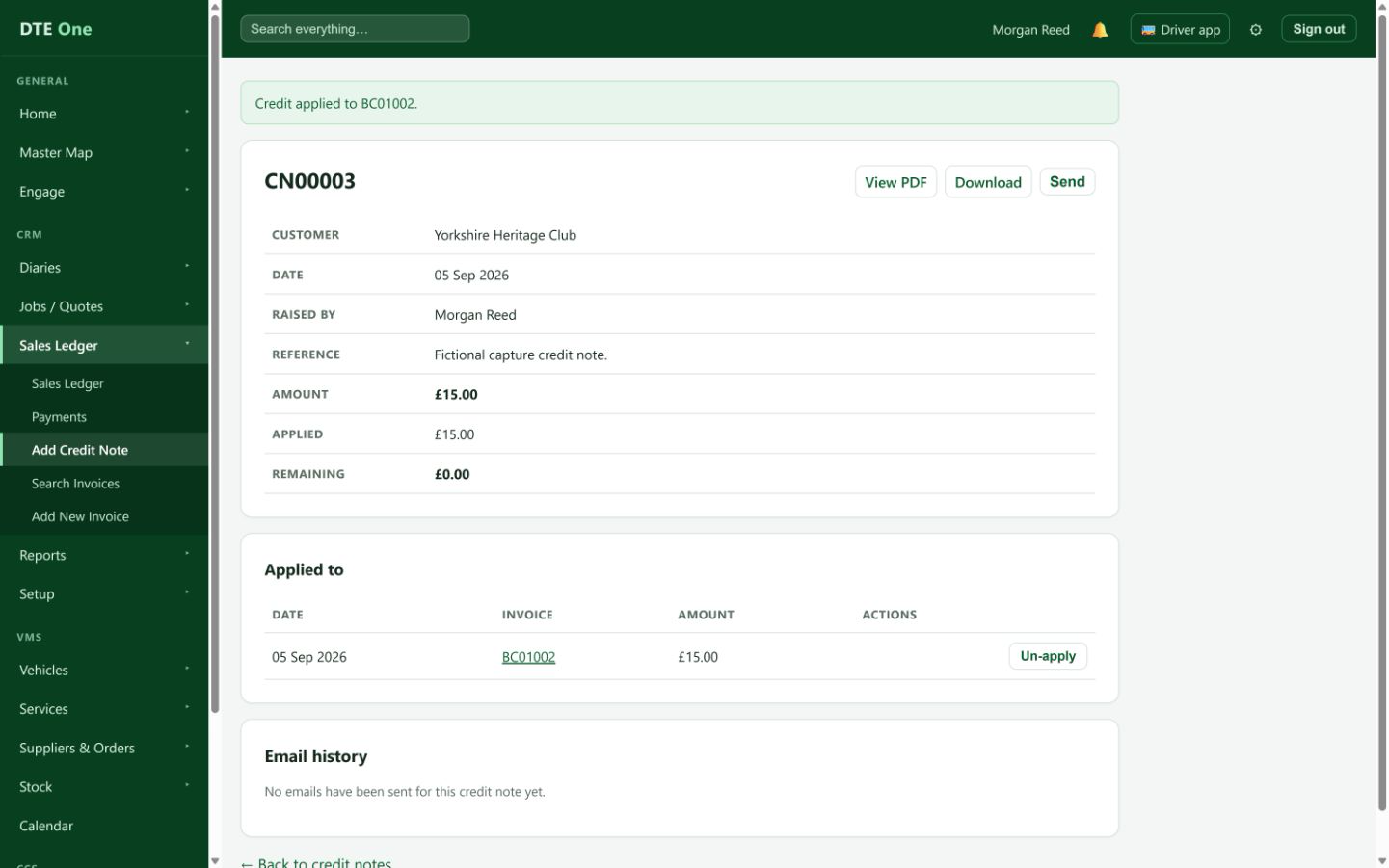
Use Apply remaining credit to select one of the same customer's outstanding invoices. Leave Amount blank to apply as much as possible, or enter a smaller amount. If there is no suitable unpaid invoice, leave the credit on the note until there is one.
 Open full size
The note shows its applied and remaining amounts, and the invoice balance falls by the amount applied.
Check it worked
- The credit note has a number, customer, date, amount and remaining balance.
- The reason is recorded in the credit note comments.
- If applied, the target invoice shows a lower outstanding balance and the credit note shows the application.
Something not quite right?
Why cannot I save the credit note?
Choose an active customer and enter a positive amount. Check that the amount is not zero and the date is valid.
Why cannot I choose a customer?
The customer must be active. Binned customers and placeholder records cannot be used for a new credit note.
Why does the note still show a Remaining amount?
Creating a credit note and applying it are separate actions. Use Apply remaining credit when there is an eligible unpaid invoice for the same customer.
Why is the invoice missing from Apply remaining credit?
Only the same customer's issued or part-paid invoices with money outstanding can be selected. A draft, void or fully paid invoice is not eligible.
Why cannot I email the credit note?
Restore a binned customer before sending the document. If the customer is active, check that an email recipient is available.
Should I use Record refund instead?
Use a credit note when you are reducing what the customer owes. Record refund is for money leaving the business and requires the appropriate Payments permission.