Record a receipt
Record money received from a customer, allocate it across invoices, and keep any excess as customer credit.
Open Receive money, choose the customer, enter the banked amount and date, then allocate it to open invoices. Use Distribute oldest-first from amount to fill the available invoices automatically, or enter individual amounts. DTE holds any unallocated remainder as customer credit.
Before you start
You need Payments access with permission to make changes. You need Sales ledger access as well to record a receipt directly from an invoice.
- Confirm the customer, banked amount, received date and payment method.
- Use an active, non-placeholder customer.
- Know how much of the receipt should settle each invoice, if it covers more than one.
Open Receive money
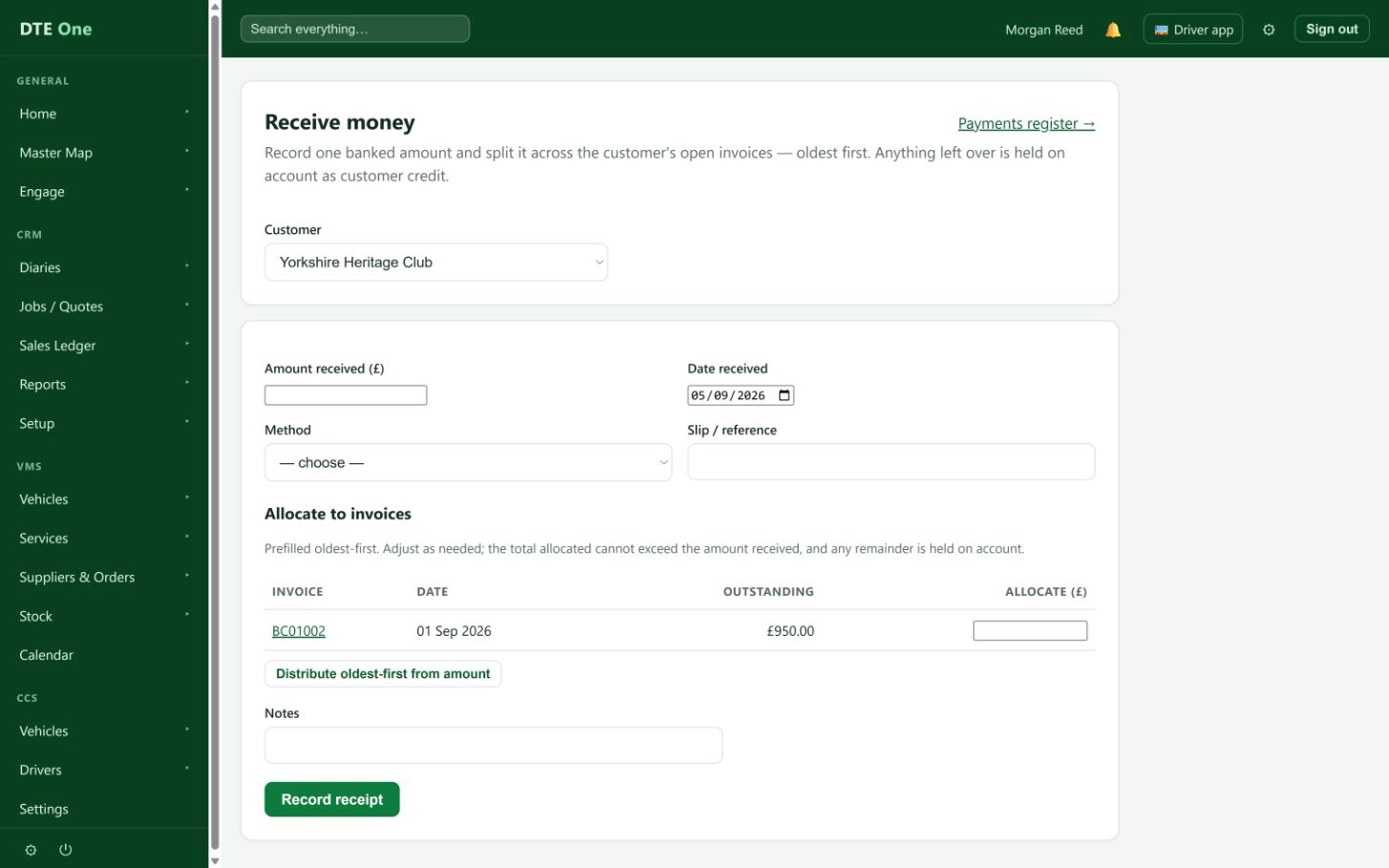
Open Receive money. This records one real banked amount for a customer and can split it across their open invoices.
 Open full size
The Receive money page shows a Customer list.
Choose the customer
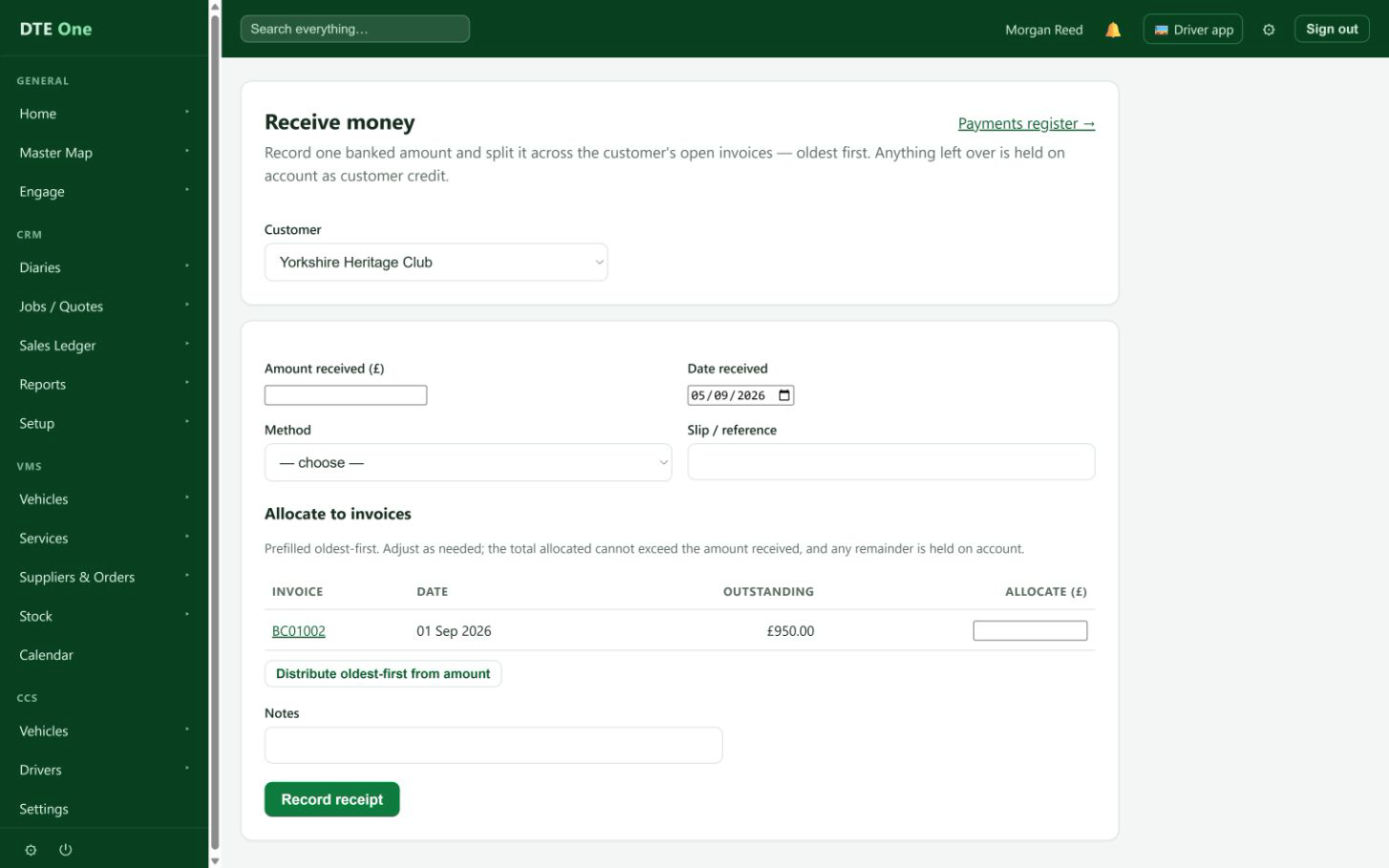
Select the customer. The page refreshes to show their open invoices and any credit already held on account.
 Open full size
The receipt form and the Allocate to invoices section appear.
Enter the receipt details
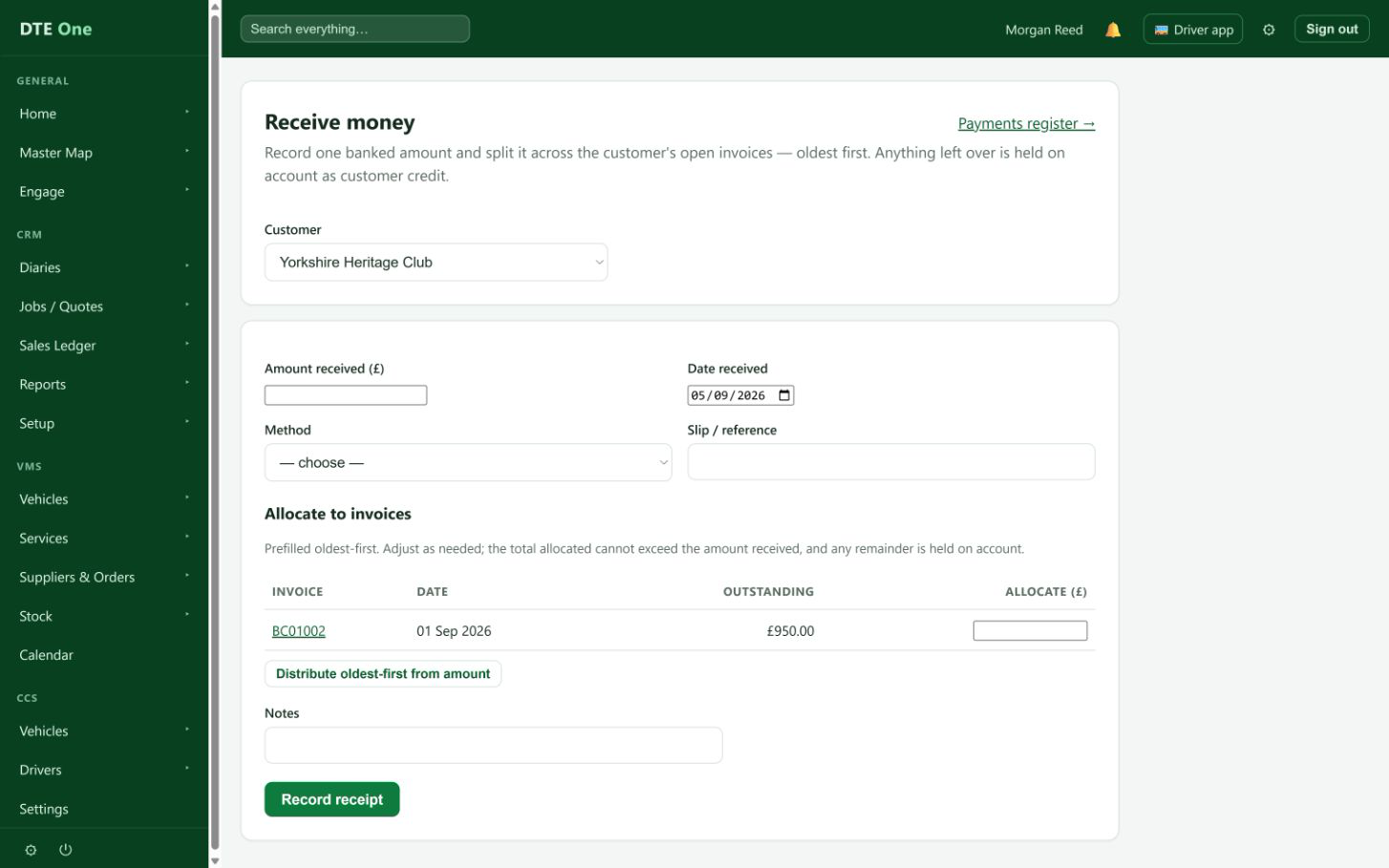
Enter Amount received. Check Date received, which starts as today, then choose a Method and add a Slip / reference. Add Notes if they will help identify the payment later.
 Open full size
The receipt details show the actual banked amount and payment information.
Allocate the amount
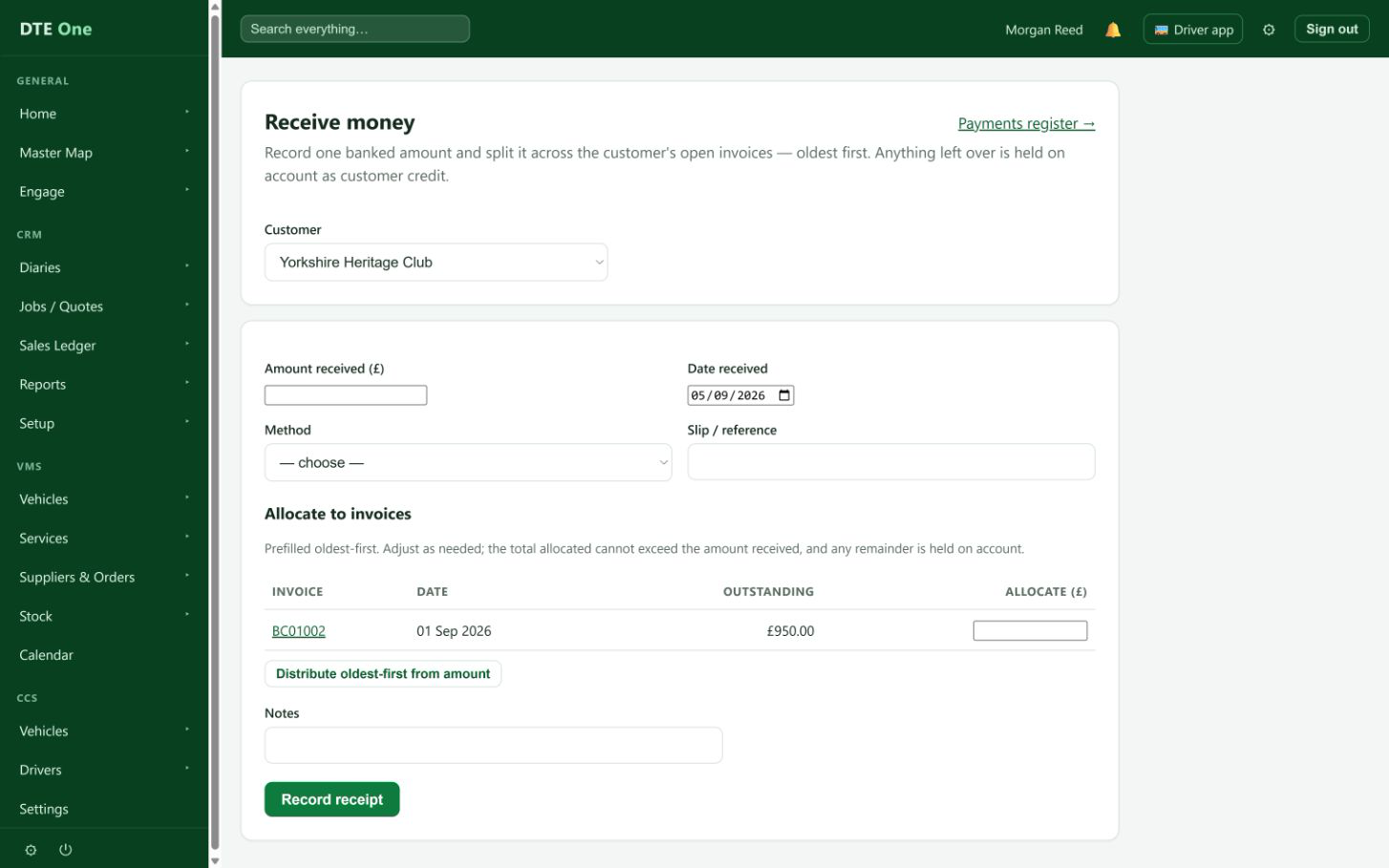
Enter the amount to allocate against each open invoice. Select Distribute oldest-first from amount to fill the invoices from the oldest one onwards, then adjust any amount that should be handled differently. The total allocated cannot exceed the amount received.
 Open full size
Each selected invoice has its intended Allocate amount.
Record the receipt
Select Record receipt once the total and allocations are correct. Any part of the receipt you leave unallocated is retained as customer credit rather than being lost.
 Open full size
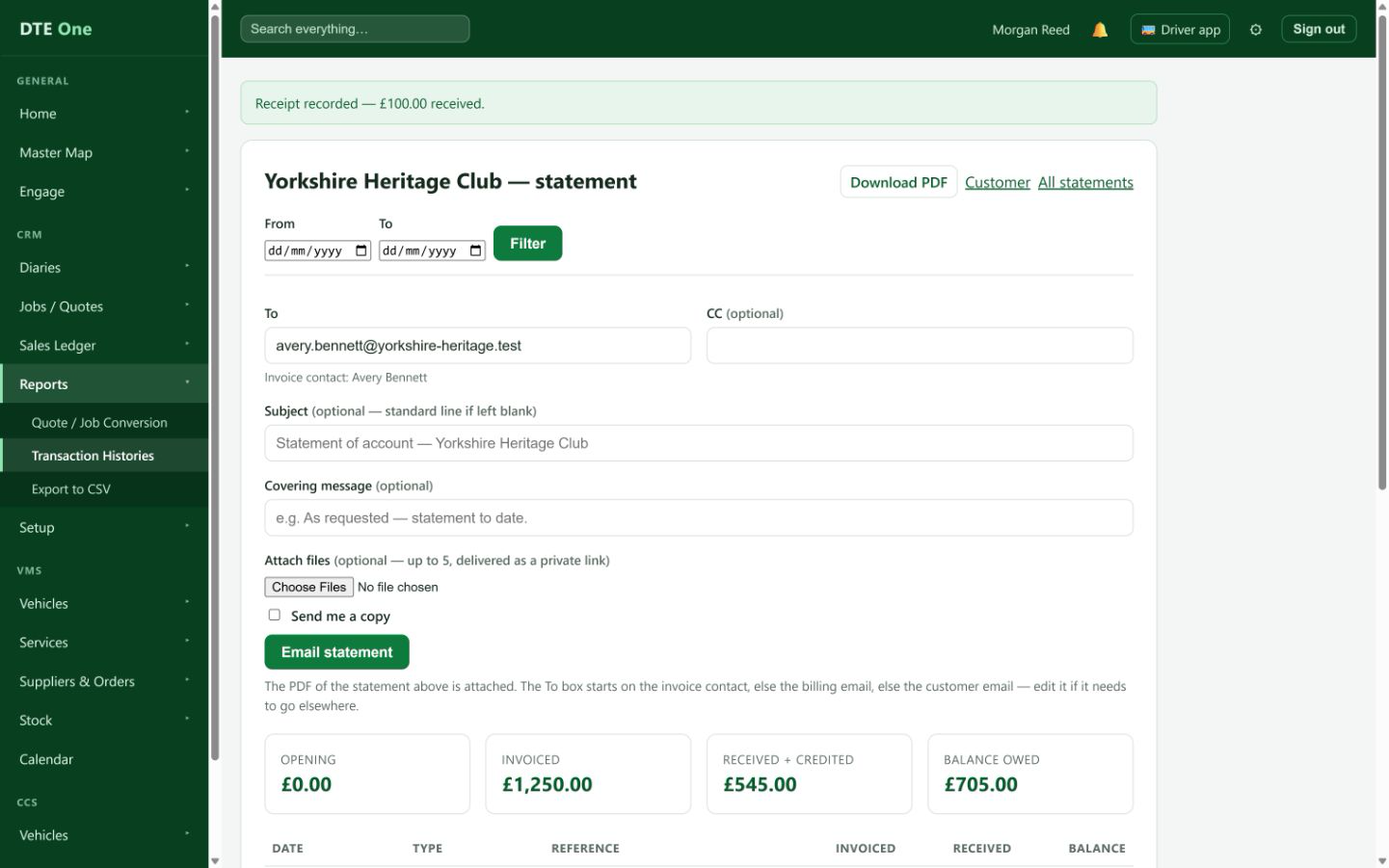
A receipt confirmation appears. If there is credit left, the confirmation says how much is held on account.
Check the result
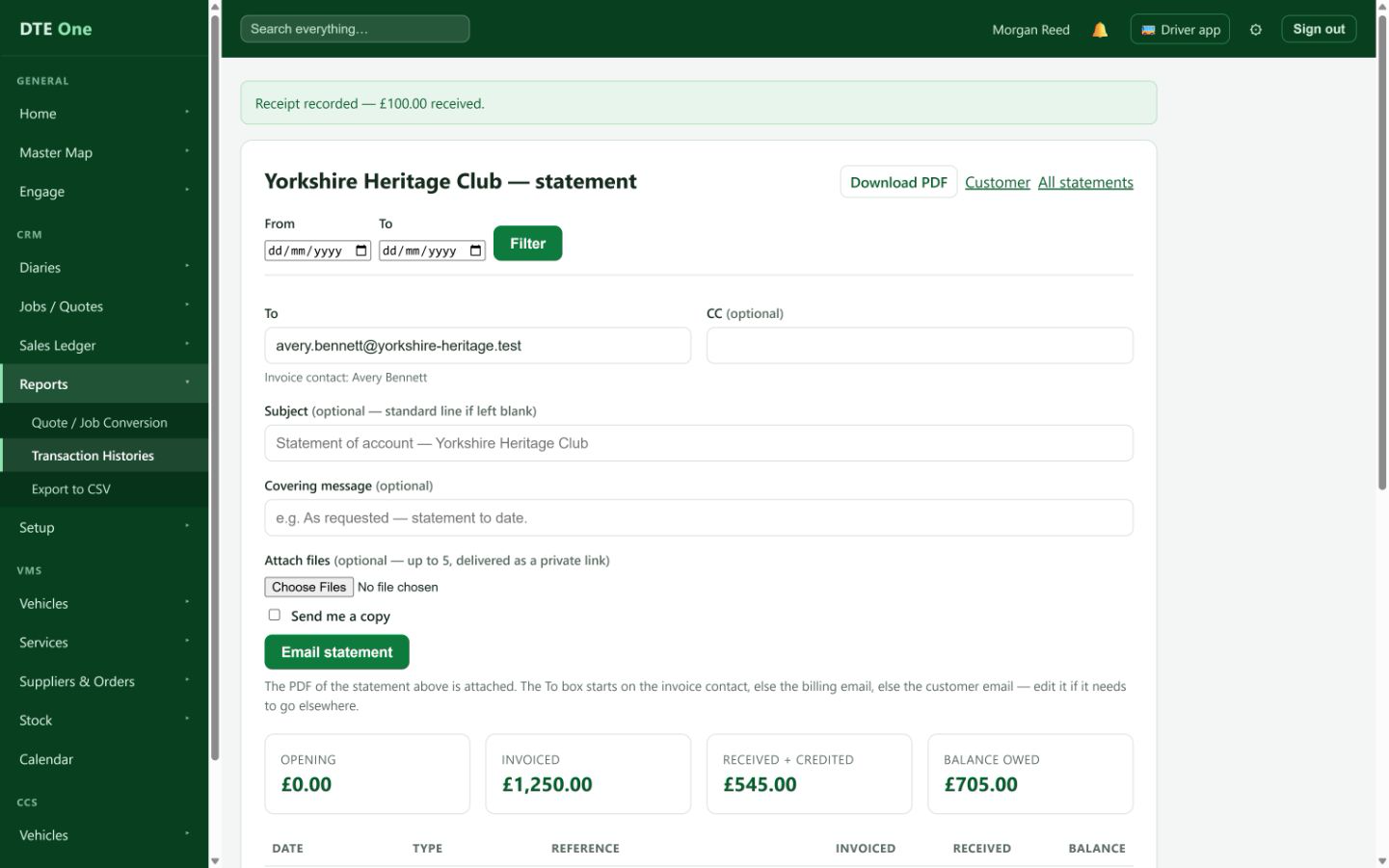
Open the Payments register to find the receipt. If you also have Sales ledger access, the customer statement shows the updated balances and the receipt allocations.
 Open full size
The receipt is visible and the settled invoices show the updated amount paid.
Check it worked
- The Payments register contains one receipt for the banked amount.
- The chosen invoices show the updated paid or outstanding amount.
- Any remainder is shown as customer credit held on account.
Something not quite right?
Why is the customer not in the list?
Only active, non-placeholder customers can receive a new banked receipt. Restore the correct customer or resolve the customer record first.
Why cannot I allocate more than the amount received?
A receipt can only allocate money that was actually received. Reduce one or more invoice allocations, then record another receipt when the rest arrives.
What happens if I leave an amount unallocated?
DTE holds it as customer credit. You can later apply the held credit to one of that customer's unpaid invoices.
There are no open invoices. Can I still record the money?
Yes. Record the receipt and the whole amount is held on account as customer credit.
I can see the customer but not the invoice link. Is the receipt missing?
The receipt can still be recorded. Invoice links require Sales ledger access; the Payments register remains available with Payments access.