Add a vehicle
Add a coach to your fleet with its registration, capacity, status and useful operating details.
Open Fleet → Vehicles and select Add vehicle. Enter the registration and fleet number, choose a vehicle type and depot if used, then add the make, model, seats, fuel and status. Save the vehicle. Registration must be unique in your active fleet; sold and scrapped vehicles remain in records but are removed from pickers.
Before you start
You need Fleet access with permission to make changes.
- Have the vehicle registration and the fleet number your business uses.
- Know the vehicle type, seat count and current operational status.
- Have its dates, fuel type and starting odometer available where appropriate.
Open the vehicle form
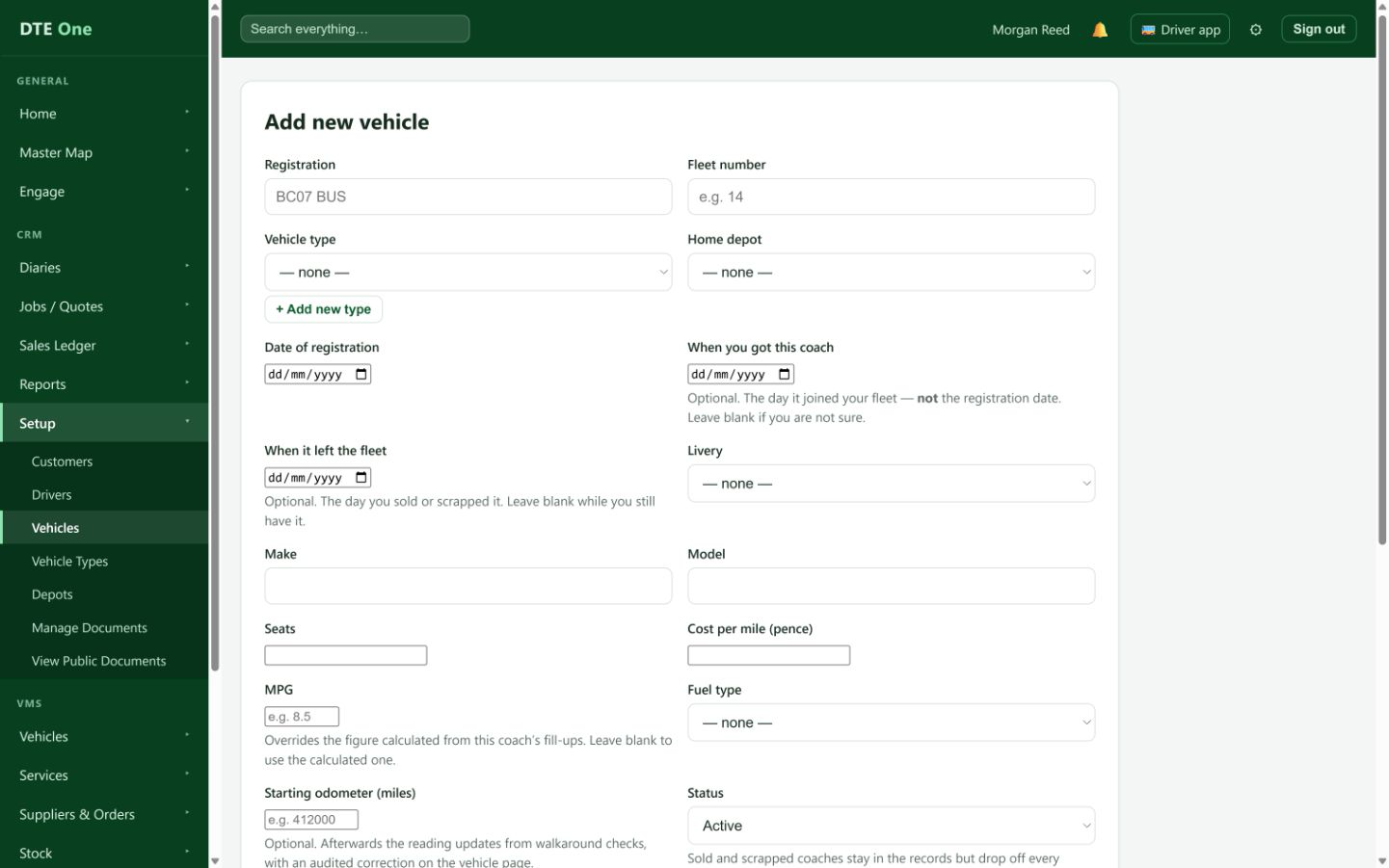
Open Fleet → Vehicles and select Add vehicle.
 Open full size
The Add vehicle page opens.
Identify the vehicle
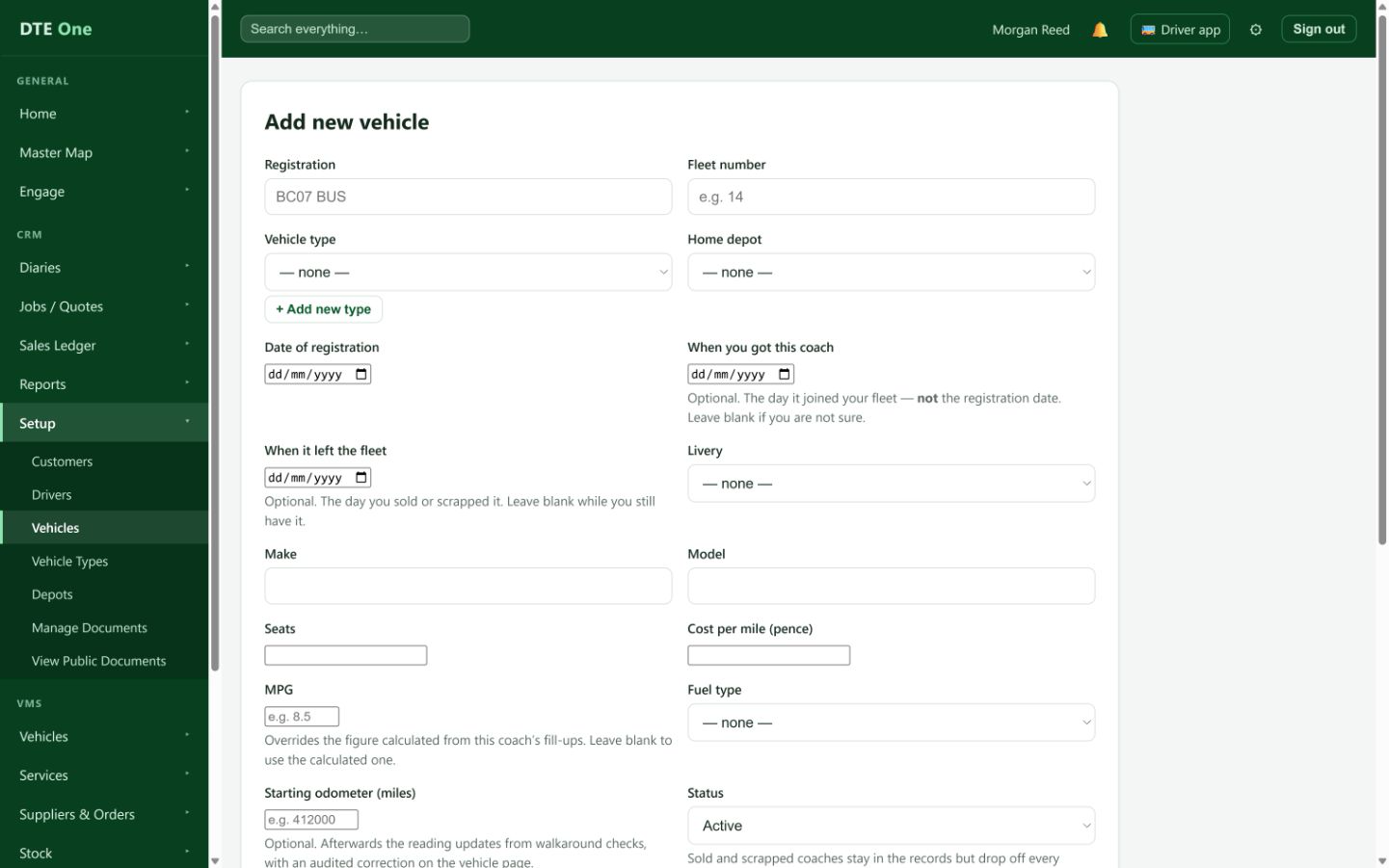
Enter the Registration and optional Fleet number. Choose the Vehicle type and Home depot if you use them. You can add a new vehicle type from this page when you have fleet management permission.
 Open full size
The vehicle has its correct identity and grouping.
Add operating details
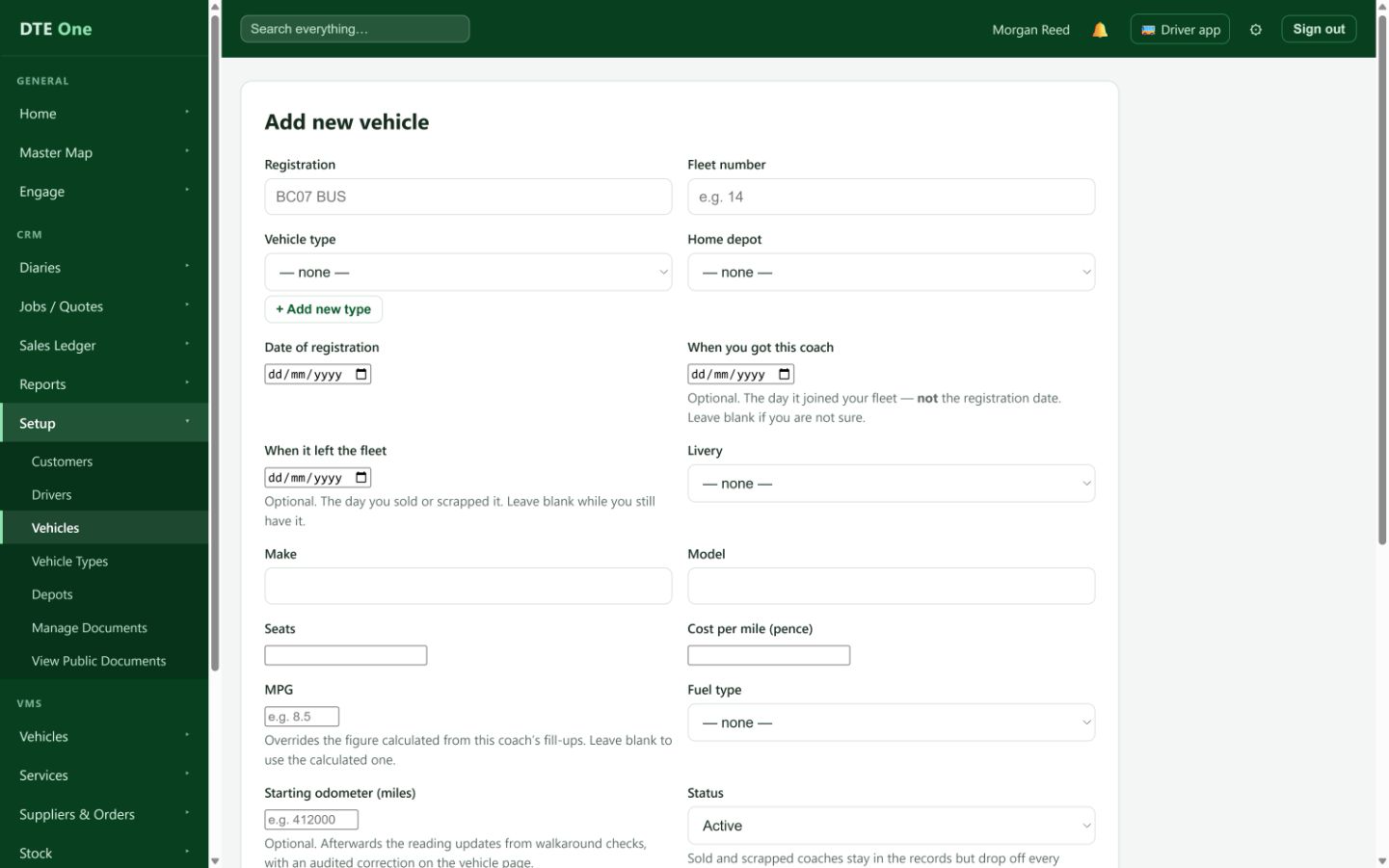
Enter the make, model and Seats, then select fuel type and status. Add a starting odometer if known. Use Date of registration for the DVLA first-registration date; When you got this coach and When it left the fleet describe your own ownership period.
 Open full size
The key operating and availability details are complete.
Add useful optional details
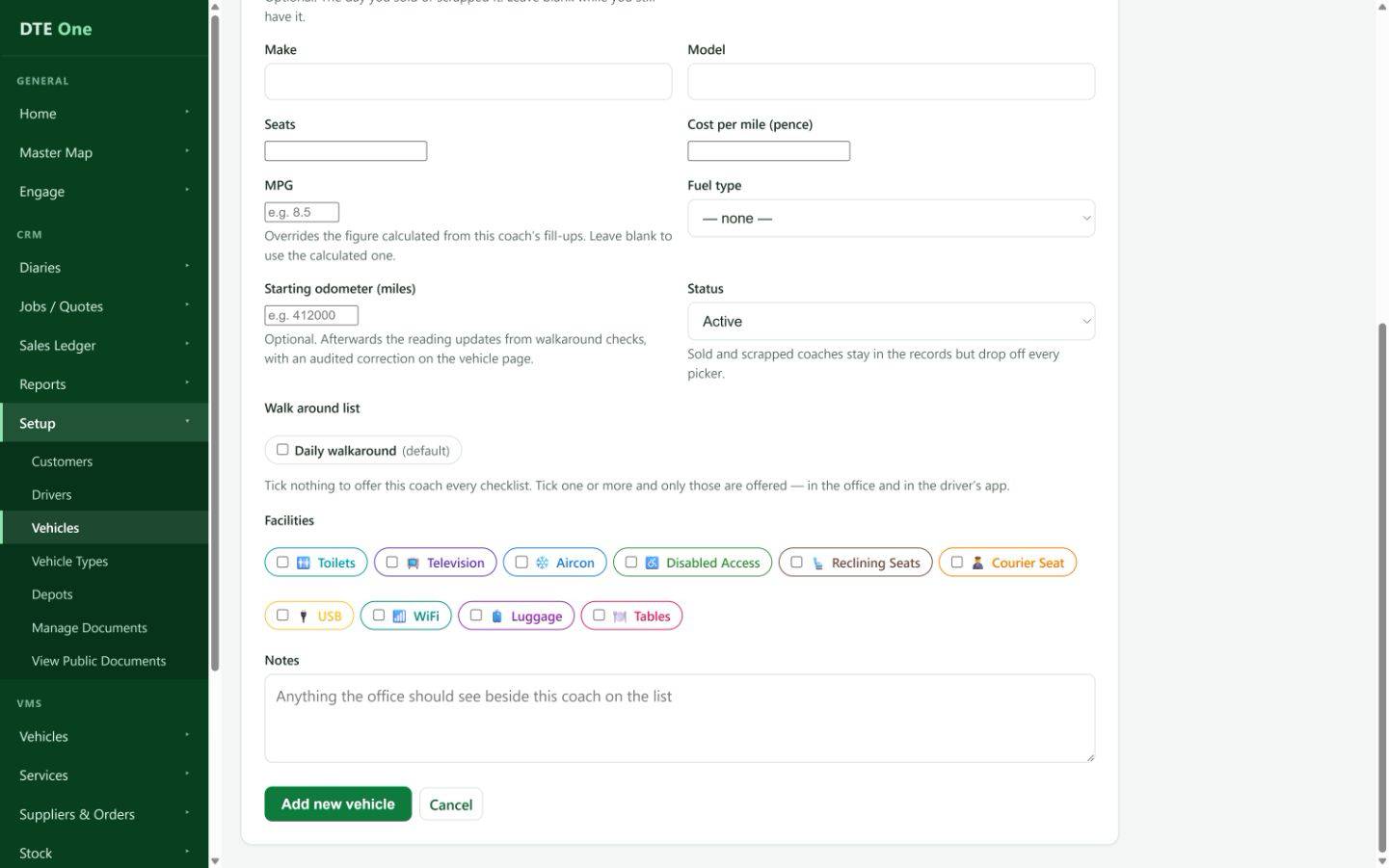
Set livery, cost per mile, MPG and facilities where they are known. Select walkaround checklists only when this coach should offer a restricted set; with none selected, every checklist is offered. Add notes useful to the office.
 Open full size
Optional details match the coach without inventing unknown information.
Save the vehicle
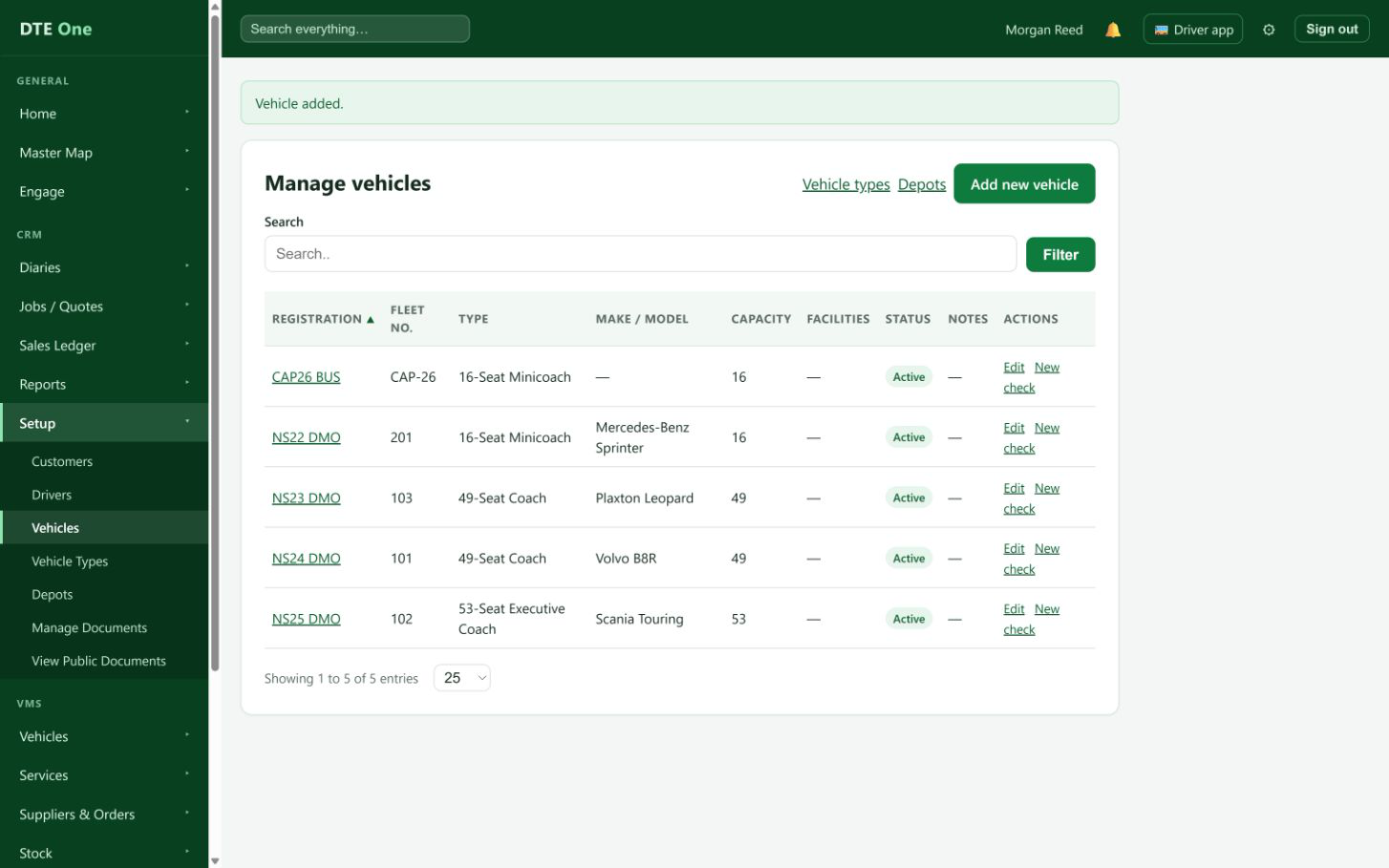
Select Add vehicle. Check the vehicle appears in the list and is available in fleet and allocation pickers when its status is operational.
 Open full size
A confirmation appears and the new vehicle is listed.
Check it worked
- The vehicle is in Fleet → Vehicles with the correct registration and status.
- Its seat count and type are available for allocation.
- Its availability dates and optional operational details are recorded where known.
Something not quite right?
Why will the registration not save?
A registration must be unique within your active fleet. Check for an existing vehicle with the same plate.
What is the difference between registration date and when you got this coach?
Registration date is the vehicle’s DVLA first-registration date. When you got this coach is when it joined your fleet.
Why cannot I select a sold or scrapped vehicle later?
Sold and scrapped vehicles remain in the records but are removed from pickers.
Should I select every walkaround list?
Leave them all unticked to offer every checklist. Tick specific lists only when this coach should use those lists alone.